Deployment Configuration
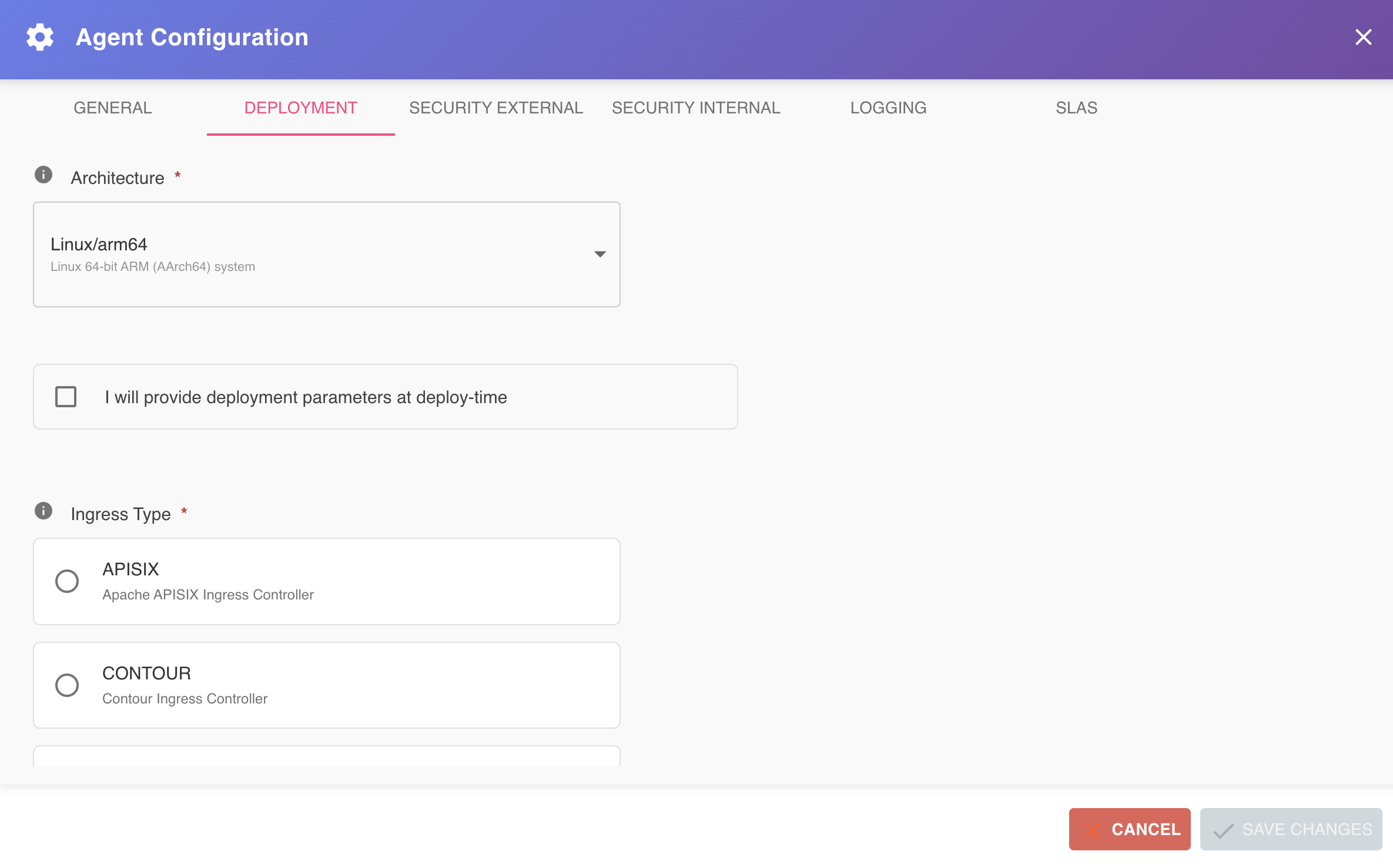
The Deployment tab of the Agent Configuration dialog allows you to specify the target execution environment where the agent will be deployed. BizMetry uses this information to generate a fully configured installer that can deploy the agent autonomously within a Kubernetes cluster — whether on-premises or in the cloud.
To access the Deployment tab, open the Agent Configuration dialog and select Deployment from the tab bar.
Changes on this tab require a reinstall
The Deployment settings shape the installer BizMetry generates. After saving a change, the agent shows the Redeploy Required indicator: download a fresh installer and reinstall the agent for the change to take effect. See Breaking vs Non-Breaking Changes.
Ingress Type is configured on the Security Internal tab
Selecting the ingress controller is only relevant when the agent runs in a different cluster than your applications, so it is part of the Security Internal tab, next to the deployment topology choice.
Deployment Parameters at a Glance
The tab presents the following configuration fields, which together define the deployment target specification:
| Parameter | Description |
|---|---|
| Architecture | The OS and CPU architecture of the target environment. |
| Deploy-time parameters | Whether registry credentials will be provided now or at install time. |
| Registry URL | The HTTPS URL of the container image registry. |
| Project Name | The project within the registry where the agent image will be pushed. |
| User Name | The registry user account used to push the agent image. |
| Password | The credentials for the registry user account. |
Architecture
Defines the operating system and CPU architecture of the host environment where the agent will be deployed. BizMetry uses this selection to produce an agent binary and container image that is compatible with the target runtime.
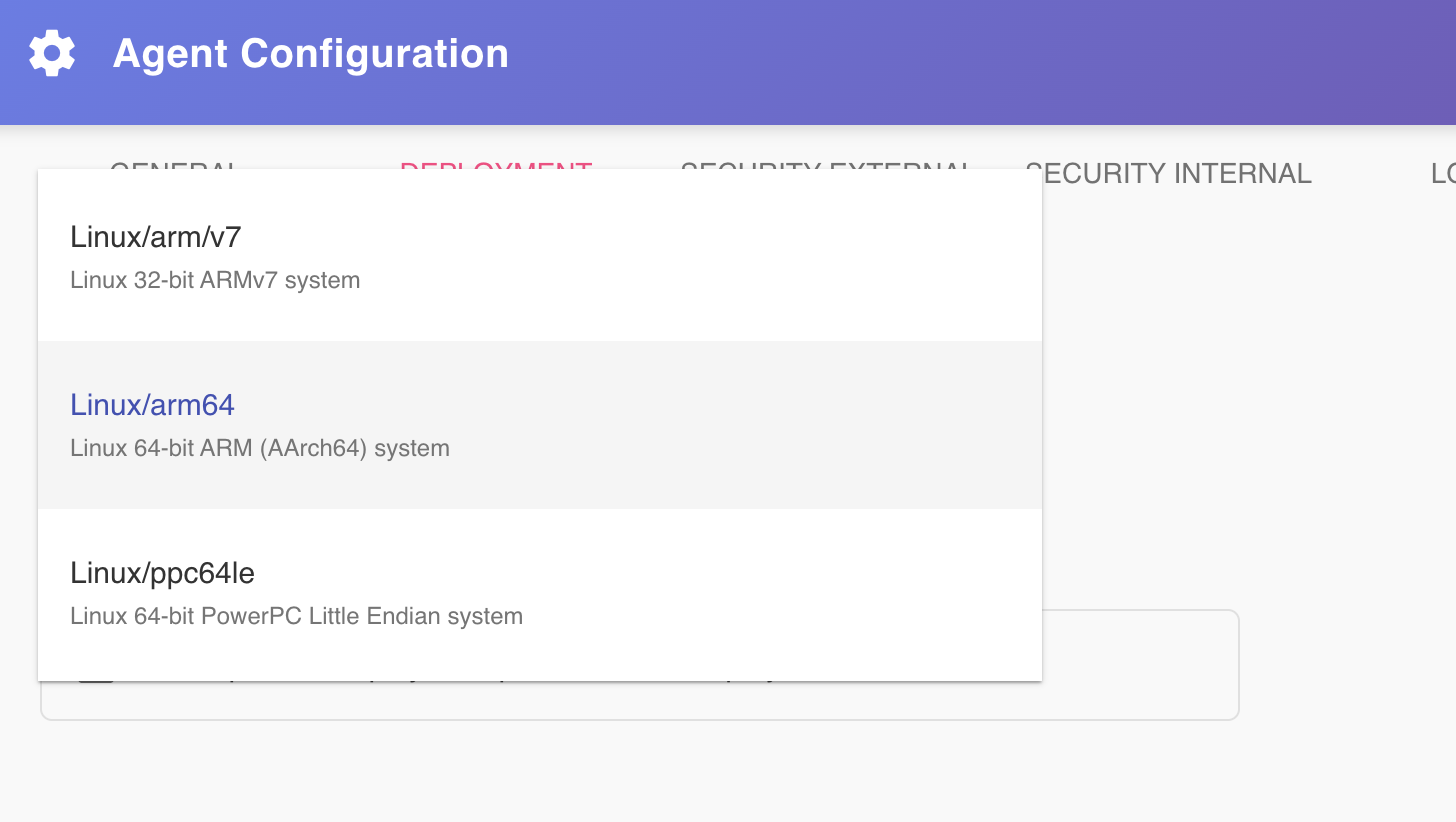
| Architecture | Description |
|---|---|
| Darwin/amd64 | macOS 64-bit Intel (x86_64) system |
| Darwin/arm64 | macOS 64-bit Apple Silicon (ARM64) system |
| Linux/386 | Linux 32-bit Intel/AMD (x86) system |
| Linux/amd64 | Linux 64-bit AMD/Intel (x86_64) system |
| Linux/arm/v7 | Linux 32-bit ARMv7 system |
| Linux/arm64 | Linux 64-bit ARM (AArch64) system |
| Linux/ppc64le | Linux 64-bit PowerPC Little Endian system |
| Linux/s390x | Linux 64-bit IBM Z mainframe (s390x) system |
| Windows/amd64 | Windows 64-bit AMD/Intel (x86_64) system |
| Windows/arm64 | Windows 64-bit ARM (AArch64) system |
Architecture mismatch will prevent the agent from starting
Before selecting an architecture, confirm that it matches the runtime environment of the target host — whether on-premises or in the cloud. Selecting the wrong architecture will cause the agent to fail at initialization and will require reconfiguration and redeployment.
Providing Deployment Parameters
The checkbox "I will provide deployment parameters at deploy-time" controls when the container registry details are supplied.
Option A — Configure now (checkbox unchecked)
All registry parameters — registry URL, project, user name, and password — must be filled in through this tab before downloading the agent. The installer will use these values directly, requiring no additional input at install time. This is the recommended approach for unattended, scripted deployments where the installation must be fully self-contained.
Option B — Provide at install time (checkbox checked)
The remaining fields in this tab are skipped during configuration. Instead, the installer script will prompt the operator for these values interactively at the moment of installation. Use this option when registry credentials are not available at configuration time, or when different operators handle the configuration and the installation steps separately.
Registry Configuration
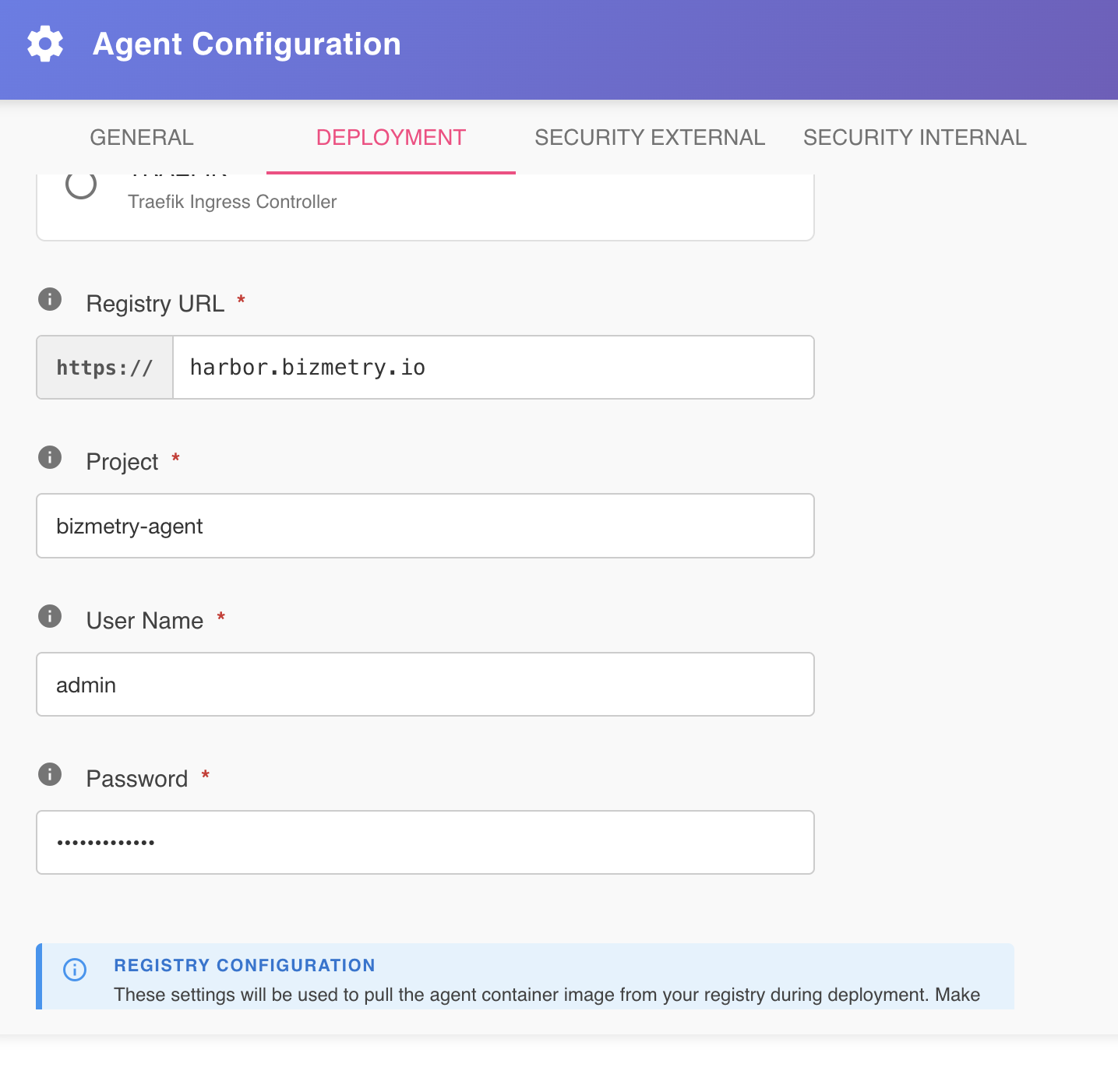
Once downloaded, the agent image must be pushed to a container image registry accessible from the target Kubernetes cluster. The fields below define the registry connection and credentials that the installer will use to perform this push.
Registry URL
The HTTPS URL of the container image registry associated with the target environment. This is the endpoint the installer connects to when pushing the agent image.
The registry must be accessible over HTTPS
BizMetry only supports secure registry endpoints. Ensure the registry is exposed via HTTPS before proceeding. Additionally, verify that the registry URL is reachable from the machine where the installation will be performed — network visibility to this endpoint is required at install time.
Project Name
The name of the project — or repository namespace — within the registry where the installer will push the agent image. This must be an existing project that is accessible to the configured registry user.
User Name
The username used to authenticate against the registry. This account must exist in the registry and must have sufficient permissions to push images to the configured project.
Password
The password for the registry user account specified above. Ensure that the credentials provided are correct and current, as an authentication failure will prevent the installer from pushing the agent image and will halt the deployment.
Provide accurate registry credentials
All registry parameters — URL, project, username, and password — are required for the installer to push the agent image and proceed with the Kubernetes deployment. Incorrect values will cause the installation to fail at the image push step.
If any of these values are uncertain at configuration time, enable the "I will provide deployment parameters at deploy-time" option so they can be supplied interactively by the operator performing the installation.
Summary
| Field | Required when | Purpose |
|---|---|---|
| Architecture | Always | Determines the agent binary and image variant to generate. |
| Registry URL | Parameters provided now | Defines the registry endpoint where the agent image will be pushed. |
| Project Name | Parameters provided now | Identifies the registry project where the image will be stored. |
| User Name | Parameters provided now | Authenticates the installer against the registry. |
| Password | Parameters provided now | Credentials for the registry user account. |