Tuning Configuration — Auto-Scaling
The Auto-Scaling sub-tab of the Tuning tab controls how the agent delivers the metrics it captures to the BizMetry platform. Captured metrics are handed to a group of SAF (store-and-forward) forwarders — parallel workers that hold metrics safely until they have been delivered, even if the connection to BizMetry is temporarily lost. This sub-tab lets you decide how many forwarders the agent runs, how much data each one sends at a time, and the pressure levels that make the agent scale that capacity up or down to keep up with demand — a mechanism explained in Understanding Backpressure Compensation.
To access it, open the Agent Configuration dialog, select Tuning, then Auto-Scaling.
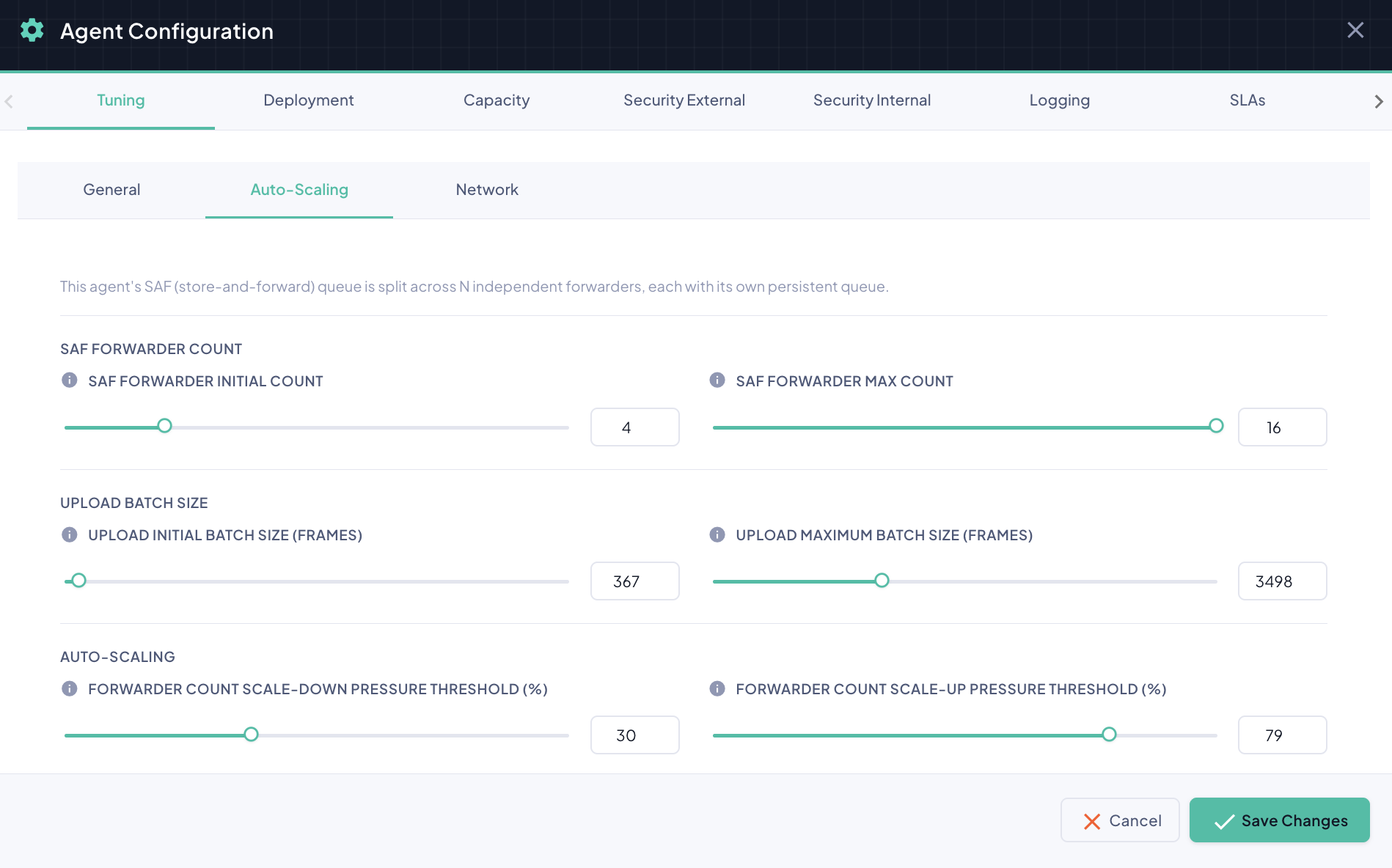
The parameters are arranged in three groups, each made of a pair of sliders. Every value can be set by dragging its slider or by typing an exact number in the field next to it — both stay in sync.
SAF Forwarder Count
| Parameter | Description | Default |
|---|---|---|
| SAF Forwarder Initial Count | The number of forwarders the agent starts with. | 4 |
| SAF Forwarder Max Count | The most forwarders the agent is ever allowed to run. The Initial Count can never exceed it. | 16 |
More forwarders means more metrics can be delivered in parallel, at the cost of additional resource usage.
Upload Batch Size
| Parameter | Description | Default |
|---|---|---|
| Upload Initial Batch Size (Frames) | The number of metric frames each forwarder sends to BizMetry in a single batch, to begin with. | 256 |
| Upload Maximum Batch Size (Frames) | The largest batch a forwarder is allowed to send. The Initial Batch Size can never exceed it. | 10,240 |
Larger batches move more data per delivery and generally increase throughput, but each batch uses more memory and network bandwidth while it is in flight.
Auto-Scaling Thresholds
The agent measures its own Pressure — how much backpressure it is under, as a percentage. These two thresholds mark the boundaries of its operating range:
| Parameter | Description | Default |
|---|---|---|
| Forwarder Count Scale-Down Pressure Threshold (%) | At or below this pressure, the load is considered low: the agent runs with its initial forwarder count and batch size. | 20 |
| Forwarder Count Scale-Up Pressure Threshold (%) | At or above this pressure, the load is considered high: the agent runs at its maximum forwarder count and batch size. It can never be set below the scale-down threshold. | 80 |
Between the two thresholds the agent floats: as pressure rises it increases the number of forwarders and the upload batch size to deliver metrics faster and compensate for the backpressure; as pressure falls it reduces both again. See Understanding Backpressure Compensation for the full explanation.
Initial never exceeds Max
Each Initial/Max pair, and the two thresholds, are kept consistent automatically: if you lower a Max value below its Initial value — or raise the scale-down threshold above the scale-up threshold — the paired value is adjusted for you.
When Do Changes Take Effect?
The two scaling thresholds are applied automatically. Changing the Max Count or the Maximum Batch Size requires reinstalling the agent, and the other values are applied according to the indicator the agent shows after you save (Restart Required or Redeploy Required). See Breaking vs Non-Breaking Changes for the details.
Start with the defaults
The defaults suit most deployments. Increase forwarder counts or batch sizes only when the agent's Pressure stays high under normal load — see Agent Monitoring & Statistics and the Pressure SLA.