Breaking vs Non-Breaking Changes
Every time you save a change to an agent's configuration, BizMetry classifies it by what it takes for the agent to start using the new value. Understanding the classification tells you what to do after saving — nothing, restart the agent, or reinstall it — and helps you plan changes so that they cause as little disruption as possible.
| Category | Type | What you have to do | What you see |
|---|---|---|---|
| Non-breaking | Hot change | Nothing. The agent applies it immediately. | No indicator. |
| Non-breaking | Cold change | Restart the agent. | Restart Required indicator. |
| Breaking | — | Redeploy: download a fresh installer and reinstall the agent. | Redeploy Required indicator. |
Non-Breaking Changes
Non-breaking changes are adjustments to a running agent. They never require you to reinstall it. They come in two flavors, depending on whether the agent needs to restart to pick them up.
Hot Changes
Hot changes take effect immediately, with no restart. The agent consumes the new value on its next synchronization with BizMetry and keeps running without interruption. Nothing appears on the agent's card, because nothing is pending.
| Parameter | Where | What it does |
|---|---|---|
| Agent Name | Tuning › General | The name under which the agent is displayed across the platform. |
| Connect Timeout / Read Timeout | Tuning › Network | How long the interceptors of this environment wait to establish a connection, and to receive a response, before giving up. |
| Proxy settings (protocol, host, port, username, password) | Tuning › Network | The HTTP proxy through which the interceptors of this environment reach BizMetry. |
| Scale-Down / Scale-Up Pressure Threshold | Tuning › Auto-Scaling | The pressure levels that mark the low and high extremes of the agent's backpressure compensation. |
| SLA settings (CPU, Memory, Network Latency, Pressure) | SLAs | The thresholds and time windows that raise an SLA breach. |
| Alerting settings (channels and recipients) | Alerting | Who is notified, and how, when an SLA breach occurs. |
Cold Changes
Cold changes are saved immediately but only become effective when the agent is restarted. Until then the agent keeps working with its previous values, and its card shows the Restart Required indicator. This gives you control over when the agent restarts — for example, during a maintenance window — and lets you group several cold changes into a single restart.
| Parameter | Where | What it does |
|---|---|---|
| Sync Interval | Tuning › General | How often the agent synchronizes with BizMetry. The agent keeps its current cadence until it restarts. |
| Agent Logging Level | Logging | How verbose the agent's logging is (TRACE to ERROR and beyond). |
| Log Batch Size (KB) | Logging | The amount of log data delivered to BizMetry on each synchronization. |
How to apply a cold change
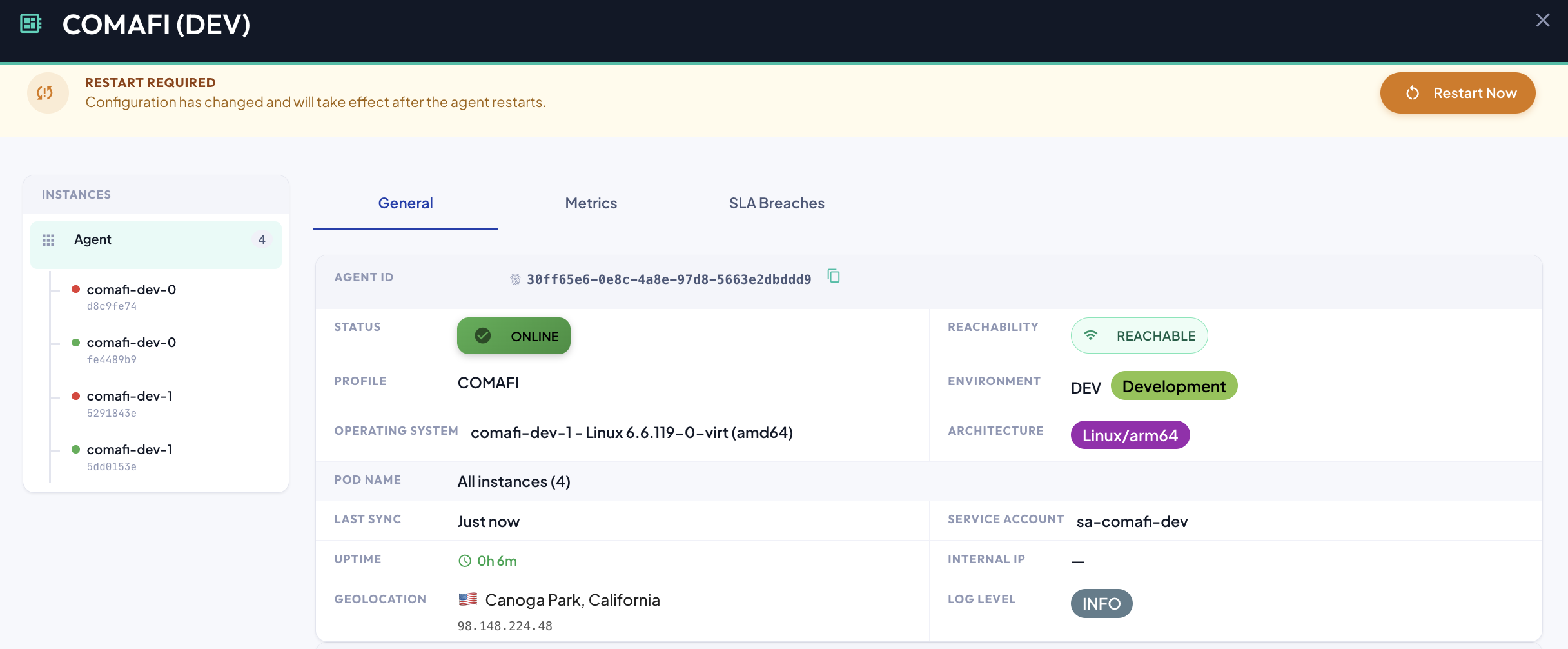
- Save the configuration. The card shows Restart Required, and the Agent Details dialog shows the matching banner.
- Restart the agent — from the card, or with Restart Now in the Agent Details banner. See Restarting an Agent.
- Once the agent is back online, the indicator disappears.
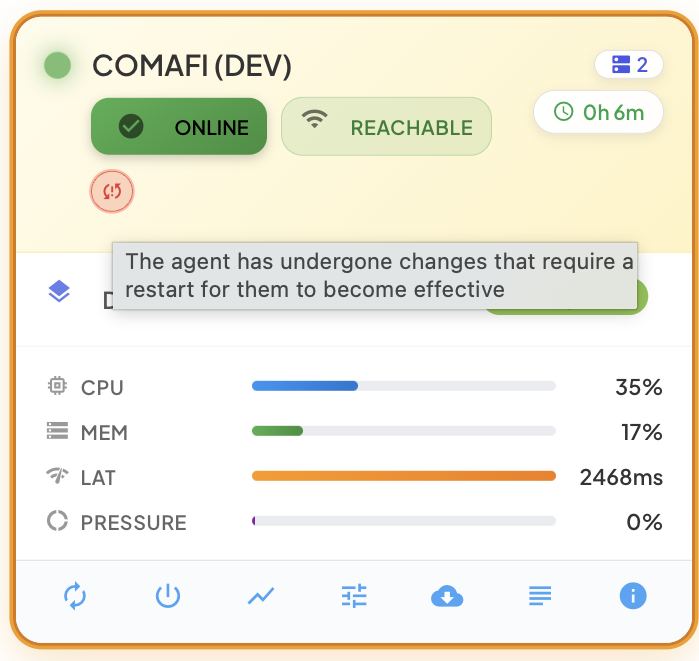
Hover over the icon to read its description: The agent has undergone changes that require a restart for them to become effective.
Breaking Changes
Breaking changes are adjustments to how the agent is installed in your cluster: its size, its resources, where its image comes from, and how it is exposed. Restarting the agent cannot apply them, because the running installation was created with the previous values. For them to take effect the agent must be redeployed — a fresh installer has to be downloaded and installed again.
Until then, the agent keeps running exactly as it was installed, and its card shows the Redeploy Required indicator.
| Parameter | Where | What it does |
|---|---|---|
| Number of Replicas | Capacity › General | How many copies of the agent run in parallel in your cluster. |
| Metrics Heap Buffer Capacity (MB) | Capacity › General | The storage each replica reserves to hold captured metrics until they are delivered. |
| Metrics Frame Buffer Capacity | Capacity › General | The number of metric frames each replica can hold while waiting for delivery. |
| Minimum / Maximum CPU Assignment | Capacity › CPU / Memory Resources | The CPU each replica is guaranteed and the most it may use. |
| Agent Allocated Memory | Capacity › CPU / Memory Resources | The memory made available to each replica. |
| Architecture | Deployment | The operating system and CPU architecture the agent is built for. |
| Registry URL, Project, User Name, Password | Deployment | The container registry the agent image is published to and pulled from. |
| SAF Forwarder Max Count / Upload Maximum Batch Size | Tuning › Auto-Scaling | The upper limits for the agent's parallel forwarders and delivery batch size. |
| Gateway address and certificates | Security External | How BizMetry reaches the agent, and the certificate that secures that path. |
| Topology, Ingress Type, Internal Address, key pair | Security Internal | How your applications reach the agent, and the certificate that secures that path. |
| Log Buffer Size (KB) | Logging | The memory the agent reserves to accumulate log entries. |
How to apply a breaking change
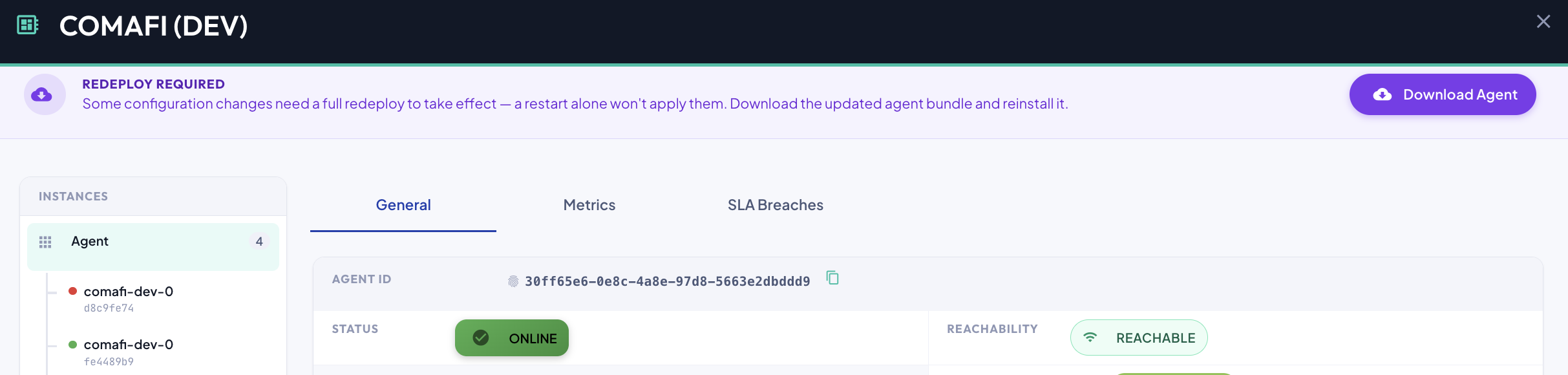
- Save the configuration. The card shows Redeploy Required, and the Agent Details dialog shows the matching banner with a Download Agent button.
- Download the updated installer and install it, following Downloading and Installing an Agent.
- Once the reinstalled agent connects to BizMetry, the indicator disappears.
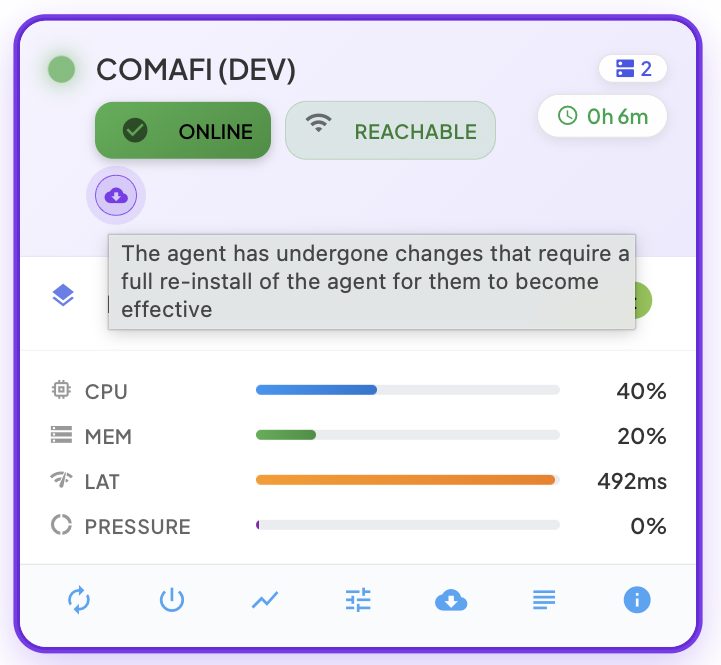
Hover over the icon to read its description: The agent has undergone changes that require a full re-install of the agent for them to become effective.
Downloading is not enough
The indicator does not clear when the installer is downloaded. It clears only when the agent that is actually running was installed from an installer generated after your latest breaking change. That way, an outdated installation is never mistaken for an up-to-date one.
When You Change Several Things at Once
A single editing session can mix changes of different kinds. BizMetry shows only the most demanding requirement, following this precedence:
Redeploy Required › Restart Required › no indicator
- If the session includes any breaking change, the card shows Redeploy Required. You do not need to restart separately, since reinstalling the agent also restarts it — and the fresh installation picks up any pending cold changes too.
- If it includes cold changes but no breaking ones, the card shows Restart Required.
- If it includes only hot changes, nothing is pending.
Changing a hot or cold parameter never turns a correctly installed agent into an outdated one: only breaking changes ask for a reinstall.
Plan breaking changes
Because a breaking change means reinstalling the agent, it is best to gather them and apply them together, in a maintenance window, rather than one at a time.