Understanding Backpressure Compensation
An agent receives captured metrics from your interceptors and delivers them to the BizMetry platform. As long as it can deliver metrics at least as fast as they arrive, everything flows smoothly. When metrics arrive faster than the agent can deliver them, they start to accumulate — a condition known as backpressure. If it is not relieved, the agent's buffers eventually fill up and new metrics are rejected.
To prevent this, the agent continuously adapts its delivery capacity to the load it sees. This page explains how that works and how to configure it.
Pressure: the Indicator
The agent expresses how much backpressure it is experiencing as a single percentage: Pressure.
| Pressure | Meaning |
|---|---|
| Low | The agent is comfortably keeping up. Metrics are delivered about as fast as they arrive and very little is waiting. |
| High | The agent is heavily loaded. Metrics are piling up faster than they are delivered. |
Pressure is shown on every agent card, in the Agent Details dialog, and in Agent Monitoring, and it is the metric behind the Pressure SLA.
Two Extremes, and Everything in Between
An agent's state always lies somewhere between two extremes:
- Initial state — low pressure. The agent runs with a small, economical footprint: the initial number of SAF forwarders working in parallel, delivering the initial upload batch size.
- Heavy-loaded state — high pressure. The agent runs at full capacity: the maximum number of SAF forwarders, delivering the maximum upload batch size.
Two thresholds, set on the Auto-Scaling sub-tab, define where these extremes begin:
| Threshold | Defines |
|---|---|
| Forwarder Count Scale-Down Pressure Threshold | The pressure at or below which the load is considered low. |
| Forwarder Count Scale-Up Pressure Threshold | The pressure at or above which the load is considered high. |
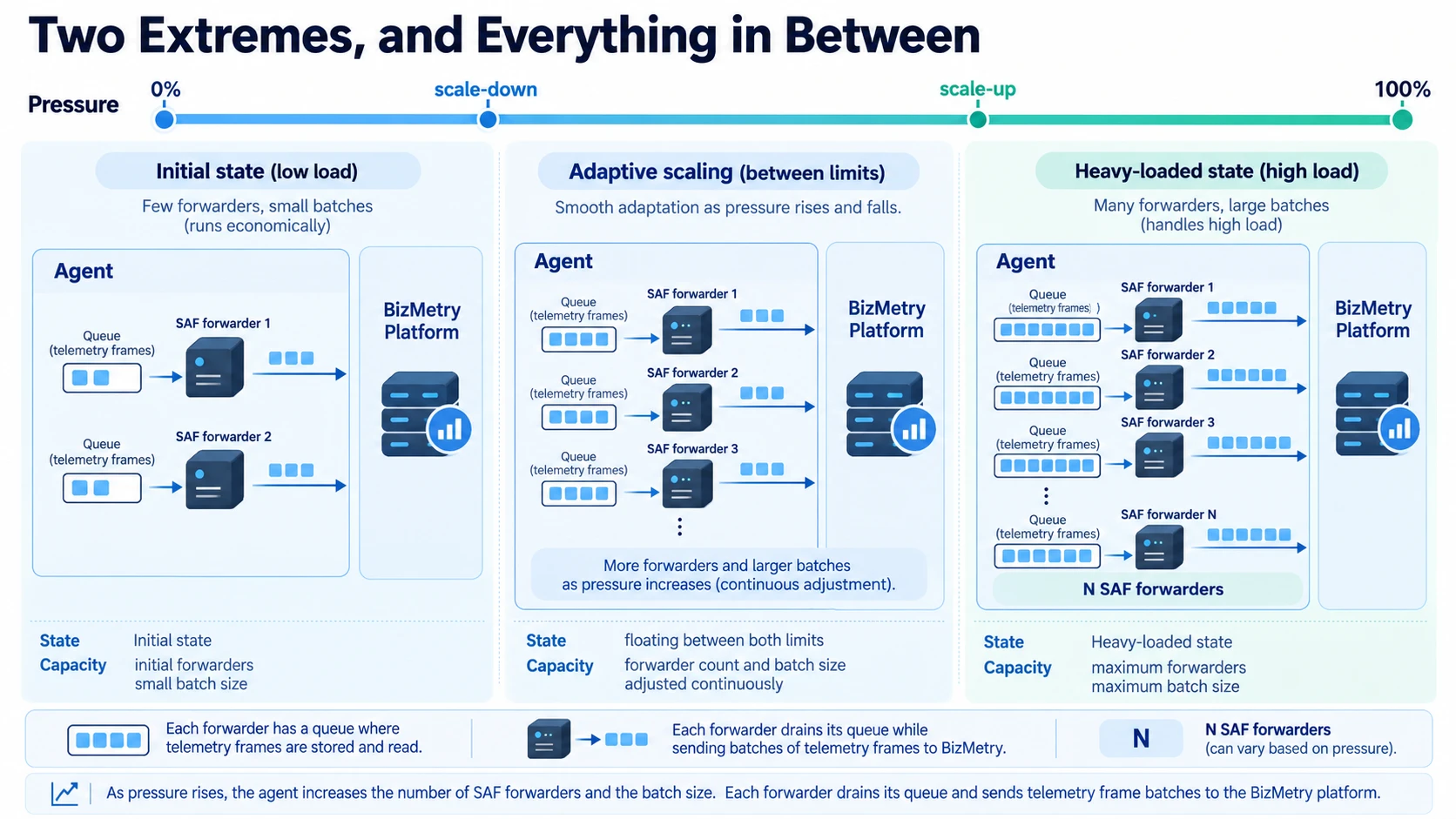
The agent does not jump abruptly from one state to the other. Between the two thresholds it floats, moving smoothly along the range as pressure rises and falls.
What the Agent Adjusts
While floating between the two limits, the agent adjusts two capacity parameters together:
| Parameter | What it controls | Range |
|---|---|---|
| Number of SAF forwarders | How many forwarders deliver metrics to BizMetry in parallel. | Initial Count → Max Count |
| Upload batch size | How many frames each forwarder sends to the platform per delivery. | Initial Batch Size → Maximum Batch Size |
When pressure rises — scale up
When the agent detects that pressure is increasing, it increases both parameters — more forwarders in parallel, each sending larger batches. The goal is to raise throughput, so that the agent delivers metrics faster and compensates for the backpressure before the buffers fill.
When pressure falls — scale down
When the agent detects that pressure is decreasing, it reduces both parameters back toward their initial values. The goal is to lower throughput and release the resources — network, CPU, and memory — that the extra capacity was using.
The result is an agent that uses only as much capacity as the current load requires: lean when things are quiet, and quickly reinforced when demand grows.
What Drives Pressure
Pressure depends on the balance between what comes in and what goes out, and on how quickly the agent can move data. Among the factors involved:
| Factor | Effect |
|---|---|
| Arrival rate — frames per second received from interceptors | The higher it is, the more load the agent has to absorb. |
| Delivery rate — frames per second the agent manages to upload | When it falls below the arrival rate, frames accumulate and pressure rises. |
| Storage speed — how fast the agent's local buffer can be written and read | Slow storage limits how quickly metrics can be held and forwarded. |
| Network speed between the agent and the BizMetry platform | A slow or congested link limits delivery. |
| Saturation of the BizMetry platform | When the platform itself is busy, it accepts data more slowly, which limits delivery no matter how much capacity the agent adds. |
Because these factors change over time, the ideal capacity changes too — which is exactly why the agent adjusts it continuously instead of relying on a single fixed setting.
Configuring the Behavior
Everything on this page is controlled from the Auto-Scaling sub-tab of the agent's Tuning tab:
| Setting | Role |
|---|---|
| SAF Forwarder Initial Count / Max Count | The lower and upper bound for the number of forwarders. |
| Upload Initial Batch Size / Maximum Batch Size | The lower and upper bound for the delivery batch size. |
| Scale-Down / Scale-Up Pressure Threshold | The pressure levels that mark the low and high extremes. |
Choosing the bounds
- Initial values should suit your normal, quiet load. They are what the agent runs with most of the time.
- Maximum values set the ceiling for peaks. Raise them if pressure stays high even when the agent is already at its maximum, but keep in mind that more capacity also means more resource usage on the agent and more traffic toward the platform.
- Thresholds control how sensitive the agent is. A lower scale-up threshold makes it reinforce capacity earlier; a higher scale-down threshold makes it release capacity sooner.
If pressure stays high at maximum capacity
When the agent is already delivering at its maximum and pressure still does not drop, the limit is no longer the agent's capacity. Check the factors above: the network path to BizMetry, the speed of the storage used by the agent, and whether the platform itself is saturated. Increasing Capacity — more replicas, or larger buffers — gives the agent more room to absorb the load in the meantime.
Related Topics
- Tuning — Auto-Scaling
- Capacity Configuration
- Pressure SLA
- Agent Monitoring & Statistics
- Interceptor Backpressure Auto-Tuning — the equivalent mechanism on the interceptor side