Deleting an Existing Profile
BizMetry allows deleting one or more telemetry profiles as part of the profile lifecycle management process.
Deleting a profile will automatically decommission and permanently remove all associated artifacts, including:
- Registered agents and their logs
- Registered clients
- Registered resources
- Registered environments
- The telemetry template associated with the profile
- All captured telemetry data and historical metrics
Important Warning
Destructive Operation
This is a destructive and irreversible operation.
Once the deletion of a profile is confirmed, it cannot be undone. All data, configurations, and historical telemetry associated with the profile will be permanently lost.
Backup Recommendation
Before deleting a profile, we strongly recommend exporting the profile configuration to a file as a backup. This allows you to recreate the profile structure in the future if needed.
How to Delete a Profile
To delete a profile, follow these steps:
Step 1: Locate the Profile
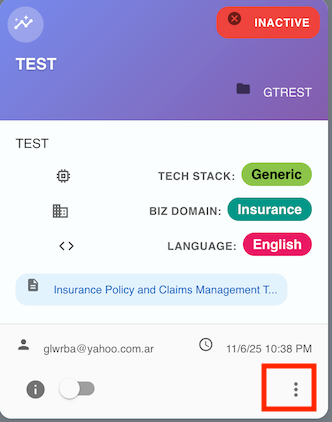
Navigate to the Home screen and find the Profile Tile of the profile you want to delete.
Step 2: Open the Profile Menu
Click the ellipsis menu (⋮) located at the bottom-right corner of the profile tile.
Step 3: Select Delete Option
From the contextual menu, select "Delete Profile".
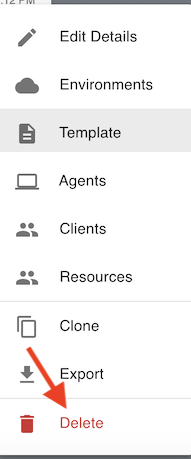
This will open a confirmation dialog to prevent accidental deletions.
Confirmation Dialog
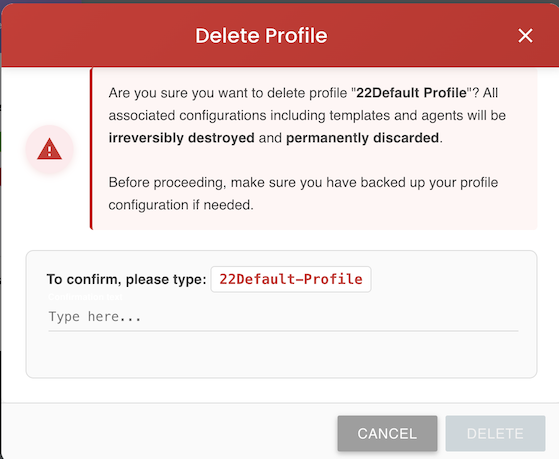
Before a profile can be deleted, BizMetry requires explicit confirmation to prevent accidental data loss.
Confirmation Requirements
The confirmation dialog will prompt you to:
- Read the warning message explaining the consequences of deletion
- Enter the exact profile name as verification (case-sensitive)
- Review the list of resources that will be permanently deleted
- Click "Delete Profile" to finalize the deletion, or "Cancel" to abort
Name Verification Required
You must type the profile name exactly as it appears (including spaces, capitalization, and special characters). This safety measure prevents accidental deletions.
Example:
If your profile is named AI-Chat-Production, you must type exactly:
AI-Chat-Production
Names like ai-chat-production or AI Chat Production will not be accepted.
What Happens After Deletion
When the profile deletion is confirmed, the following actions occur immediately:
1. Configuration Removal
- All profile metadata (name, description, project information) is deleted
- The associated telemetry template and all its definitions are removed
- All environment configurations are destroyed
- Client and resource registrations are permanently deleted
2. Agent Decommissioning
- All linked agents are automatically stopped and disconnected from the platform
- These agents will no longer be able to reconnect to BizMetry
- Agent authentication credentials are revoked
- Agent logs and operational data are purged
3. Data Purging
- All captured telemetry frames are permanently deleted
- Historical metrics and KPI data are removed
- Analytics dashboards and visualizations become unavailable
- Exported reports and data snapshots remain valid but cannot be re-imported
4. Agent Cleanup Required
Manual Agent Cleanup
After profile deletion, agents remain installed on their host systems but cannot function.
You must manually uninstall these agents using the provided uninstallation scripts to:
- Free up system resources
- Remove agent processes and services
- Clean up configuration files
- Prevent orphaned agent processes
To uninstall agents:
Linux/macOS:
cd /opt/bizmetry/agent
sudo ./uninstall.sh
Windows:
cd C:\Program Files\BizMetry\Agent
uninstall.bat
Refer to the Agent Uninstallation Guide for detailed instructions.
What Cannot Be Recovered
Once a profile is deleted, the following items are permanently lost and cannot be recovered:
- Historical telemetry data and metrics
- Custom template configurations and modifications
- Client and resource definitions
- Environment-specific settings
- Agent deployment configurations
- Analytics dashboards and KPI visualizations
- Alerts and notification rules
- User annotations and comments
No Recovery Possible
BizMetry does not maintain backups of deleted profiles. Once deleted, the data is gone forever.
Best Practices
Before deleting a profile, consider the following best practices:
1. Export Profile Configuration
Create a Backup
Use the Export Profile feature to save the profile configuration to a JSON file:
- Open the profile menu (⋮)
- Select "Export Profile"
- Save the configuration file to a secure location
This allows you to recreate the profile structure later if needed.
2. Archive Telemetry Data
If you need to retain historical data for compliance or analysis:
- Export telemetry data to an external data warehouse
- Generate final reports and dashboards
- Download audit logs and compliance records
- Create snapshots of critical metrics
3. Document Dependencies
Before deletion, document:
- Which applications depend on this profile's agents
- Which teams or users access this profile's data
- Any external integrations or webhooks configured
- Downstream systems consuming telemetry data
4. Notify Stakeholders
Inform relevant teams before deleting a profile:
- Development teams with deployed agents
- Operations teams monitoring the profile
- Business analysts using the telemetry data
- Compliance officers requiring audit trails
5. Disable Before Deleting
Consider disabling the profile first as a "soft delete":
- Disable all agents to stop data collection
- Monitor for any issues or dependencies
- After a grace period (e.g., 30 days), proceed with deletion
Alternative: Disable Instead of Delete
If you're uncertain about permanently deleting a profile, consider disabling it instead:
Benefits of Disabling
- Reversible - Can be re-enabled at any time
- Preserves data - Historical telemetry remains accessible
- Maintains configuration - Template and settings are retained
- Stops costs - Agents stop collecting data, reducing platform usage
How to Disable a Profile
- Navigate to the profile tile
- Click the toggle switch to disable the profile
- Confirm the action
Disabled profiles remain visible on the Home screen but appear grayed out and inactive.
Deletion vs Disabling Comparison
| Aspect | Delete Profile | Disable Profile |
|---|---|---|
| Reversible | No | Yes |
| Data Retained | No | Yes |
| Configuration Kept | No | Yes |
| Agents Active | No | No |
| Can Reconnect | No | Yes |
| Visible in UI | No | Yes (grayed) |
| Resource Usage | None | Minimal |