Creating a New Profile
This page explains how to create a new Profile in BizMetry using the Profile Creation Wizard, following the exact flow that appears in the UI. The goal is to provide a clear, step-by-step guide that mirrors the real user experience.
How to Open the Profile Creation Wizard
A user can create a new profile in two ways:
- By clicking the "+ New Profile" button in the top toolbar
- By navigating through the main menu: Main Menu → + Create Profile
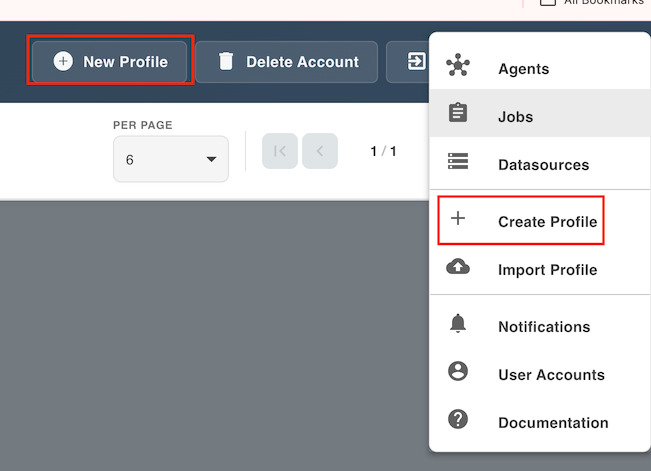
Selecting either option launches the Profile Creation Wizard, which consists of four sequential steps.
Wizard Overview
The wizard guides you through a four-step process to configure and create your new monitoring profile.
Step 1: Choose How You Want to Create the Profile
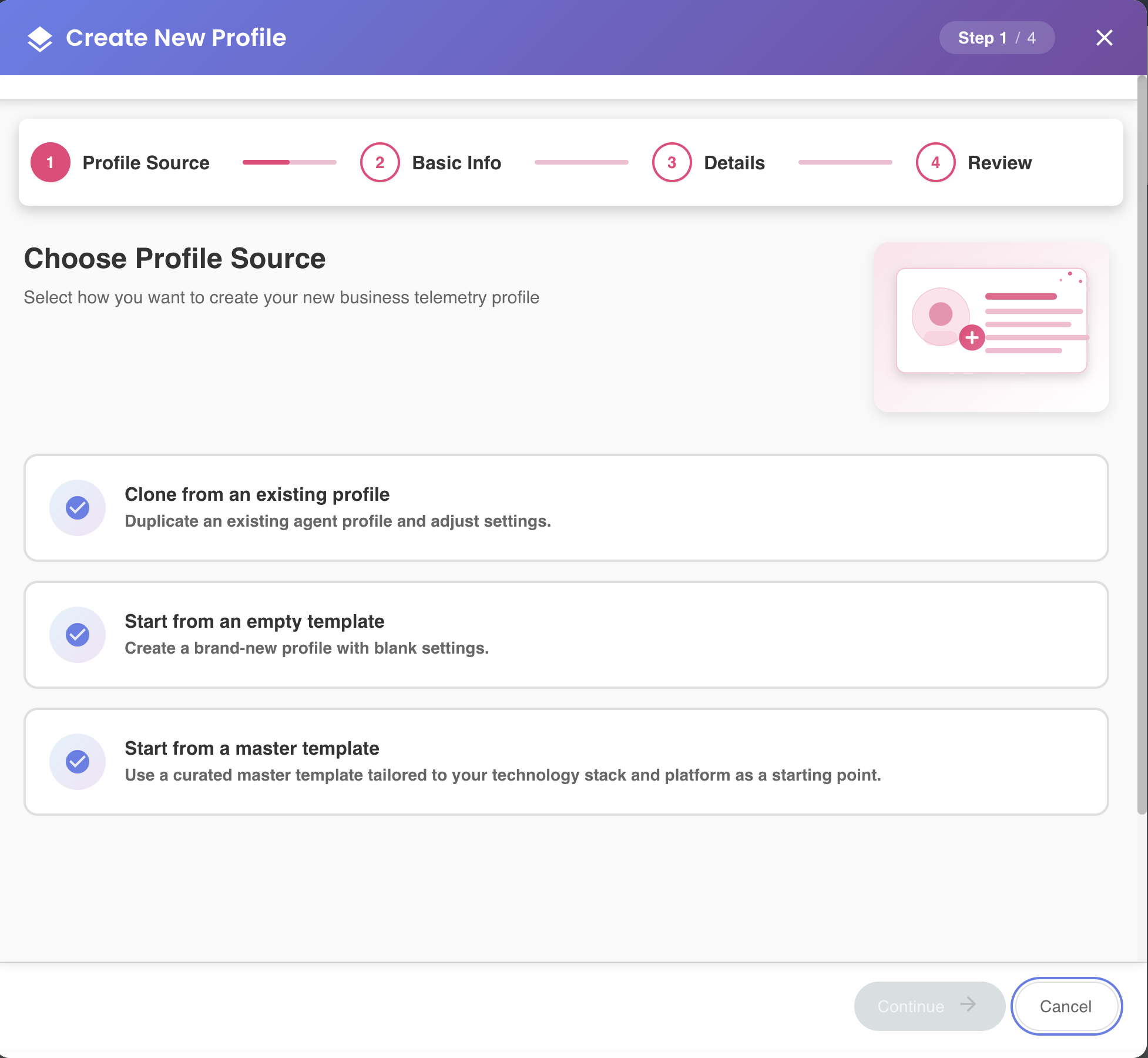
The first screen asks how you want to create your new monitoring profile. You must choose one of the following options:
Option 1: Clone from an existing profile
Useful when you want to create a new monitoring profile using another existing one as a base, reusing its configured template.
When to use this option
Choose this option when you want to maintain consistency with an existing profile and only need to make minor adjustments.
Option 2: Start from a master template
Recommended when you want to create a profile from scratch using a predefined master template.
Recommended for most users
Master templates provide industry-specific configurations that accelerate setup and ensure best practices.
Option 3: Start from an empty template
Ideal when you want to build a profile entirely from zero, specifying your domain, stack, and language.
Advanced users only
This option requires deep understanding of BizMetry's telemetry model and is best suited for experienced users with specific customization needs.
Click Continue to proceed to Step 2.
Step 2: Enter Profile Details
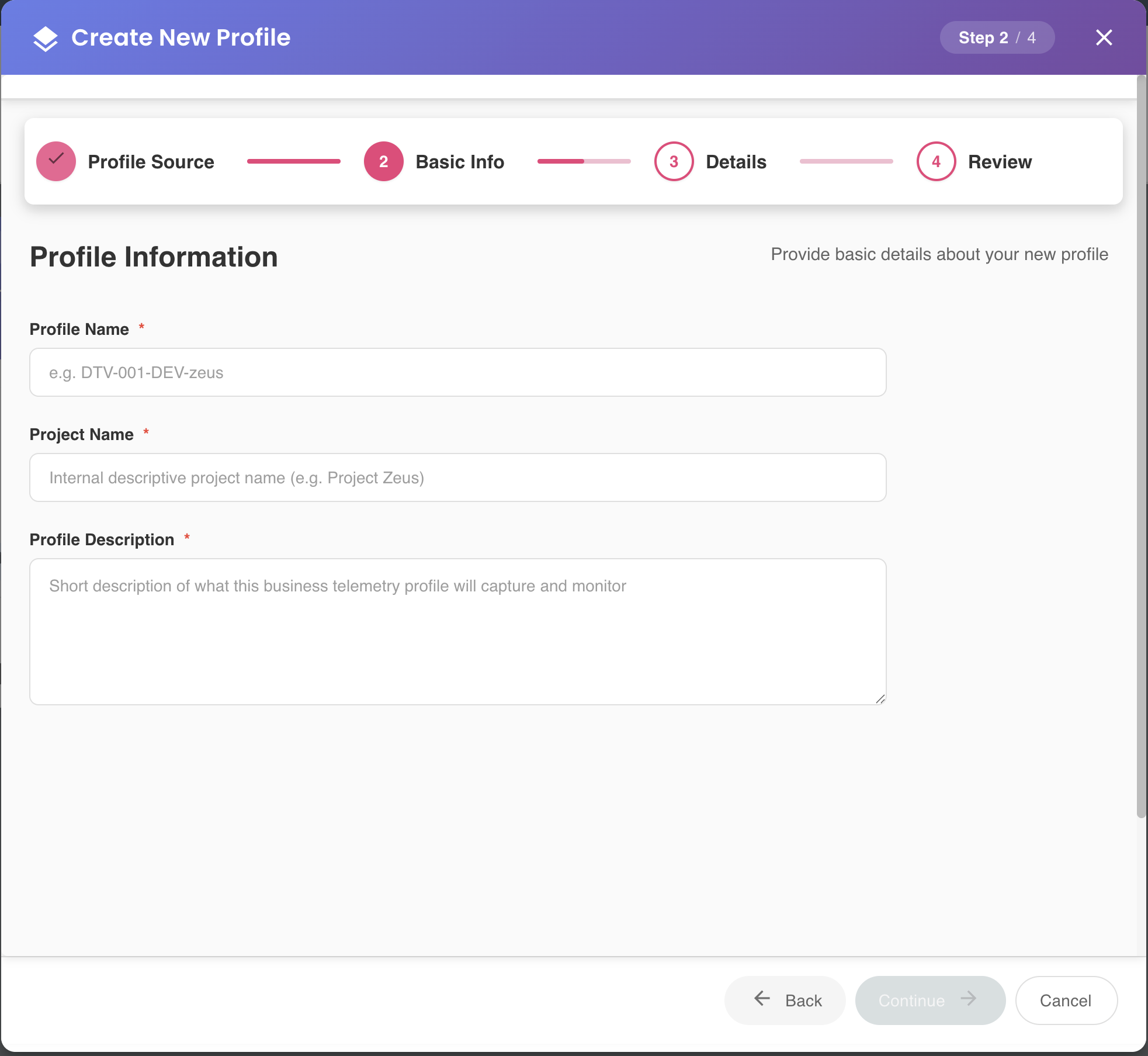
Fill out the metadata for your new profile:
| Field | Description | Required |
|---|---|---|
| Profile Name | A unique identifier for this monitoring profile | Yes |
| Project Name | The name of the project or product being monitored | Yes |
| Description | A brief explanation of the profile's purpose and scope | Yes |
All fields are mandatory
You must complete all three fields before proceeding to the next step.
Click Continue to proceed to Step 3.
Step 3: Configure Template or Source
Step 3 changes dynamically based on the option you selected in Step 1.
Option A: Clone from an existing profile
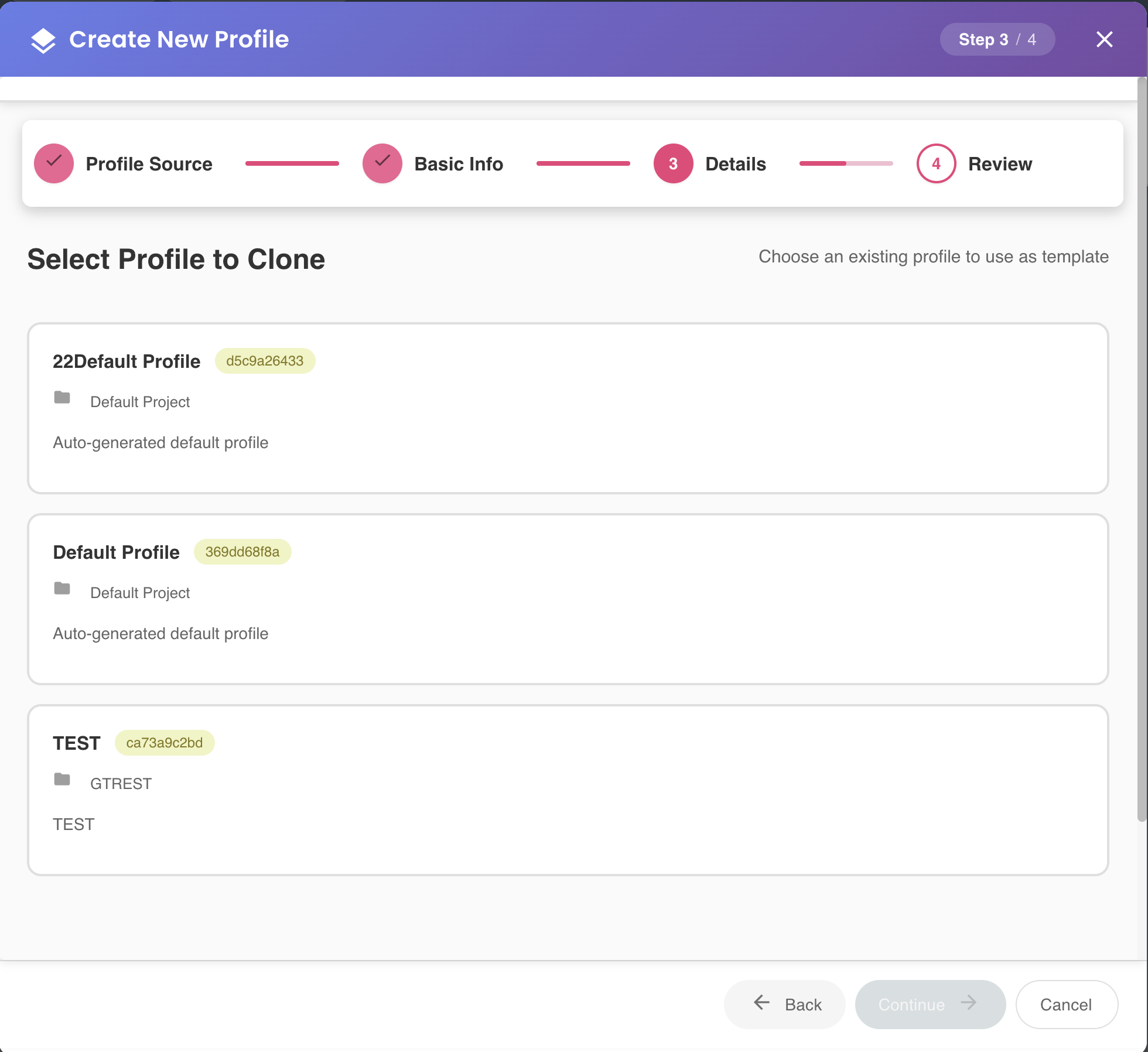
Select the profile you wish to clone from the list of available profiles.
The new profile will inherit:
- The entire template structure (Client Types, Resource Types, Attribute Types)
- Domain configuration
- Frame Type definitions
Cloning behavior
Only the template configuration is cloned. Environments, agents, and telemetry data are not copied.
Option B: Start from an empty template
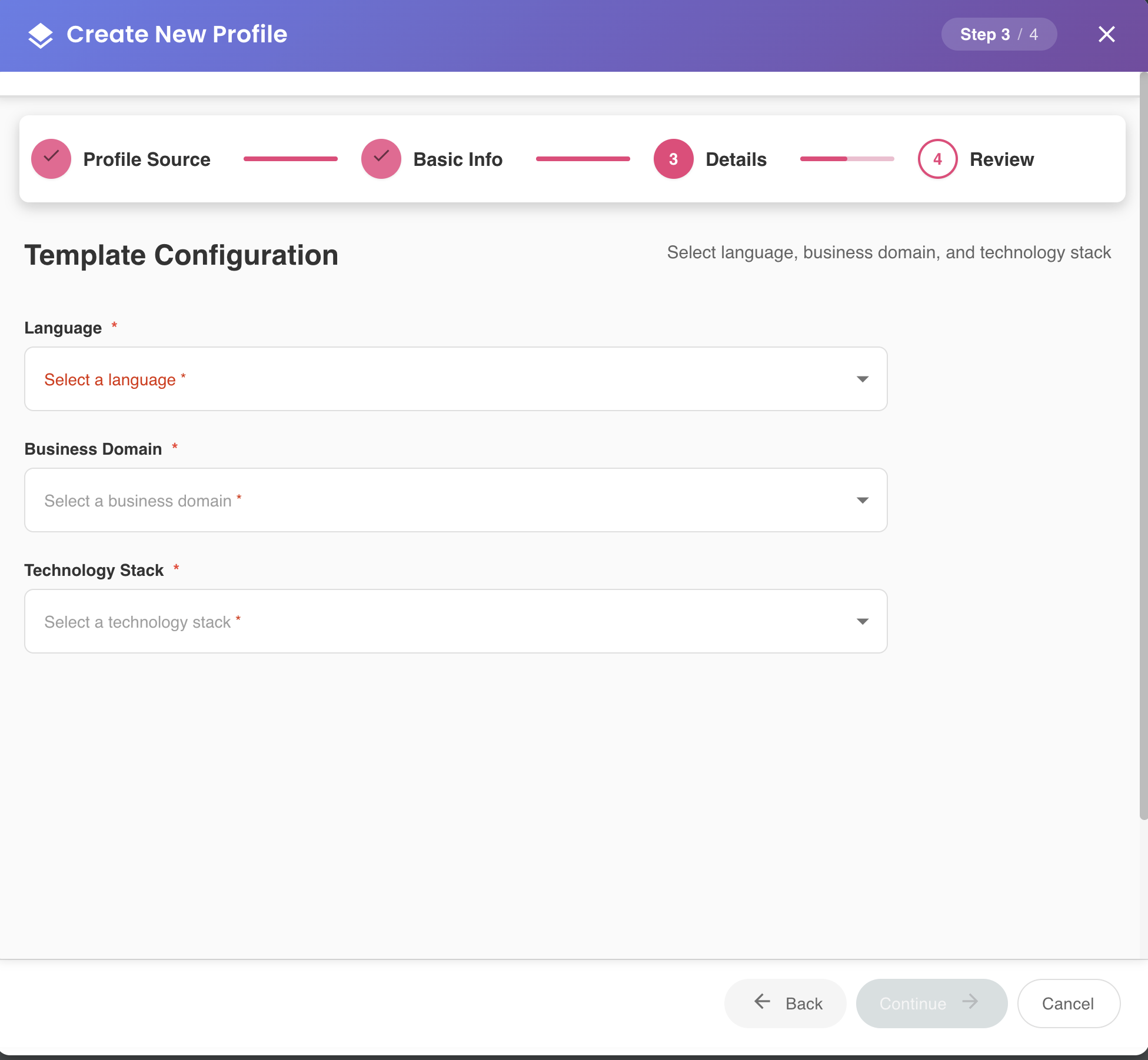
When starting from an empty template, BizMetry requires three configuration parameters:
Business Domain
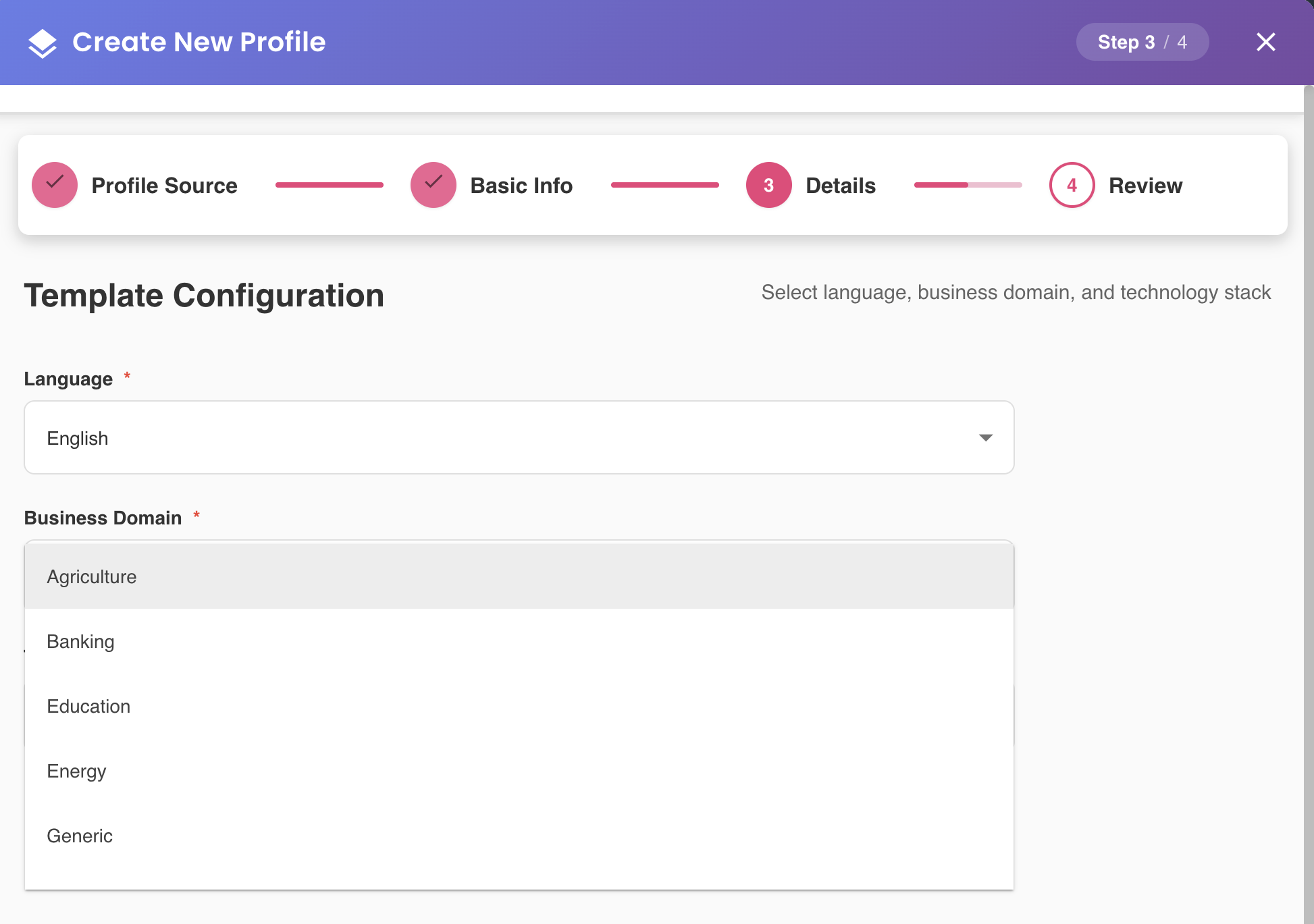
Select the business domain that best matches your project context.
Example business domains
The following list is illustrative. The actual available domains may vary and expand over time:
- Banking & Finance — Financial services, transactions, accounts
- Retail & E-commerce — Sales, inventory, customer management
- Healthcare — Patient records, appointments, clinical workflows
- Manufacturing — Production lines, quality control, supply chain
- Technology — Software development, AI/ML, cloud services
- Telecommunications — Network operations, customer services
- Transportation & Logistics — Fleet management, deliveries, routes
- And more...
Technology Stack
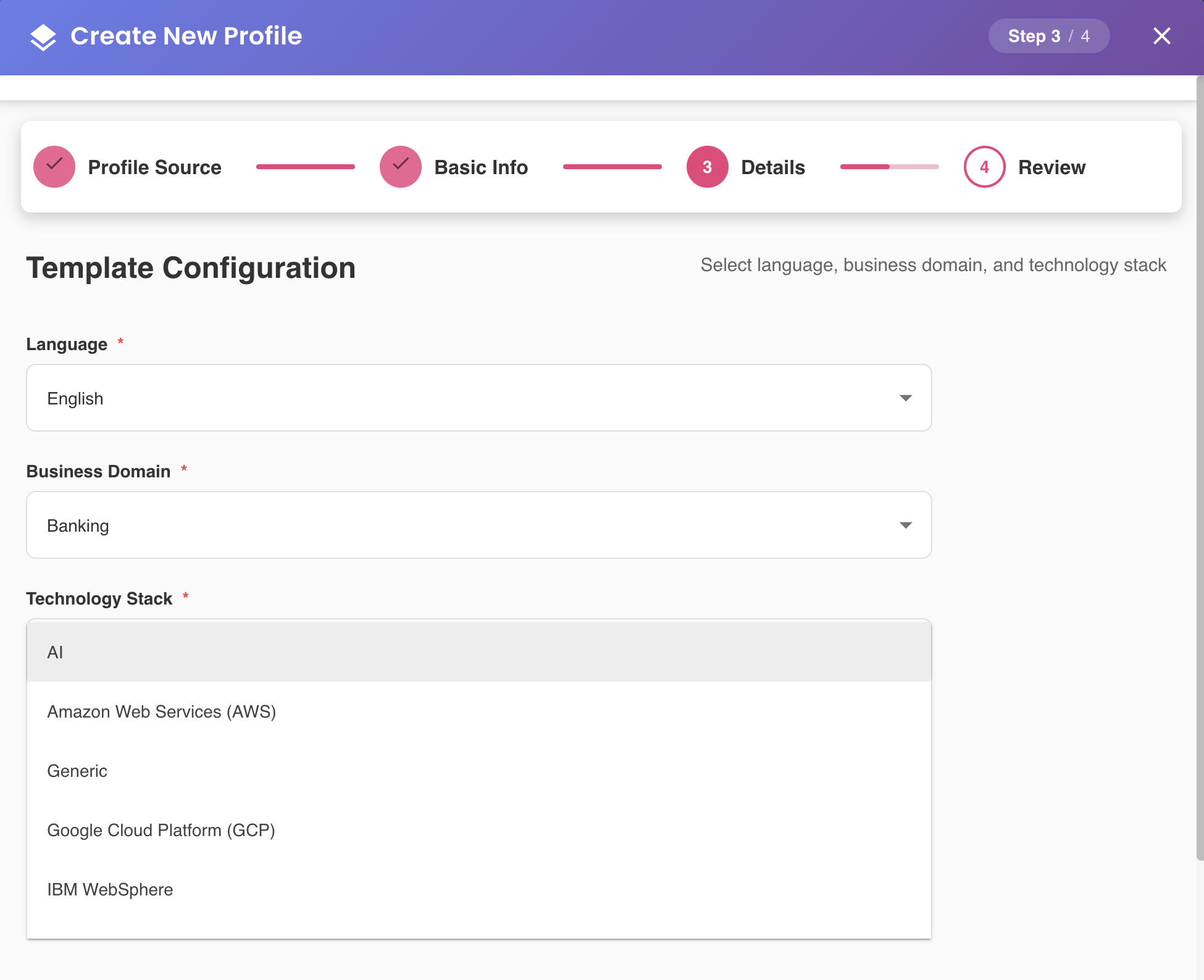
Choose the primary technology stack for your project.
Example technology stacks
The following list is illustrative. The actual available stacks may vary and expand over time:
- Java + Spring Boot — Enterprise Java applications
- Python + FastAPI/Django — Python web services
- Node.js + Express — JavaScript/TypeScript backend
- .NET Core — Microsoft .NET applications
- Go — Go-based microservices
- Ruby on Rails — Ruby web applications
- PHP + Laravel — PHP frameworks
- Other — Custom or mixed technology stacks
- And more...
Language
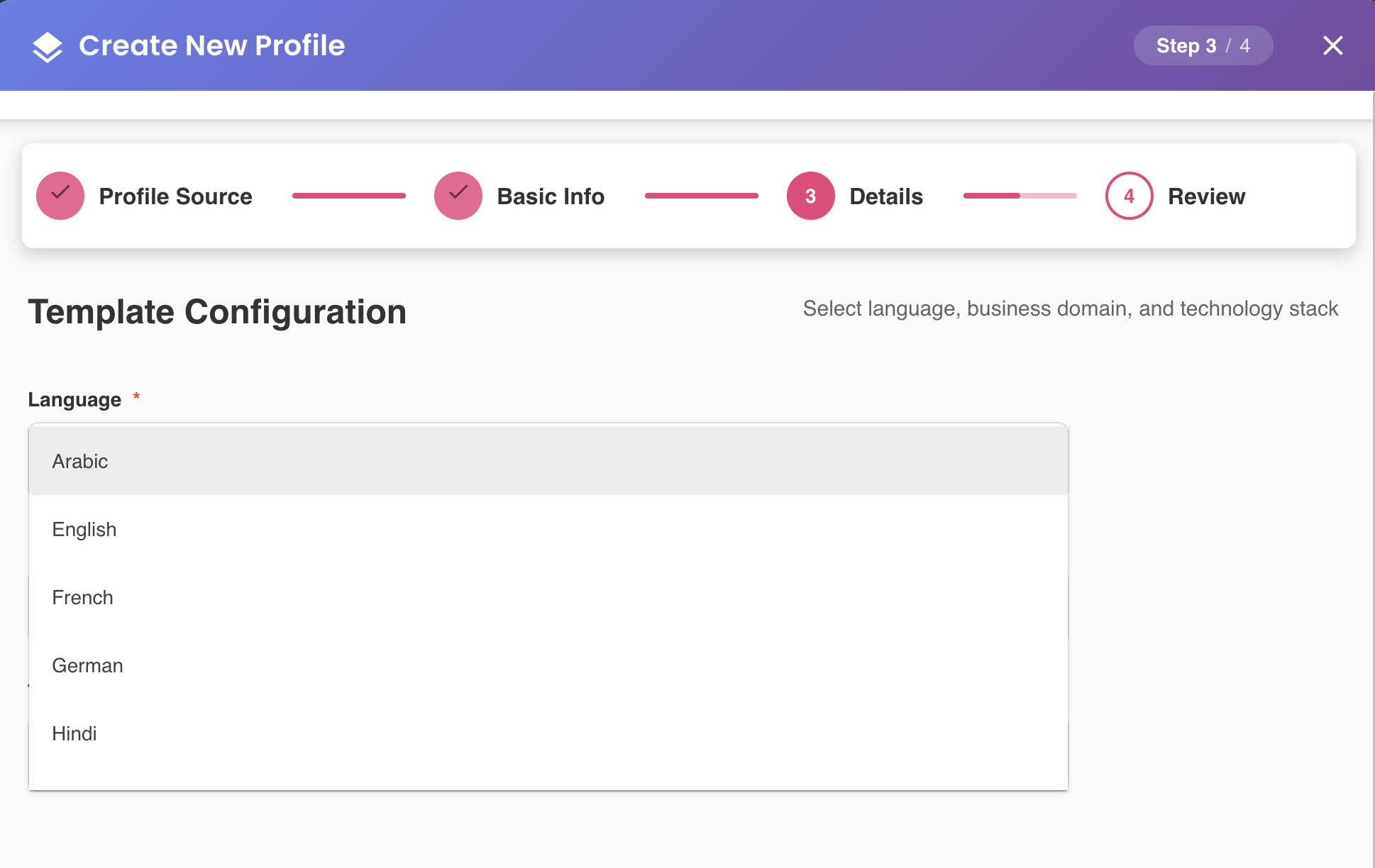
Select the language for template metadata and documentation.
Example languages
The following list is illustrative. The actual available languages may vary and expand over time:
- English
- Spanish
- Portuguese
- Japanese
- French
- German
- Chinese
- Italian
- And more...
Language selection
This setting affects the naming conventions and descriptions in your template, making it easier for your team to work in their preferred language.
Option C: Start from a master template
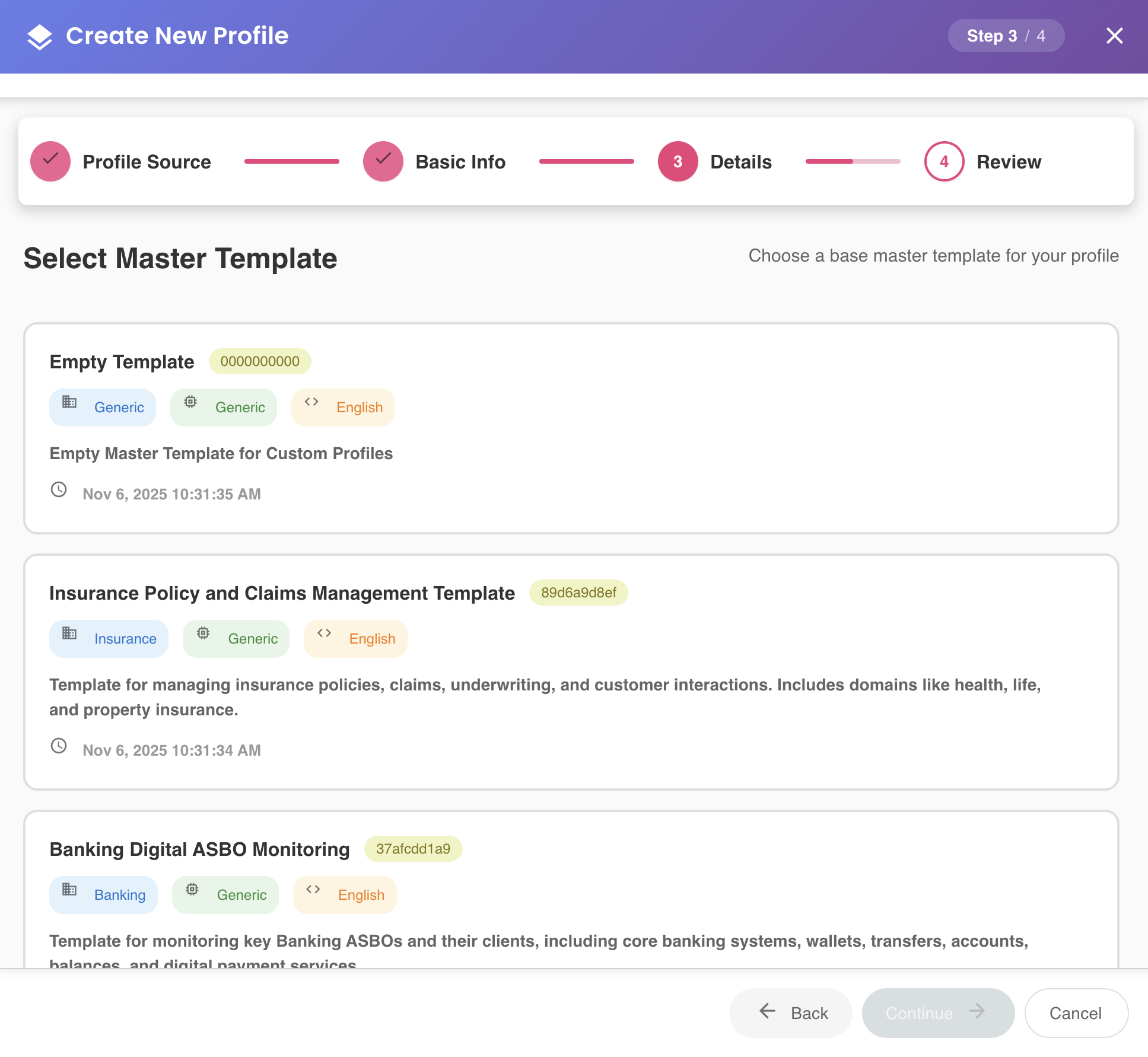
Choose one of the available master templates, each containing predefined configurations optimized for specific business scenarios.
Each master template includes:
- Client Types — Pre-configured consumer categories
- Resource Types — Common business assets for the domain
- Attribute Types — Standard metrics and KPIs
- Telemetry Frame Types — Event capture structures
- Business Domain — Industry context
- Technology Stack — Technical implementation details
Example master templates
The following list is illustrative. The actual available templates may vary and expand over time based on industry needs and BizMetry updates:
| Template Name | Business Domain | Tech Stack | Description |
|---|---|---|---|
| AI Chat Completion | Technology | Python + FastAPI | LLM/SLM monitoring with token usage, latency, and cost tracking |
| E-commerce Platform | Retail | Java + Spring Boot | Order processing, inventory, and customer analytics |
| Banking Transactions | Finance | .NET Core | Account operations, transfers, and compliance monitoring |
| Fleet Management | Transportation | Node.js + Express | Vehicle telemetry, route optimization, and logistics |
| Healthcare Services | Healthcare | Java + Spring Boot | Patient workflows, appointments, and clinical operations |
| Manufacturing Operations | Manufacturing | Python + Django | Production line monitoring, quality control, and supply chain |
| Telecom Services | Telecommunications | Go | Network performance, customer services, and infrastructure monitoring |
| And more... | Various | Various | Additional templates are regularly added to support new domains and use cases |
Recommended approach
Master templates provide the fastest path to production-ready telemetry configurations based on industry best practices.
After completing your configuration, click Continue to proceed to Step 4.
Step 4: Review & Create
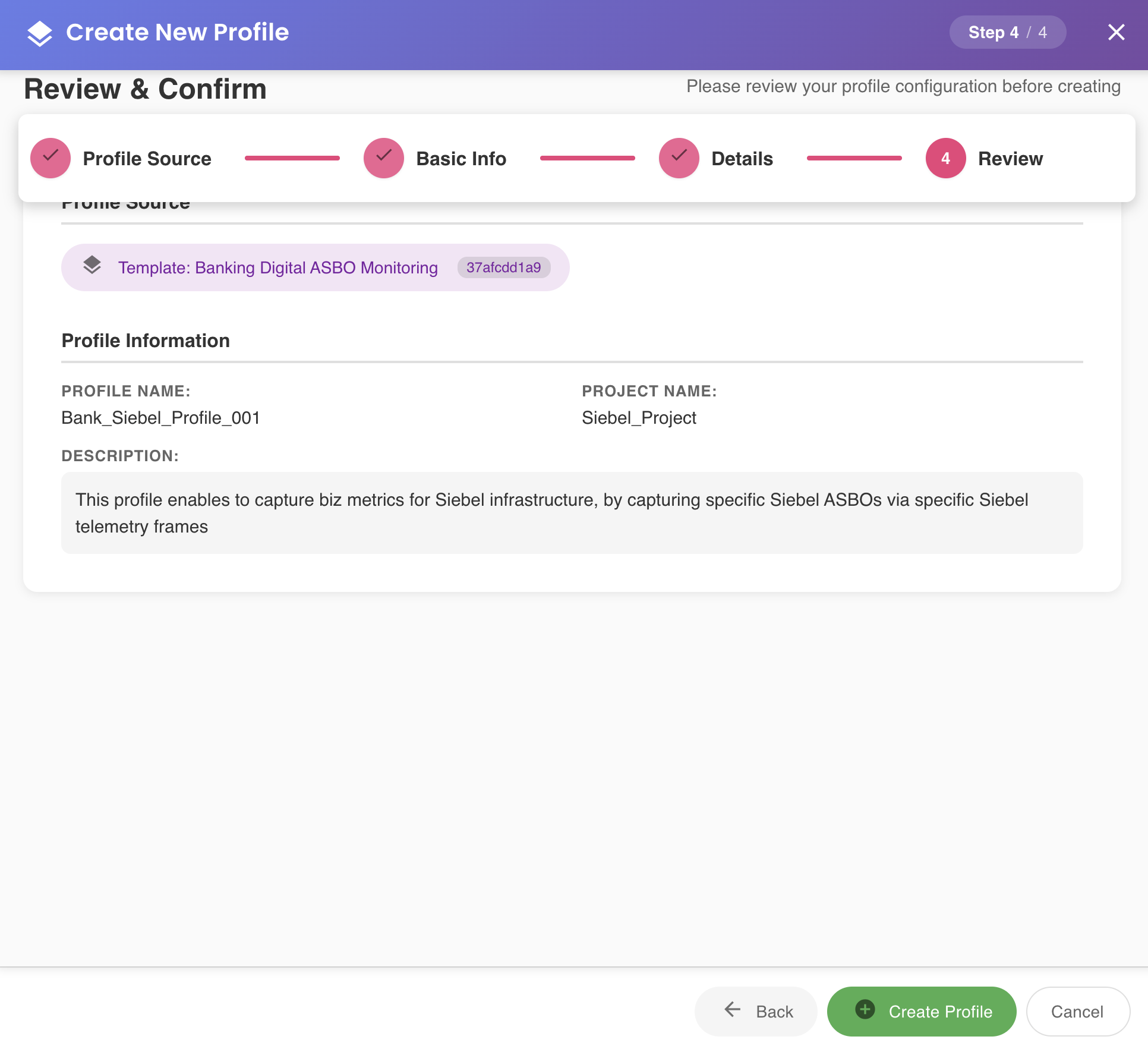
Review the complete configuration summary before creating your profile.
Summary includes:
- Profile Name, Project Name, and Description
- Creation method chosen (Clone, Empty, or Master Template)
- Template configuration details
- Business domain and technology stack (if applicable)
Available actions:
- Create Profile — Confirm and create the profile with the specified configuration
- Back — Return to previous steps to modify any settings
- Cancel — Exit the wizard without creating a profile
Final check
Review all details carefully. Some configuration choices (like the base template) cannot be easily changed after profile creation.
Click Create Profile to finish.
Upon successful creation, the new profile will appear as a tile on the Home screen, ready for configuration of environments, agents, clients, and resources.
Navigation Controls
Throughout the wizard, you have access to the following navigation controls:
| Control | Function |
|---|---|
| Back | Return to the previous step |
| Continue | Proceed to the next step |
| Cancel | Exit the wizard without saving |
These controls are available at all times during the wizard flow.
What Happens After Creation
Once the profile is created:
- Profile appears on Home screen — As a new tile with profile metadata
- Template is initialized — Based on your chosen configuration method
- Ready for next steps — You can now:
- Create environments (Development, QA, Production)
- Deploy BizMetry agents
- Define clients and resources
- Configure telemetry frames
- Start capturing business metrics
Best Practices
Choosing the right creation method
- Use Master Templates when starting a new project in a standard domain
- Use Cloning when replicating an existing setup with minor variations
- Use Empty Templates only when you have specific requirements that master templates don't address
Naming conventions
Use clear, descriptive names for your profiles that include:
- The project or product name
- The environment type (if creating multiple profiles)
- The business domain or purpose
Examples:
- "AI Chatbot - Production"
- "E-commerce Platform - Staging"
- "Fleet Management - Analytics"