User Profile Management
The User Profile feature allows users to view and manage their personal account information, including organization details, assigned roles and permissions, and account credentials.
Accessing Your User Profile
To access your user profile:
- Navigate to the BizMetry home page
- Click on the username panel (typically located in the top-right corner)

User Profile Dialog
When you click on the username panel, the User Profile Dialog opens displaying your account information:
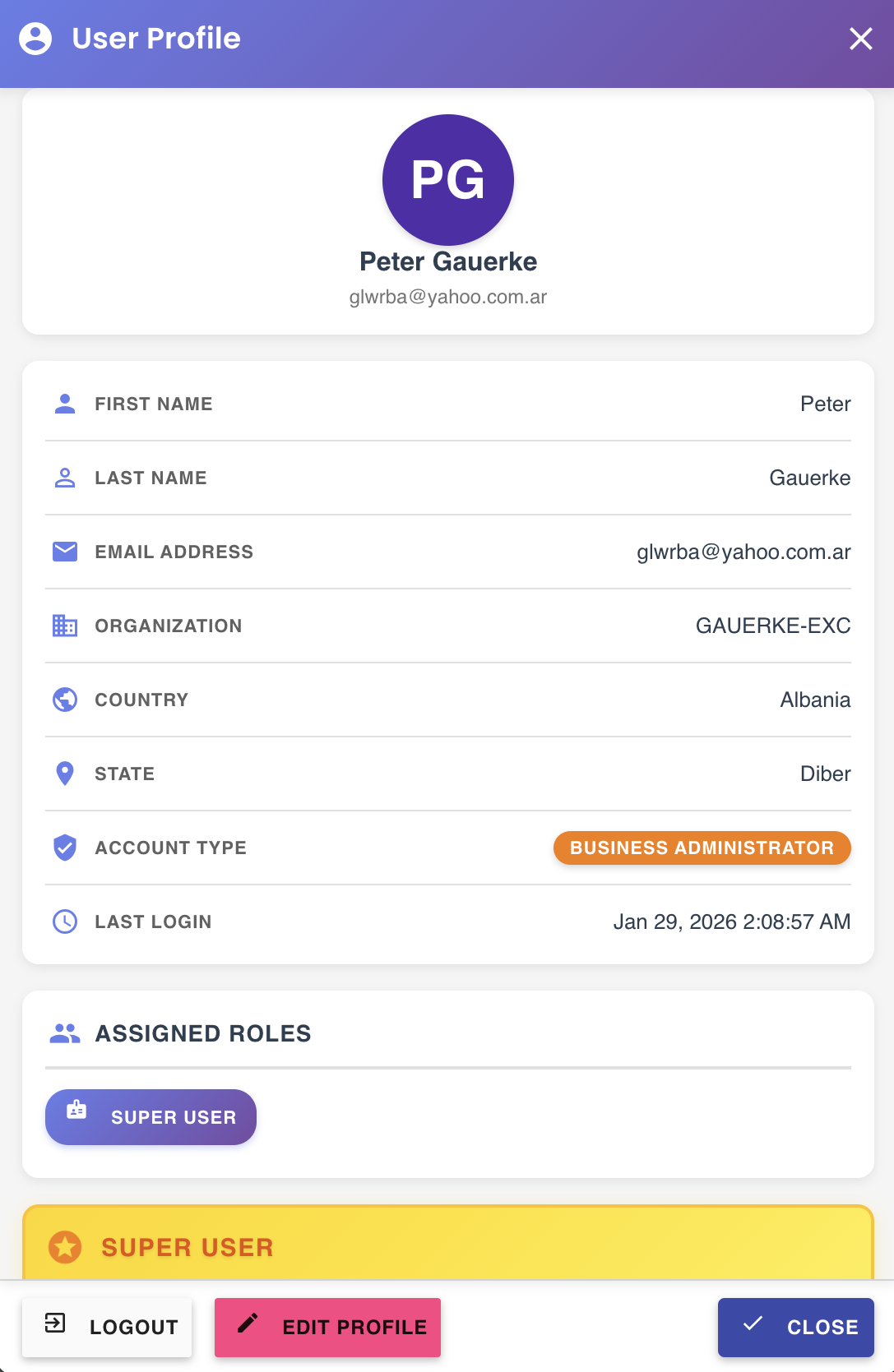
The profile dialog shows:
- Personal Details: First Name, Last Name, Email Address
- Organization Information: Organization Name and ID
- Roles and Permissions: Assigned roles and their associated access levels
Read-Only Information
Organization details, email address, and role assignments are managed by organization administrators and cannot be modified by individual users.
Editing Your Profile
To edit your personal information:
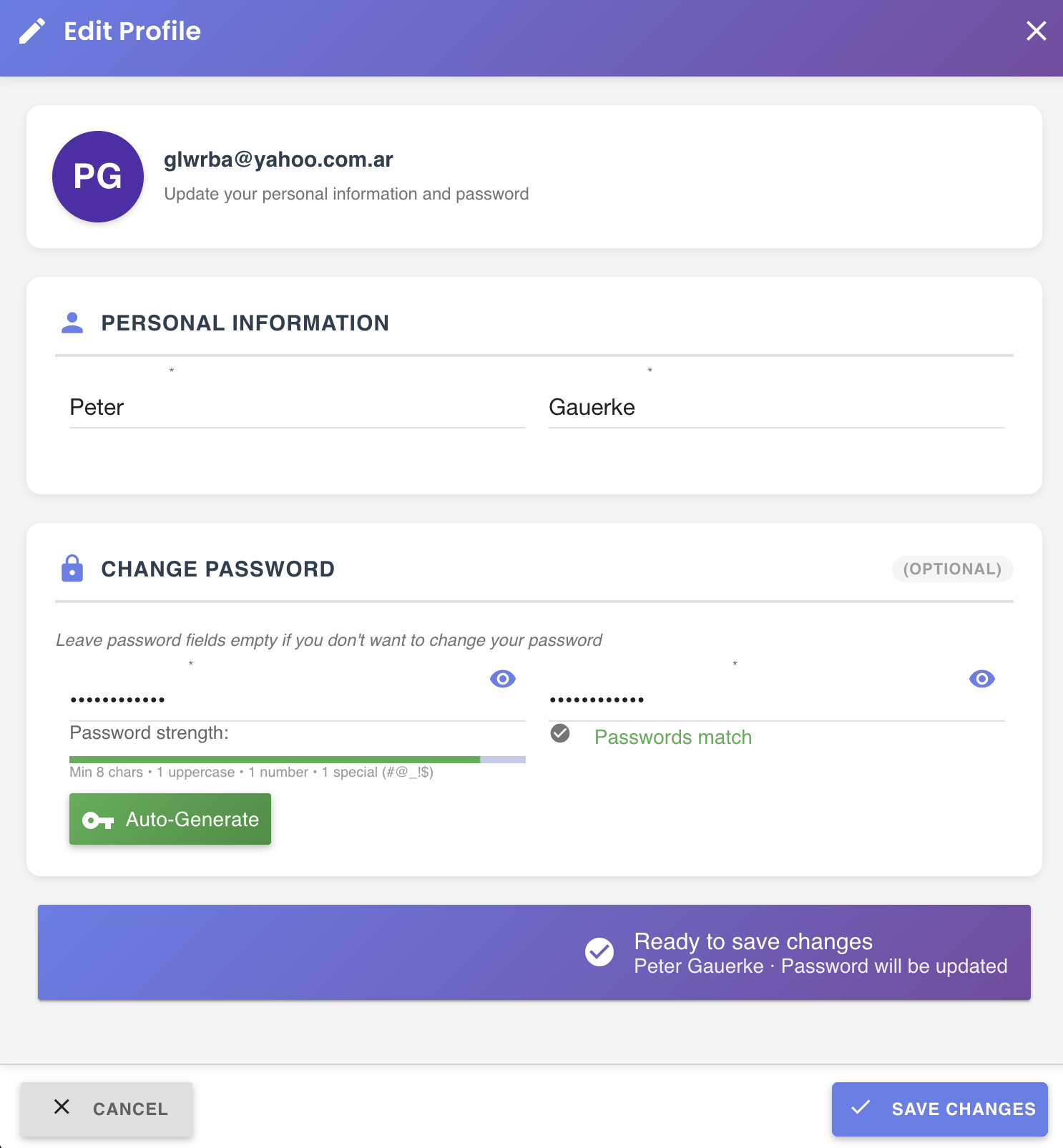
- Click the Edit Profile button in the User Profile Dialog
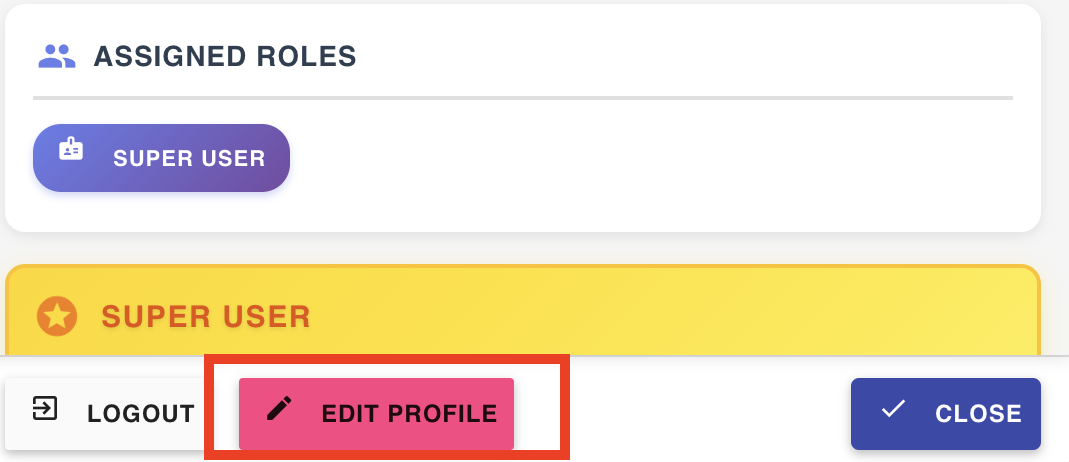
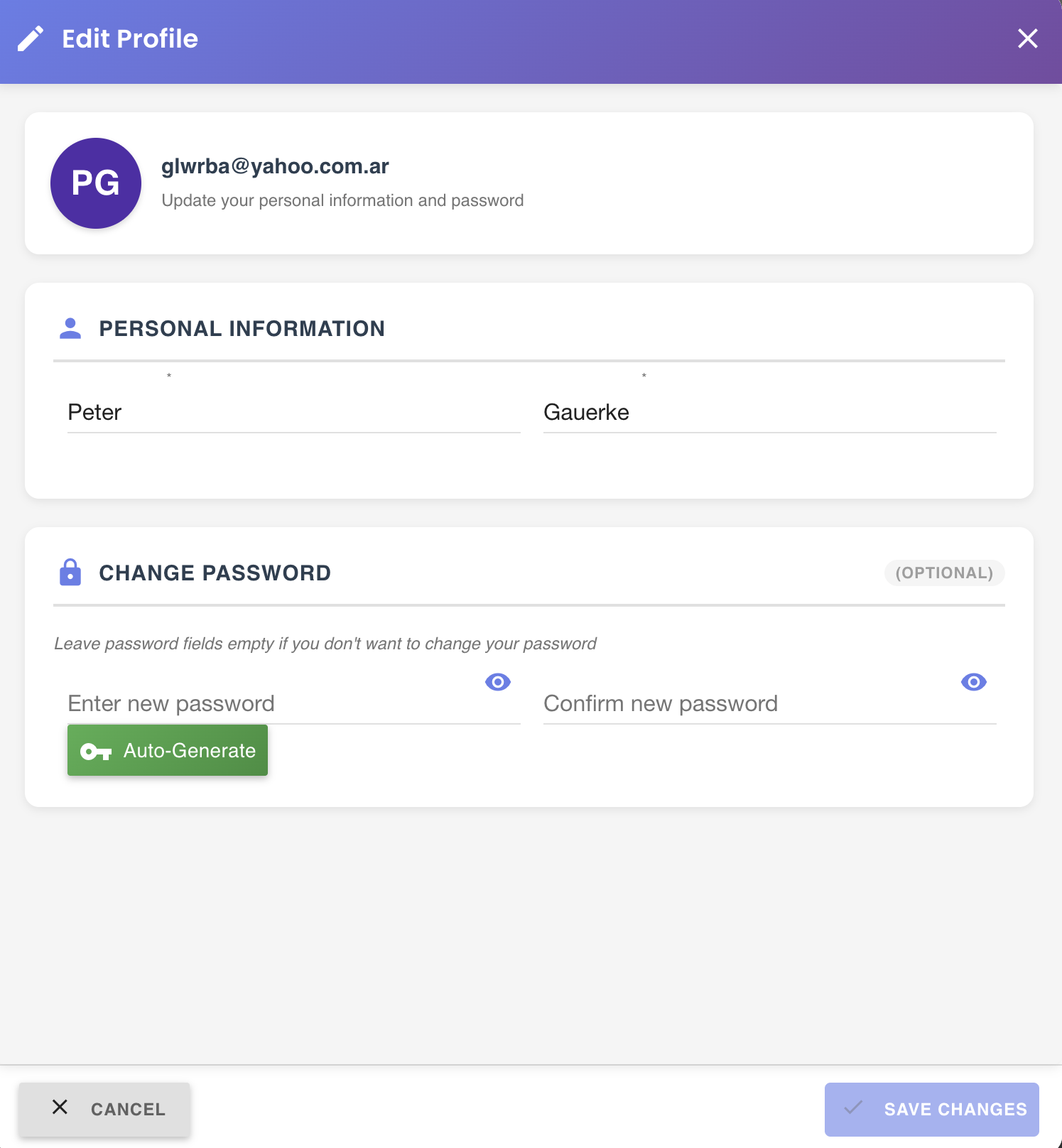
- The Edit Profile Dialog opens
Editable Fields
First Name and Last Name
- Enter your first and last name in the respective fields
- Both fields are required and cannot be empty
- Accept alphabetic characters and common name characters
Password
To change your password:
- Enter your new password in the New Password field
- Re-enter the same password in the Confirm Password field
- Both fields must match exactly
Password Requirements
Passwords must meet the following requirements:
- Minimum 8 characters
- At least one uppercase letter (A-Z)
- At least one lowercase letter (a-z)
- At least one numeric digit (0-9)
- At least one special character (!@#$%^&*)
Auto-Generate Password
Instead of manually creating a password, you can use the built-in password generator:
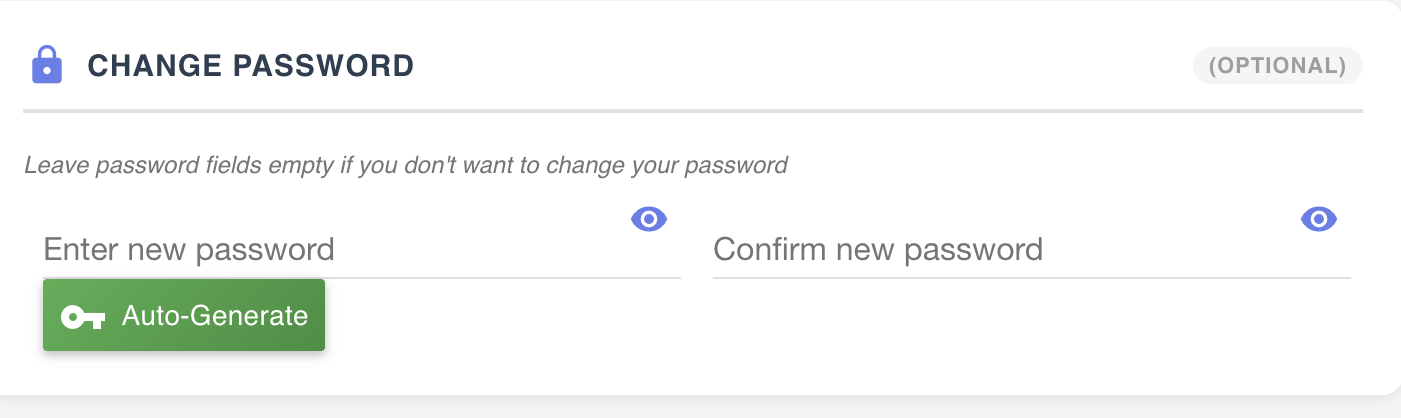
- Click the Auto-Generate button
- A secure, random password is automatically generated and populated in both password fields
- Copy the generated password and store it in a secure location
Auto-Generated Passwords
Auto-generated passwords automatically meet all security requirements and use cryptographically secure random generation.
Saving Changes
After making your changes:
- Review all modified fields
- Ensure password fields match (if changing password)
- Click the Save Changes button
Password Mismatch Error
If passwords don't match, an error message will appear: "Passwords do not match. Please ensure both password fields contain the same value."
Notifications
When you save profile changes, BizMetry triggers notifications:
Email Notification
An email notification is automatically sent to your registered email address when you change your password.
Email contents include: - Confirmation that your password was changed - Timestamp of the change - Security reminder to contact support if you did not make this change
System Notification
A system notification is also generated and can be viewed in the Notifications Panel (accessible via the bell icon).
Notification Delivery
Email notifications are typically delivered within 1-2 minutes. Check your spam/junk folder if not received within 5 minutes.
Validation Errors
Common Validation Issues
Empty Name Fields - Error appears if first name or last name is left empty - Enter valid names to proceed
Password Mismatch - Ensure both password fields contain identical text - Use Auto-Generate to avoid typing errors
Invalid Password Format - Review password requirements - Use Auto-Generate for guaranteed compliance