Notifications
The Notifications panel lets you view and manage all system notifications associated with your account — alerts generated by BizMetry when relevant events occur on agents, profiles, environments, and other objects.
Accessing Notifications
There are two ways to open the Notifications panel:
From the user menu — click your username in the top-right corner and select Notifications.
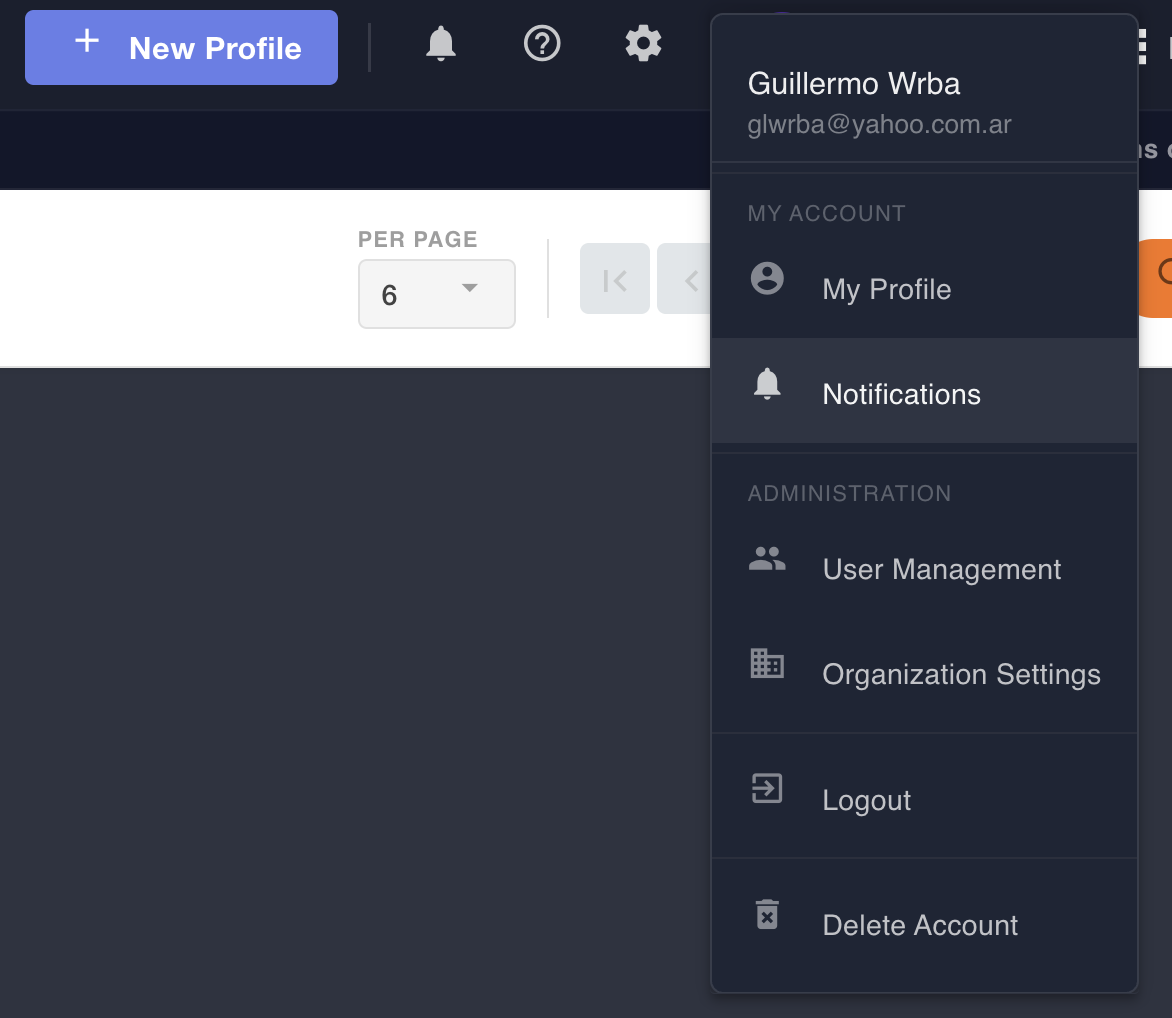
From the top bar — click the bell icon () in the navigation bar.

In both cases, the Notifications dialog opens showing all notifications for the current account.
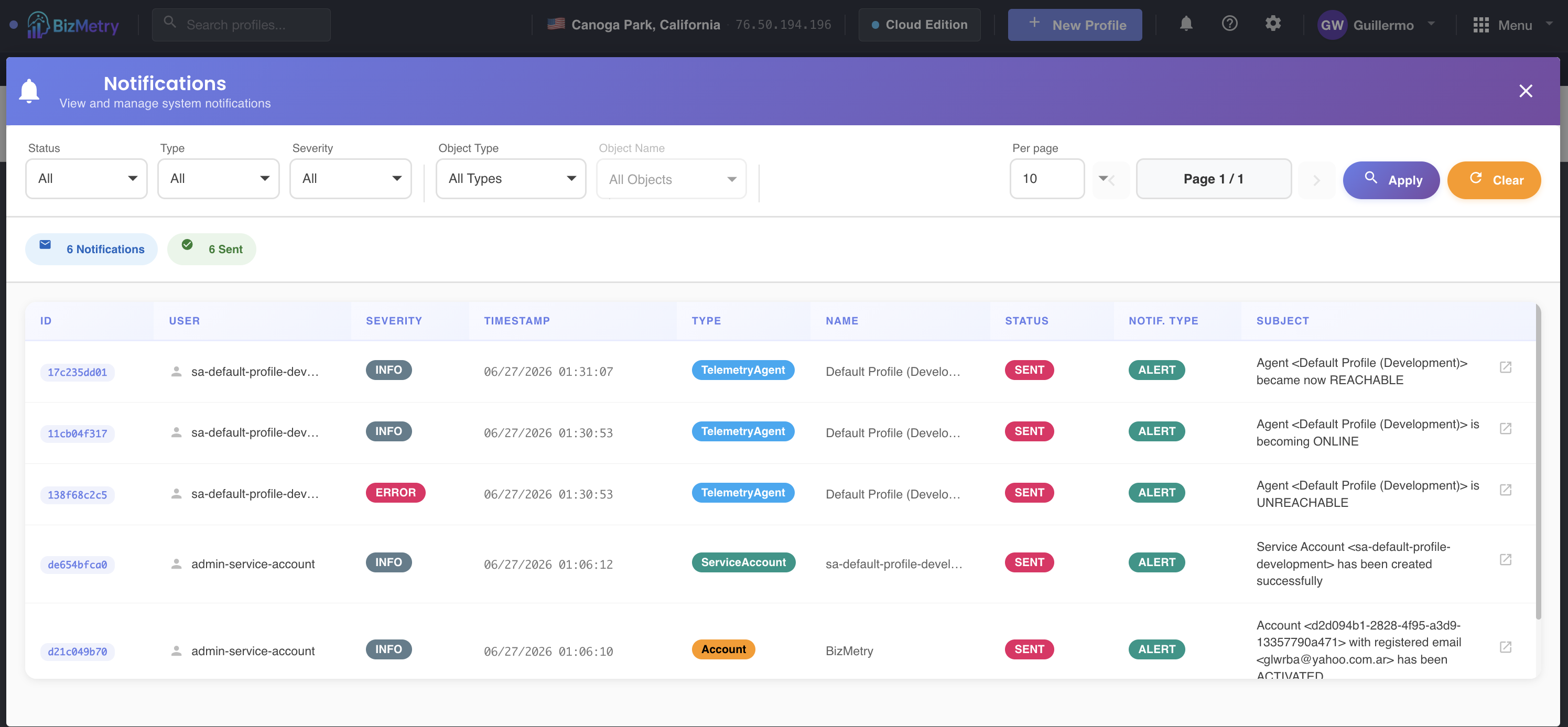
Notifications List
Each notification entry shows the following columns:
| Column | Description |
|---|---|
| ID | Unique identifier of the notification (truncated) |
| User | User or service account that triggered the notification |
| Severity | Severity level: INFO, ERROR, etc. |
| Timestamp | Date and time the notification was generated |
| Type | Object type that originated the notification (e.g. TelemetryAgent, ServiceAccount, Account) |
| Name | Name of the object that originated the notification |
| Status | Delivery status: SENT or QUEUED |
| Notif. Type | Notification category (e.g. ALERT) |
| Subject | Brief description of the notification event |
Filtering Notifications
The filter bar at the top of the dialog allows you to narrow down the list by:
- Status — filter by delivery state (
All,Sent,Queued) - Type — filter by notification category
- Severity — filter by severity level (
All,Info,Error, etc.) - Object Type — filter by the type of BizMetry object that generated the notification
- Object Name — filter by the specific object instance
After selecting the desired criteria, click Apply to update the results. Click Clear to reset all filters to their default values.
Pagination
Use the Per page selector to control how many notifications are shown per page (default: 10). Navigate between pages using the ◀ / ▶ controls next to the page indicator (Page 1 / N).
Notification Detail
Click on any notification row to open its detail view.
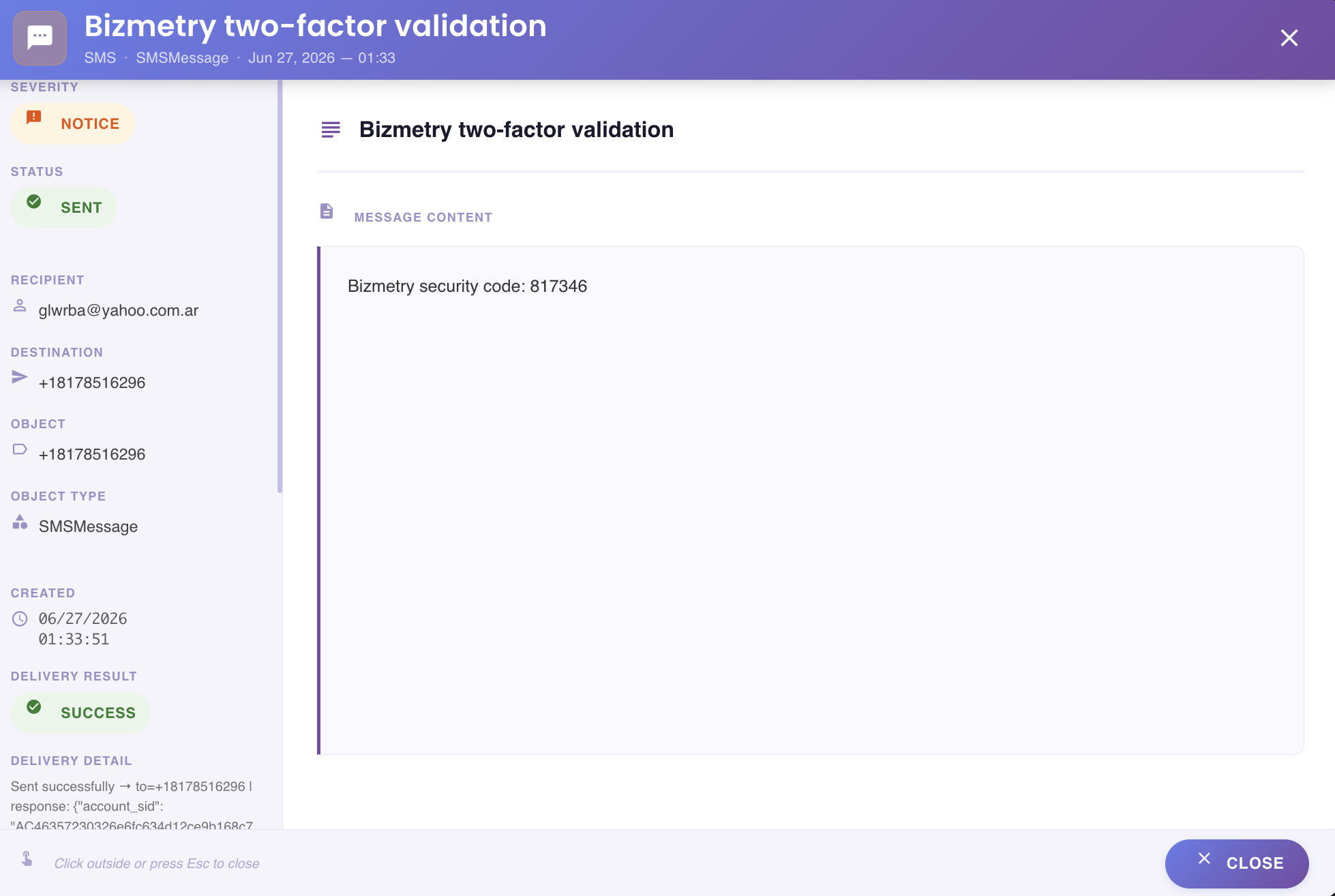
The detail view is divided into two panels:
Left panel — Notification metadata
| Field | Description |
|---|---|
| Status | QUEUED — not yet dispatched; SENT — successfully dispatched to the destination |
| Severity | Severity level of the notification. Higher severity notifications are dispatched with higher priority |
| Recipient | User or service account that received the notification |
| Destination | Destination address for the notification. For SMS notifications, this is the target phone number |
| Object Type | Type of BizMetry object that originated the notification |
| Object | Name of the specific object instance |
| Created | Timestamp when the notification was generated |
| Delivery Result | SUCCESS if BizMetry dispatched the notification successfully; FAILURE if dispatch failed |
| Delivery Detail | Detailed output from the dispatch process, which may include transmission logs |
| Notification ID | Full unique identifier of the notification |
Right panel — Notification body
Displays the full content of the notification message as delivered to the recipient.