Managing Users
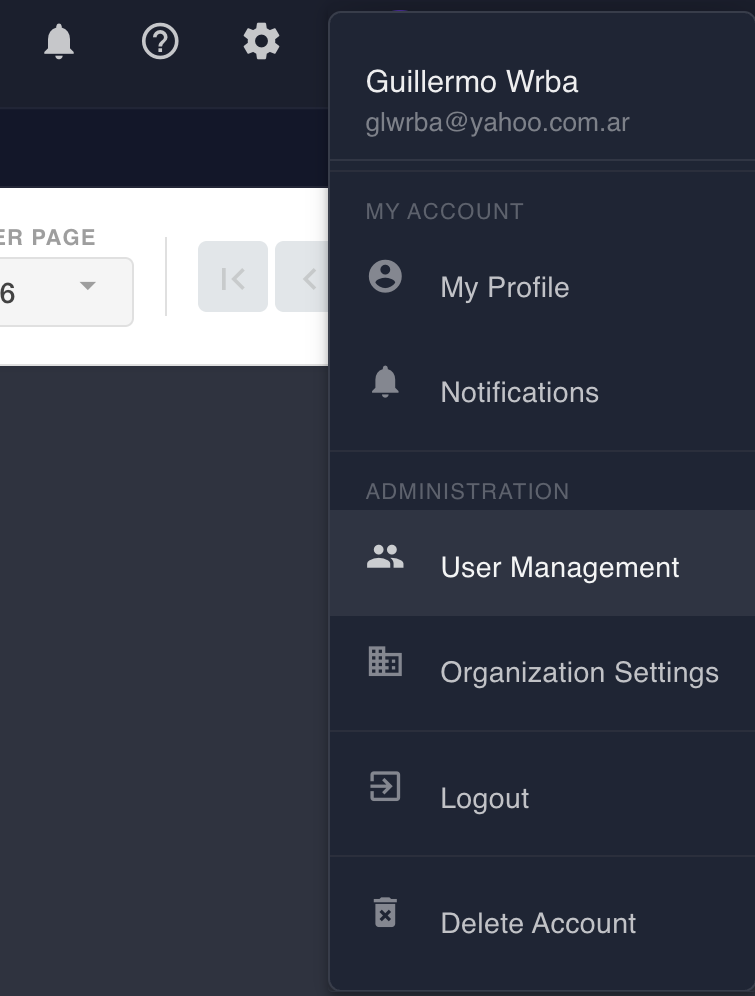
The User Management dialog allows administrators to manage users, roles, and service accounts within their BizMetry organization. It is accessible from the user menu by selecting User Management.
The dialog is organized into three tabs:
- Users — manage the human users associated with the account
- Roles Explorer — browse and inspect the available roles and their permissions
- Service Accounts — manage programmatic access accounts used by agents and integrations
Users Tab
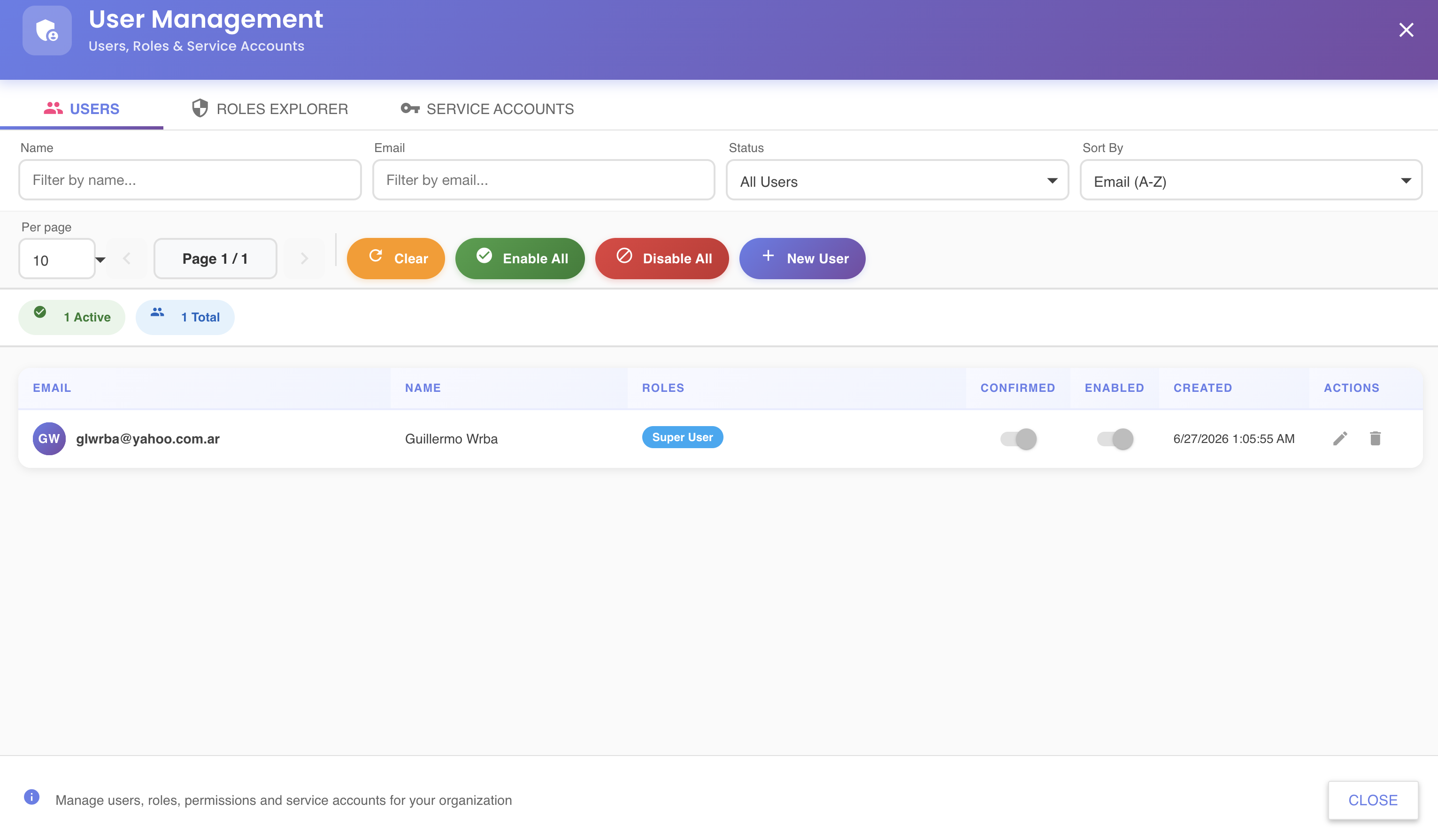
The Users tab lists all users registered under the current organization account.
User List Columns
| Column | Description |
|---|---|
| Login identifier and contact address of the user | |
| Name | Full display name |
| Roles | Assigned role badges (e.g. Super User) |
| Confirmed | Toggle indicating whether the user has confirmed their email and completed account activation |
| Enabled | Toggle indicating whether the user's access is currently active |
| Created | Timestamp when the user account was created |
| Actions | Edit () or delete () the user |
Filtering Users
The filter bar at the top of the Users tab allows narrowing the list by:
- Name — free-text filter on the user's display name
- Email — free-text filter on the email address
- Status — filter by account state (
All Users,Active,Disabled, etc.) - Sort By — control the sort order of the results (e.g.
Email (A-Z))
Bulk Actions
The toolbar above the list provides the following bulk operations:
- Clear — resets all active filters
- Enable All — enables all users currently matching the filter
- Disable All — disables all users currently matching the filter
- + New User — opens the user creation dialog to invite a new user to the organization
Summary Badges
Below the toolbar, summary badges show a quick count of the current result set, for example 1 Active and 1 Total.
Pagination
Use the Per page selector to control how many users are shown per page. Navigate between pages using the ◀ / ▶ controls next to the page indicator (Page 1 / N).
Roles Explorer Tab
The Roles Explorer tab is where administrators browse and maintain BizMetry's Role-Based Access Control (RBAC) model: which roles exist, what permissions each one grants, and how roles nest inside one another. Roles define what a user can view and do across profiles, environments, templates, agents, and platform administration.
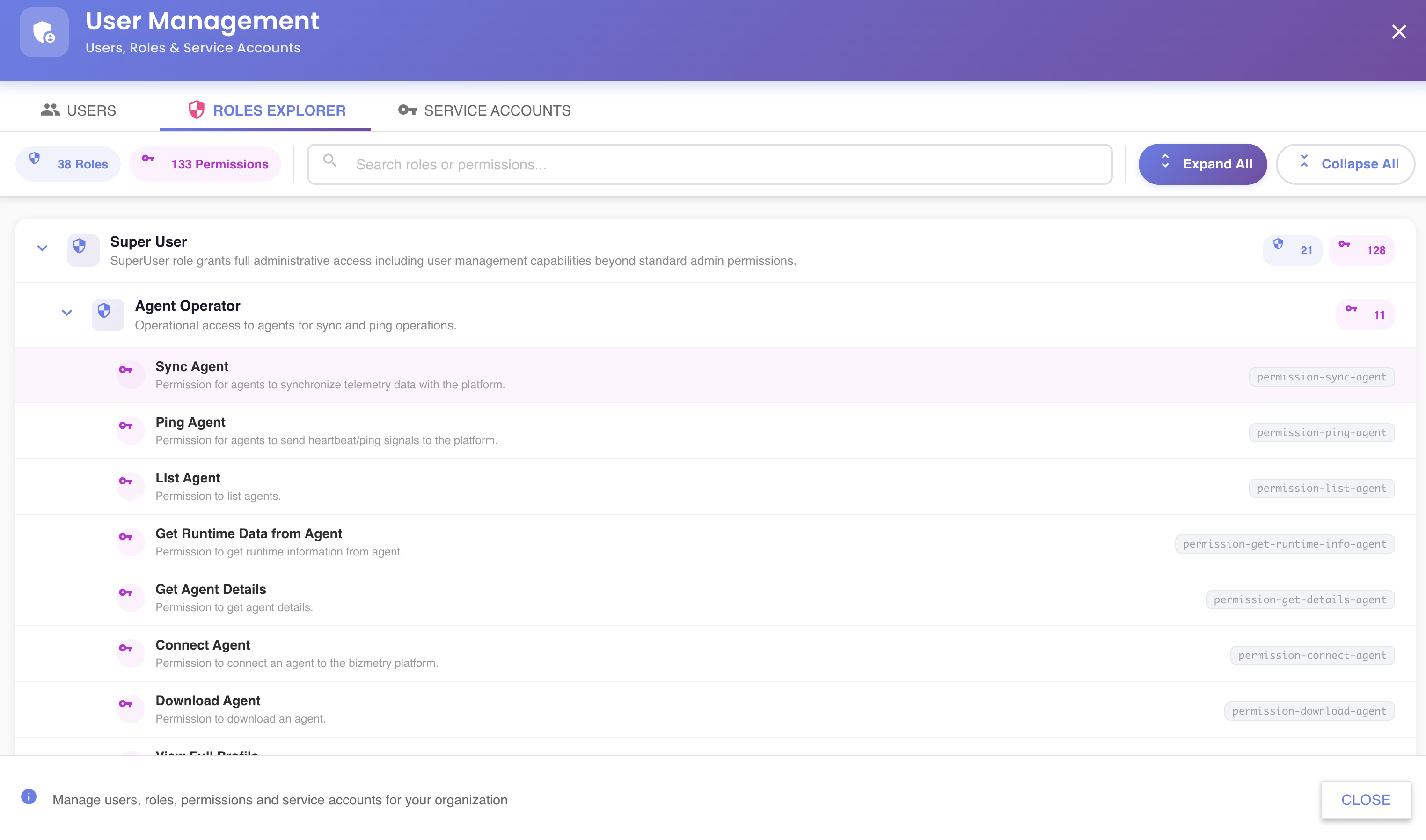
For sorting, searching, creating roles, managing permissions and nested child roles, and deleting roles — including what happens when a role is still assigned to someone — see Roles and Permissions.
Service Accounts Tab
The Service Accounts tab manages programmatic access credentials used by agents, CI/CD pipelines, and external integrations to authenticate against BizMetry APIs without using human user credentials.
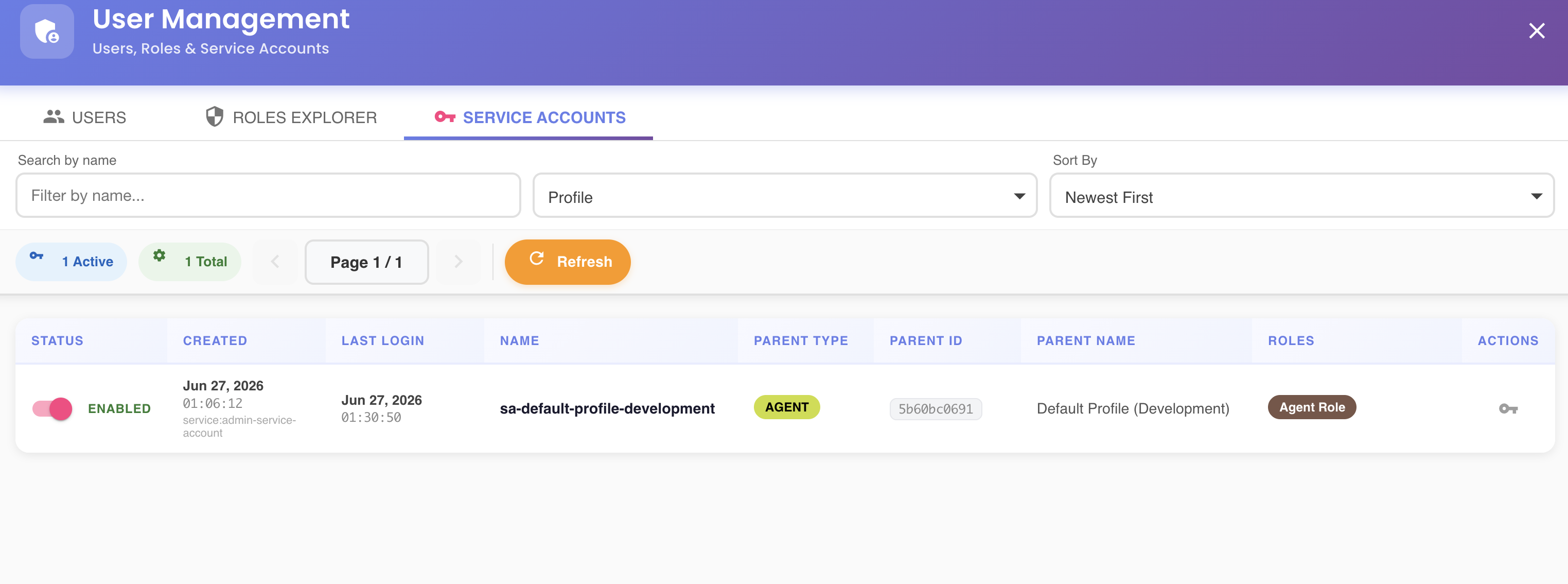
For full details on filtering, credentials, and enabling/disabling accounts, see Service Accounts.
Creating a New User
Click + New User to open the user creation dialog. Fill in the user's details and assign their role, then save. The new user will receive an activation email to complete their registration.
Administrator access required
The User Management dialog is only accessible to users with administrator privileges within the organization.
Last administrator
You cannot disable or delete the last administrator account in the organization. Assign another user as administrator before making changes to your own account.