Select Roles & Permissions
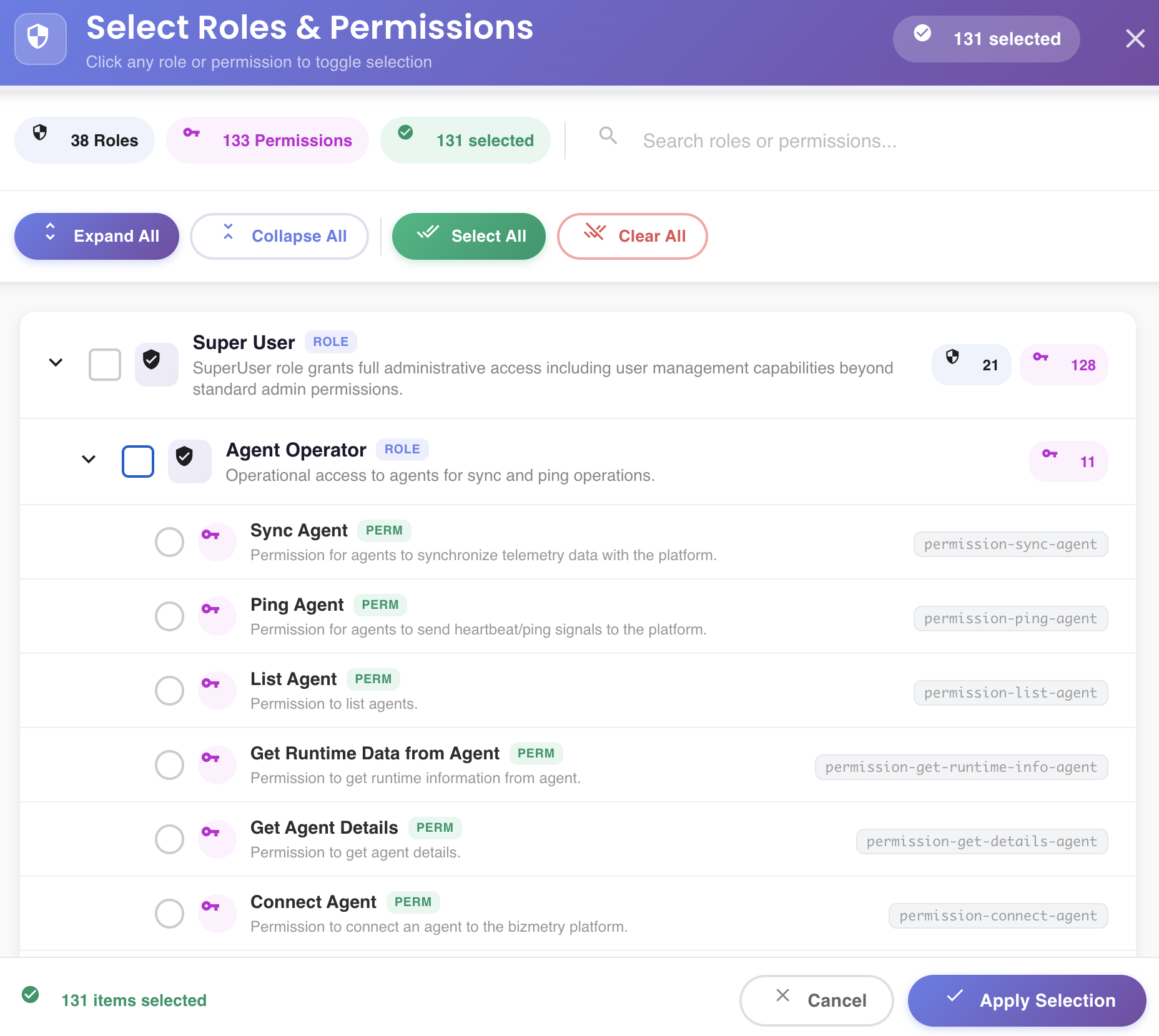
The Select Roles & Permissions picker opens when clicking Edit Roles & Permissions from the Roles & Permissions tab of the Create New User wizard (or when editing an existing user).
It provides a full view of all available roles and individual permissions, allowing fine-grained control over what the user can access and do within BizMetry.
Summary Bar
The top bar shows a live count of the current selection state:
| Badge | Description |
|---|---|
| N Roles | Total number of roles available in the system |
| N Permissions | Total number of individual permissions available |
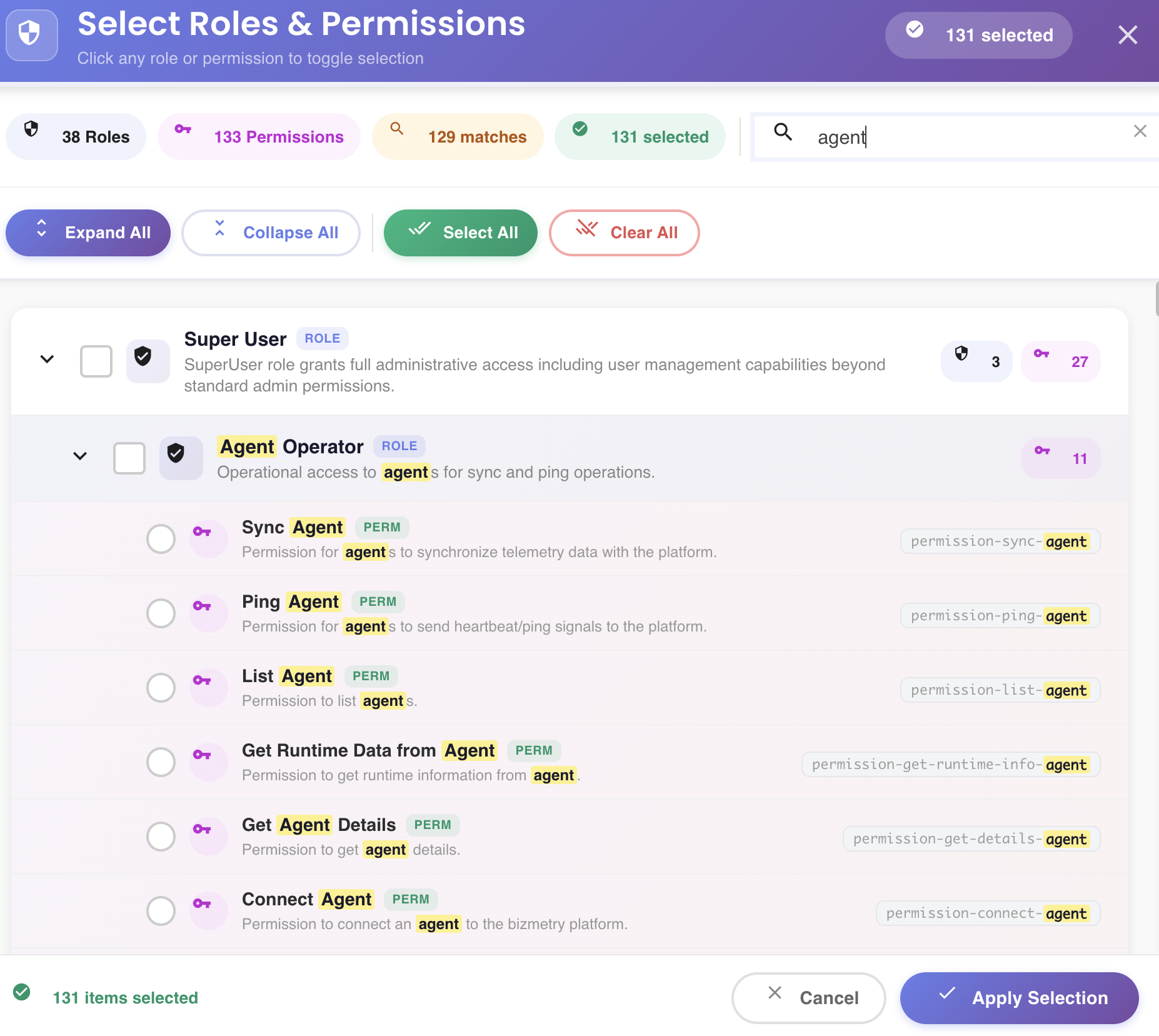
| N matches | Number of roles and permissions matching the current search query (shown when searching) |
| N selected | Total number of roles and permissions currently selected |
Search
Use the search box on the right side of the summary bar to filter roles and permissions by name. Matching terms are highlighted in the results as you type. The matches badge updates to reflect the filtered count.
To clear the search, click the inside the search box.
Toolbar
| Button | Description |
|---|---|
| Expand All | Expands all role groups to show their individual permissions |
| Collapse All | Collapses all role groups, hiding individual permissions |
| Select All | Selects all visible roles and permissions (respects active search filter) |
| Clear All | Deselects all currently selected roles and permissions |
Roles and Permissions Tree
The list is organized as a two-level hierarchy:
Roles (top level) group related permissions together. Each role entry shows:
- A checkbox to select or deselect the entire role
- A filled shield icon when the role is selected
- The role name and a
ROLEbadge - A description of the role's purpose
- A count of how many sub-roles () and permissions () it contains
- A ▼ chevron to expand or collapse its permissions
Permissions (second level) appear nested under their parent role when expanded. Each permission entry shows:
- A radio button to select or deselect it individually
- A key icon ()
- The permission name and a
PERMbadge - A description of what the permission grants
- A unique permission identifier (e.g.
permission-sync-agent) shown on the right
Selecting a role does not automatically select all its individual permissions — roles and permissions can be mixed freely. You can assign an entire role, individual permissions from different roles, or any combination.
Applying the Selection
The footer shows the total count of currently selected items (e.g. 131 items selected).
Click Apply Selection to confirm the selection and return to the Roles & Permissions tab. Click Cancel to discard changes and close the picker without modifying the assignment.
Super User role
The Super User role grants full administrative access including user management capabilities beyond standard admin permissions. Assign it with care.