Searching Roles and Permissions
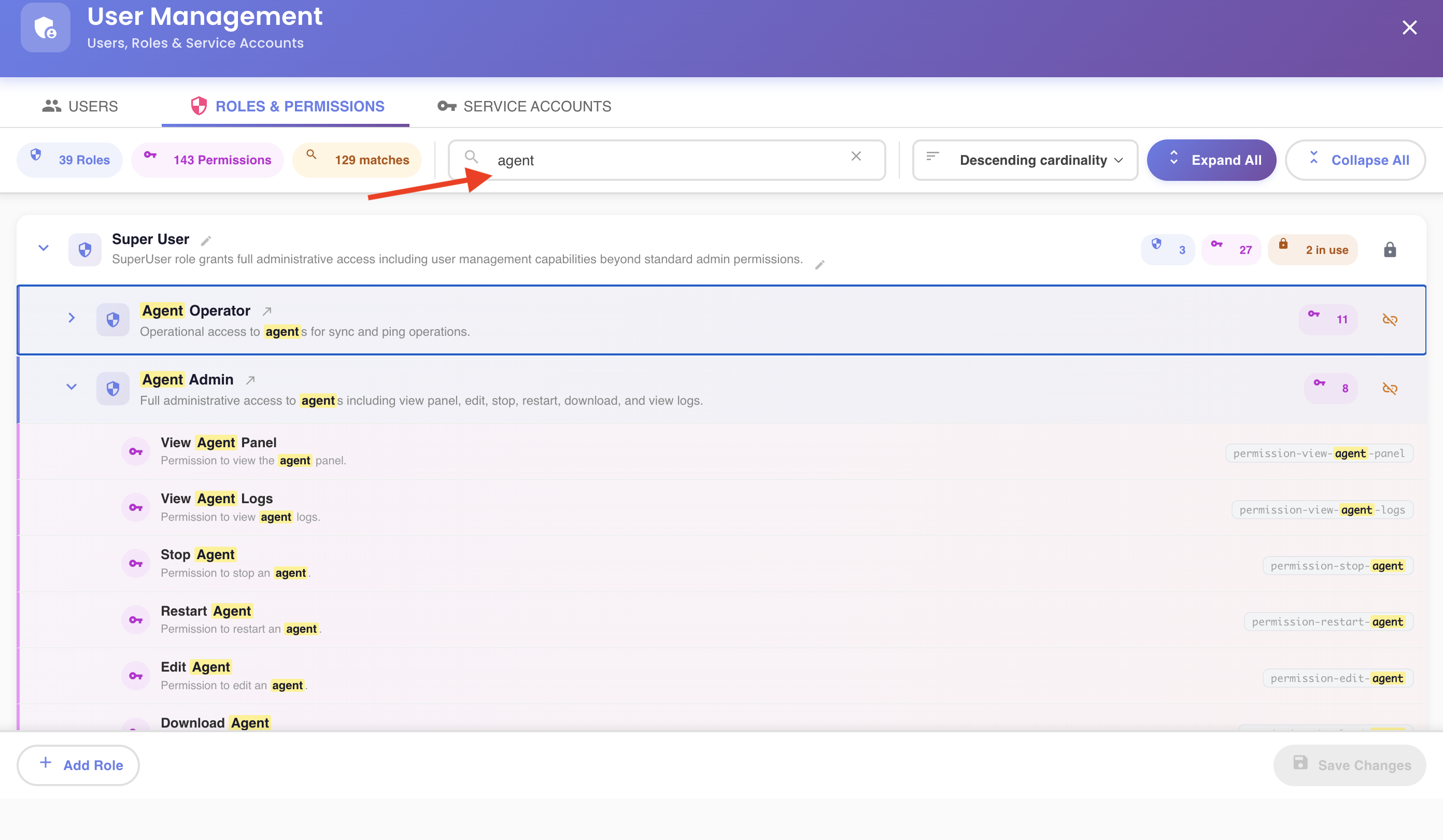
The search box sits in the middle of the Roles Explorer's fixed action bar, with the placeholder "Search roles or permissions...".
What It Matches
Typing filters the tree in real time (after a brief pause, so it doesn't refilter on every keystroke) against, for every role:
- The role's name
- The role's description
- Each of its permissions' name, description, and ID
Matching text is highlighted directly in the tree. A match count badge appears next to the search box while a search is active.
How the Tree Reacts
Roles and permissions that don't match — directly or through a descendant — are hidden from view. A role that doesn't itself match but has a matching permission or a matching nested child role stays visible, with the tree automatically expanded down to reveal the actual match. Everything else collapses out of the way so results aren't buried in unrelated branches.
Clearing a Search
Click the × button inside the search box (visible once you've typed something) to clear the filter and return to the full, unfiltered tree.
Search doesn't affect what you can edit
Filtering the view doesn't restrict which roles you can act on — adding/removing permissions, nesting or unlinking child roles, and deleting all still work exactly the same against whatever's currently visible.