Navigating to a Nested Role's Root Entry
Every role in the Roles Explorer always has exactly one top-level (root) entry — even one that's also nested under one or more parents. Wherever it shows up nested, though, it's read-only: you can't add or remove its permissions, or add or remove its own child roles, from inside someone else's branch. The only action available on a nested occurrence is unlinking it from that particular parent.
To actually edit a role you found nested somewhere, click the diagonal arrow () next to its name.
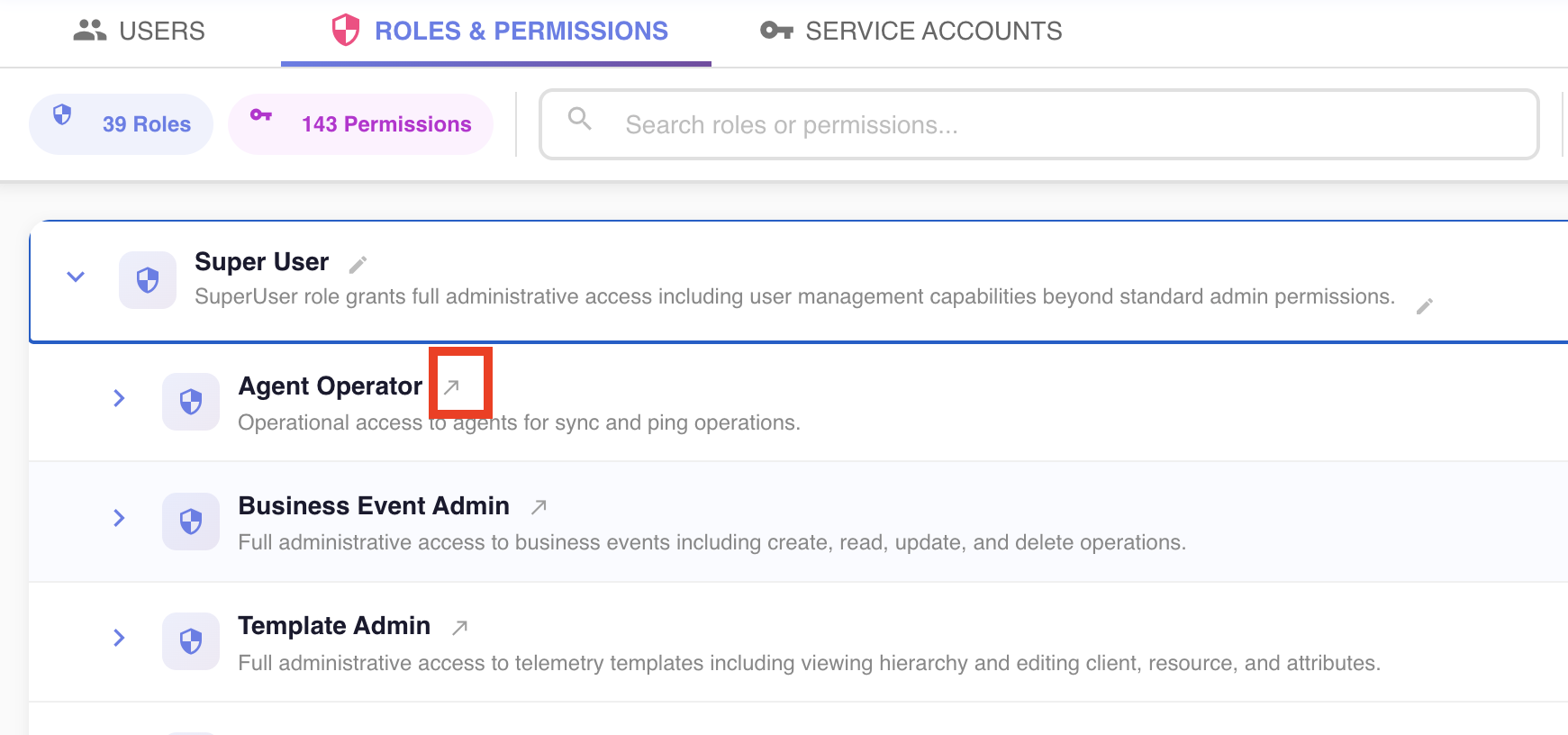
This scrolls the tree to that role's own top-level entry, briefly highlights it, and expands it — with Add Permission and Add Child Role right there, ready to use.
Hovering the arrow (instead of clicking it) shows a tooltip with the same explanation, worded slightly differently depending on how deeply nested the role is:
- One level down (its parent is a root role): "Nested role — read only here. Go to its own top-level entry to edit it, or use Unlink above to remove it from this parent."
- Two or more levels down: "Nested role — read only here. Go to its own top-level entry to edit it." (no unlink option shown at that depth — see Unlinking a Nested Role)
If nothing happens when you click it
If a search filter is active and the role's root entry isn't part of the current filtered results, there's nothing on screen to jump to — you'll see a toast saying so instead. Clear the search first.