Editing a Role's Name and Description
Every role's top-level entry in the Roles Explorer shows a pencil icon () next to its name, and another next to its description.
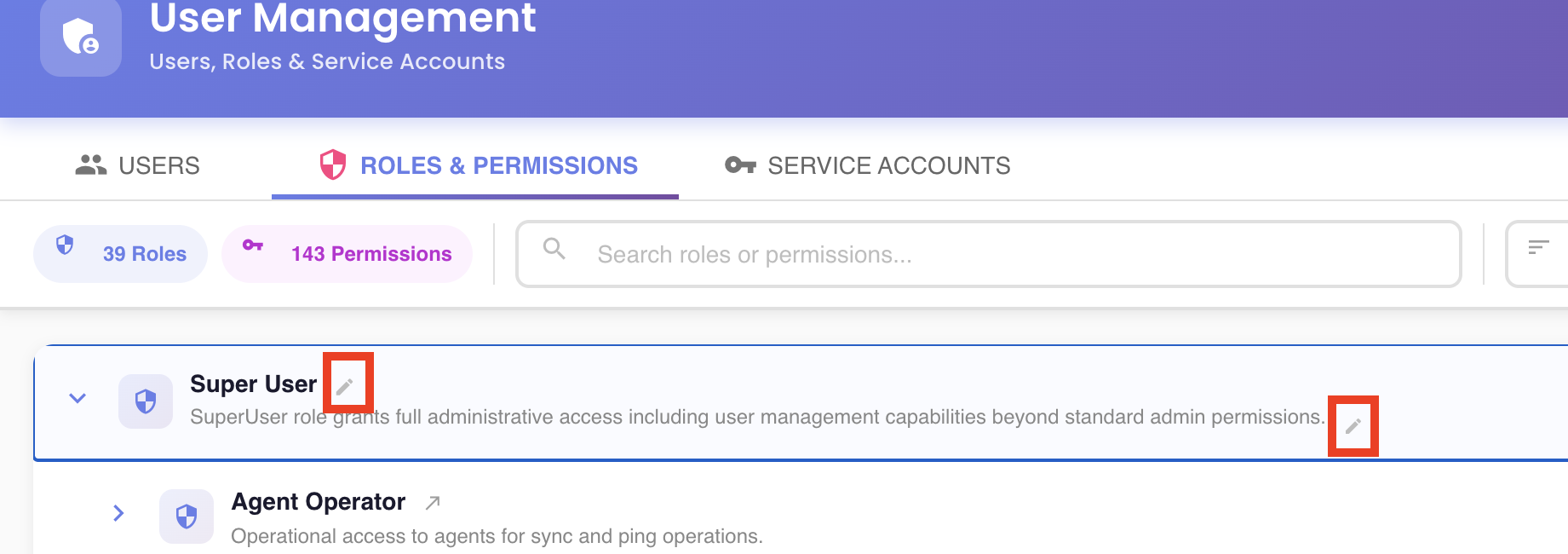
Root-level roles only
Like adding a permission or a child role, this only appears on a role's own top-level entry. A role shown nested under another one is read-only there — see Navigating to a Nested Role's Root Entry.
Editing Inline
Click either pencil to swap that field from static text into an editable one, focused and ready to type immediately:
- Name becomes a single-line text field.
- Description becomes a multi-line text area.
Click anywhere outside the field (or press Enter while editing the name) to close it and return to the normal display, showing whatever you typed.
Name can't be left empty
If you clear the name out entirely and click away, it reverts to whatever it was before you started editing rather than leaving the role nameless. Description has no such restriction — it can be left blank.
Adding a Description to a Role That Doesn't Have One
A role with no description yet doesn't show an empty line with a pencil next to nothing — instead, its top-level entry shows a standalone "Add description" link. Clicking it opens the same inline text area as the pencil would.
Staged Until Saved
Like every other edit in the Roles Explorer, a name or description change is staged in the tree — visible immediately wherever that role's name or description is shown — but not sent to the server until you click Save Changes. See the unsaved-changes model.