Organization Settings
The Edit Organization dialog allows administrators to view and update the configuration of their BizMetry organization account.
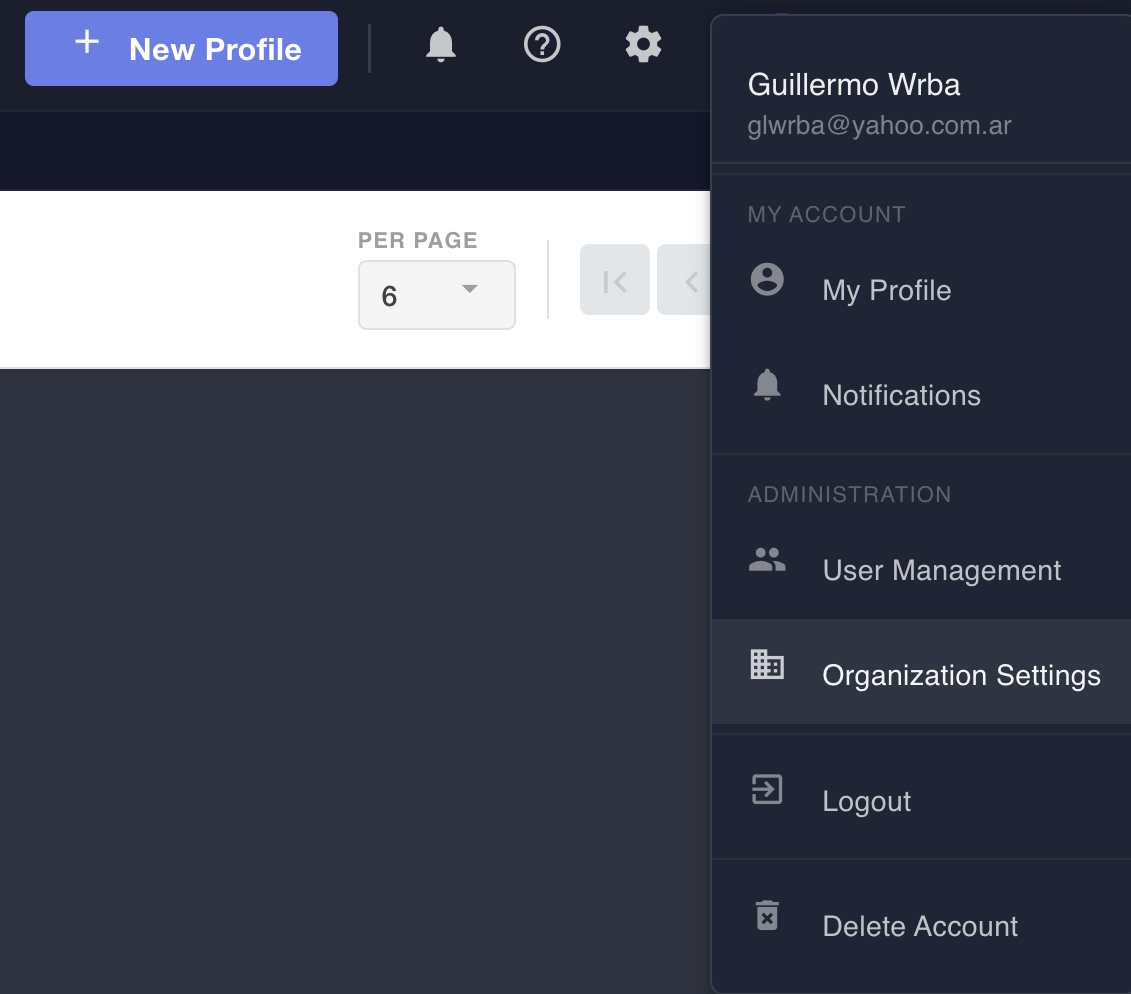
To open it, click your username in the top-right corner and select Organization Settings.
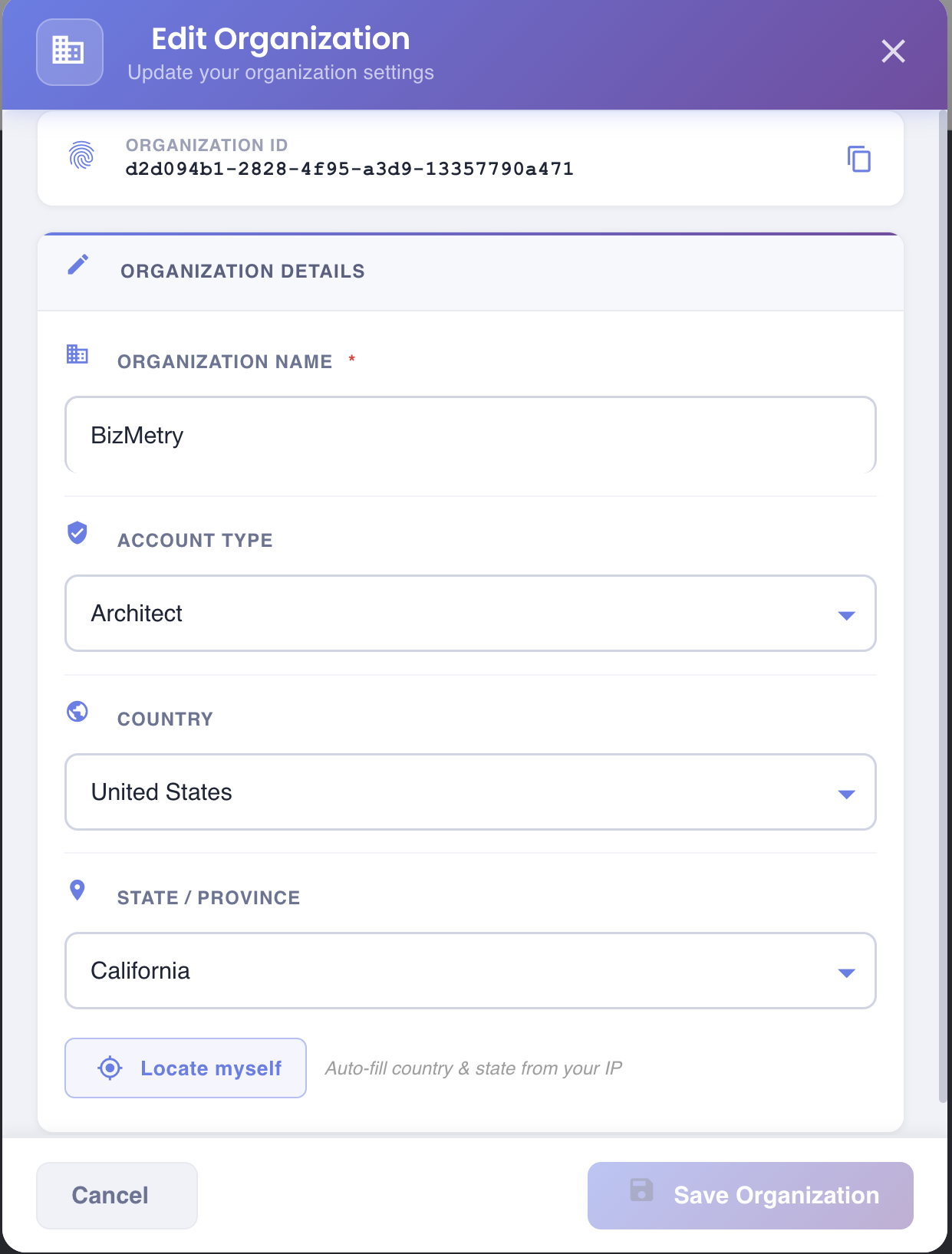
Organization ID
The Organization ID is displayed at the top of the dialog as a read-only field. It is the unique identifier assigned to your organization within BizMetry.
Click the copy icon on the right to copy the ID to the clipboard.
Read-only
The Organization ID is assigned by BizMetry at account creation and cannot be changed.
Organization Details
Organization Name
The display name of your organization within BizMetry. This field is required.
Account Type
Defines the role of your organization within the BizMetry ecosystem. The available types reflect how your organization uses the platform (e.g. Architect, Operator, etc.).
Country
Select the country where your organization is based. Used for localization and regional configuration.
State / Province
Select the state or province within the selected country.
Locate myself
Click Locate myself to auto-fill the Country and State / Province fields based on your current IP address. This is a convenience shortcut — the values can be adjusted manually after auto-fill.
Saving Changes
Click Save Organization to apply your changes. Click Cancel to discard them and close the dialog.
Administrator access required
Organization Settings are only accessible to users with administrator privileges. Regular users can view their organization details from the My Profile dialog, but cannot edit them.