My Profile View
The My Profile dialog lets you update your personal information, configure Two-Factor Authentication (2FA), and change your password.
To open it, click on the username panel in the top-right corner, select My Profile.
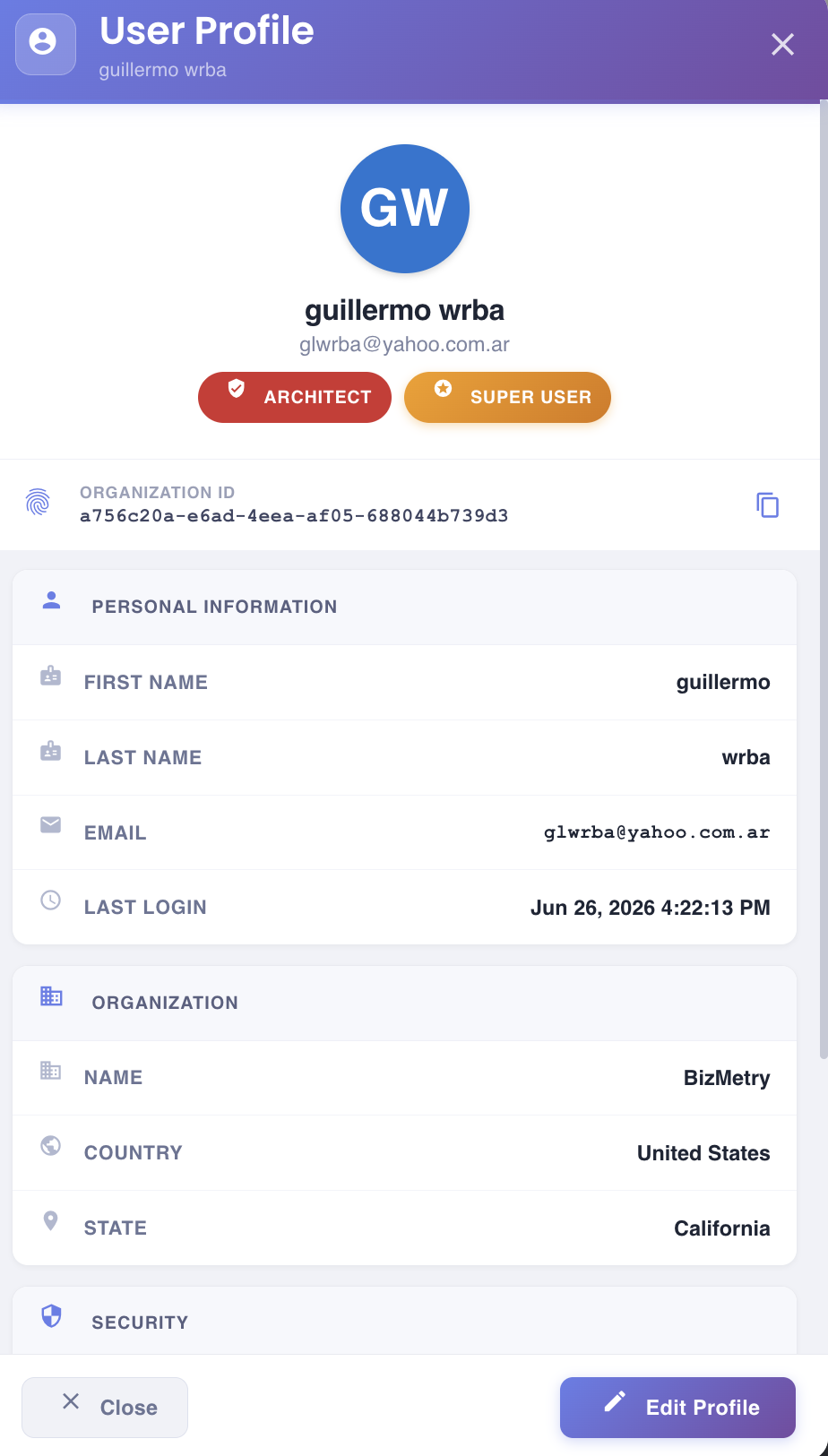
The dialog header shows your display name, avatar initials, and account status badge (Active).
To edit your profile, you need to click on the "Edit Profile" button.
Personal Information
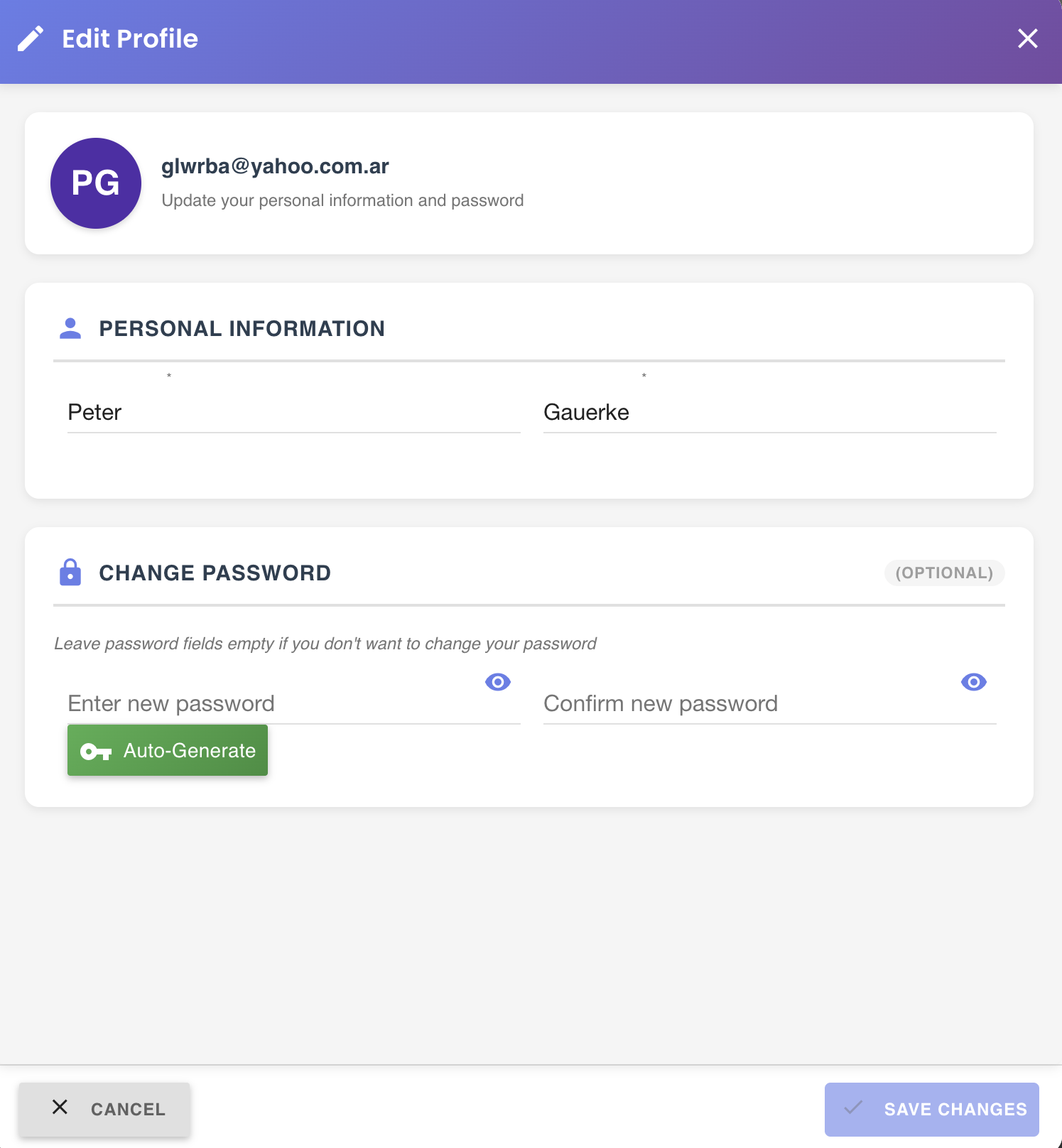
| Field | Required | Notes |
|---|---|---|
| First Name | Yes | Alphabetic characters only |
| Last Name | Yes | Alphabetic characters only |
Both fields must be filled in before saving. Leaving either empty will produce a validation error.
Security
2FA Mobile Number
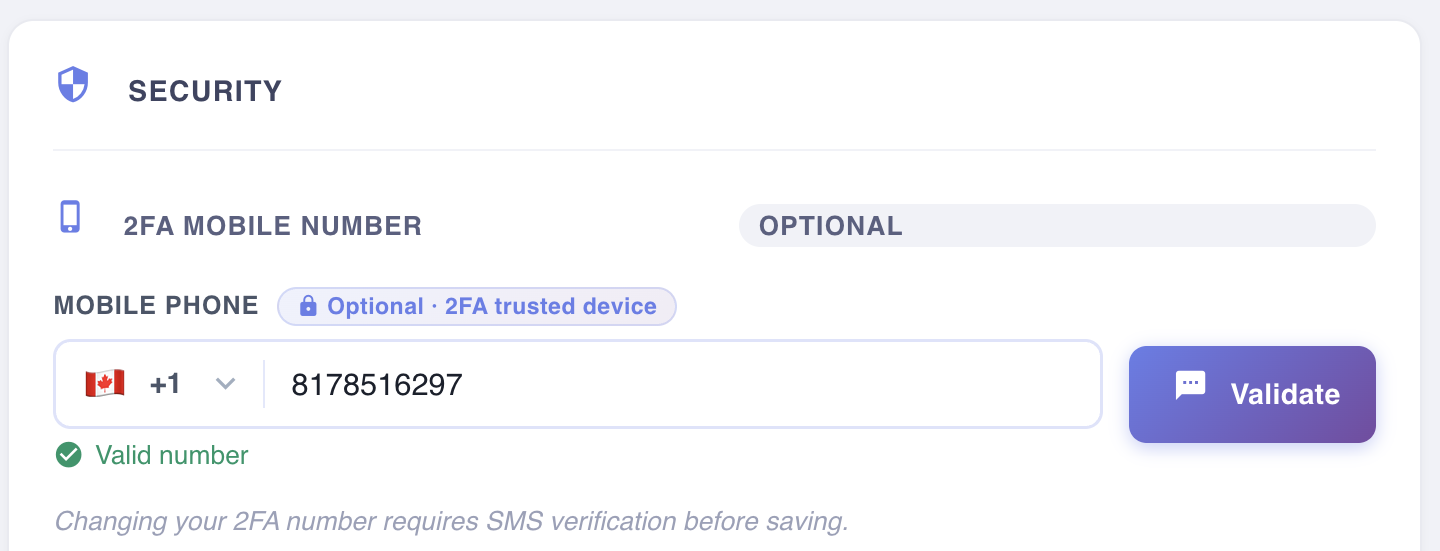
Two-Factor Authentication via SMS is optional. When configured, BizMetry sends a one-time code to your mobile number on security-sensitive actions.
Setting or changing your 2FA number
- Select your country code using the flag dropdown
- Enter your mobile phone number in the input field
- Click Validate
BizMetry verifies that the number belongs to you before saving it. Clicking Validate triggers an SMS message to the number entered.
Validation required
Changing your 2FA number requires SMS verification before the change can be saved.
SMS Verification dialog
After clicking Validate, the Two-Factor Authentication dialog appears:
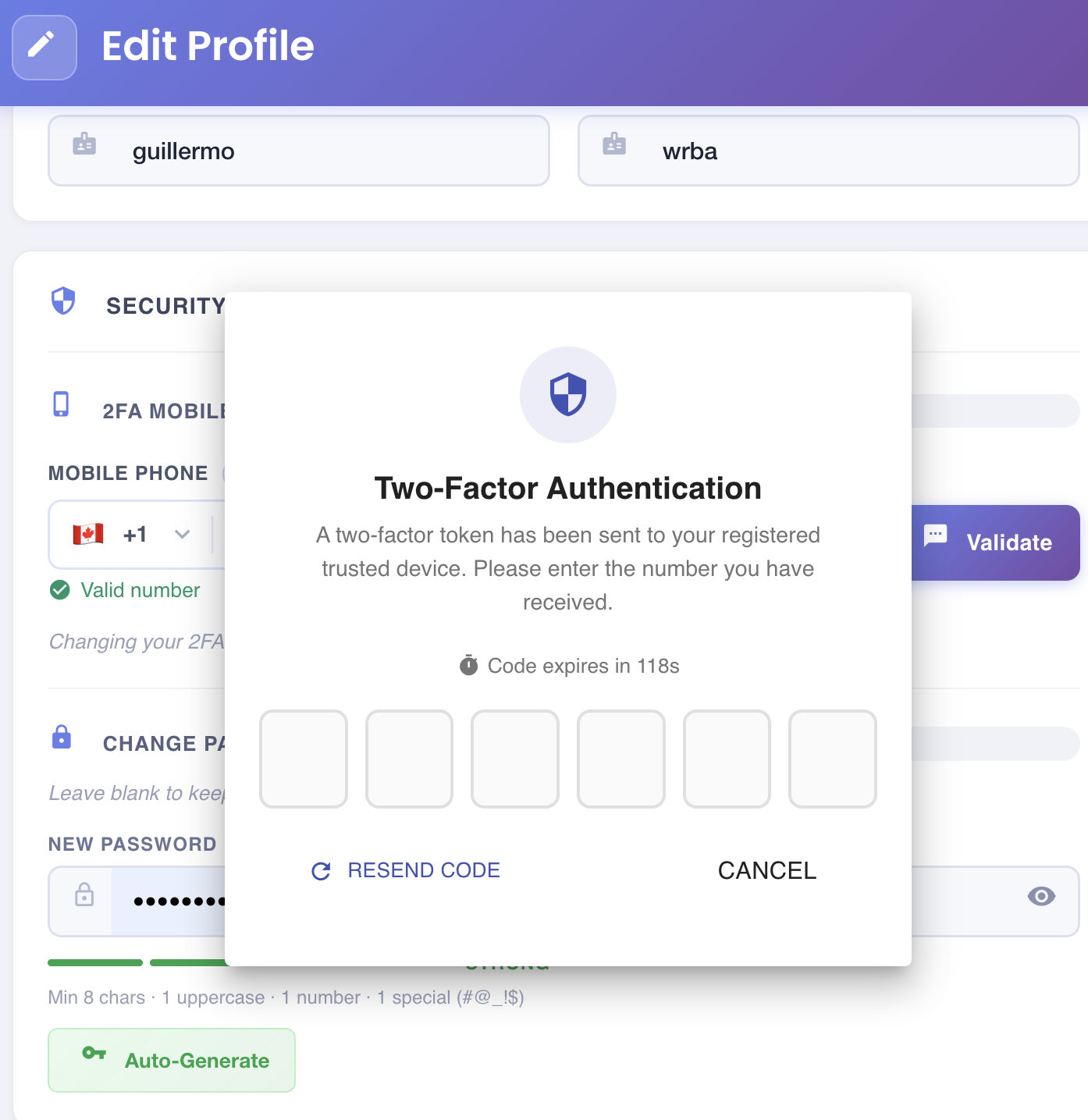
- A 6-digit code is sent to the mobile number entered
- The code expires — a countdown timer is shown (e.g. Code expires in 118s)
- Enter each digit in the six individual input fields
- If the code was not received, click Resend Code to send a new one
- Click Cancel to abort the verification and return to the Edit Profile dialog
Once the correct code is entered, the number is marked as verified and will be saved when you click Save Changes.
Change Password
Password change is optional. Leave both password fields blank to keep your current password.
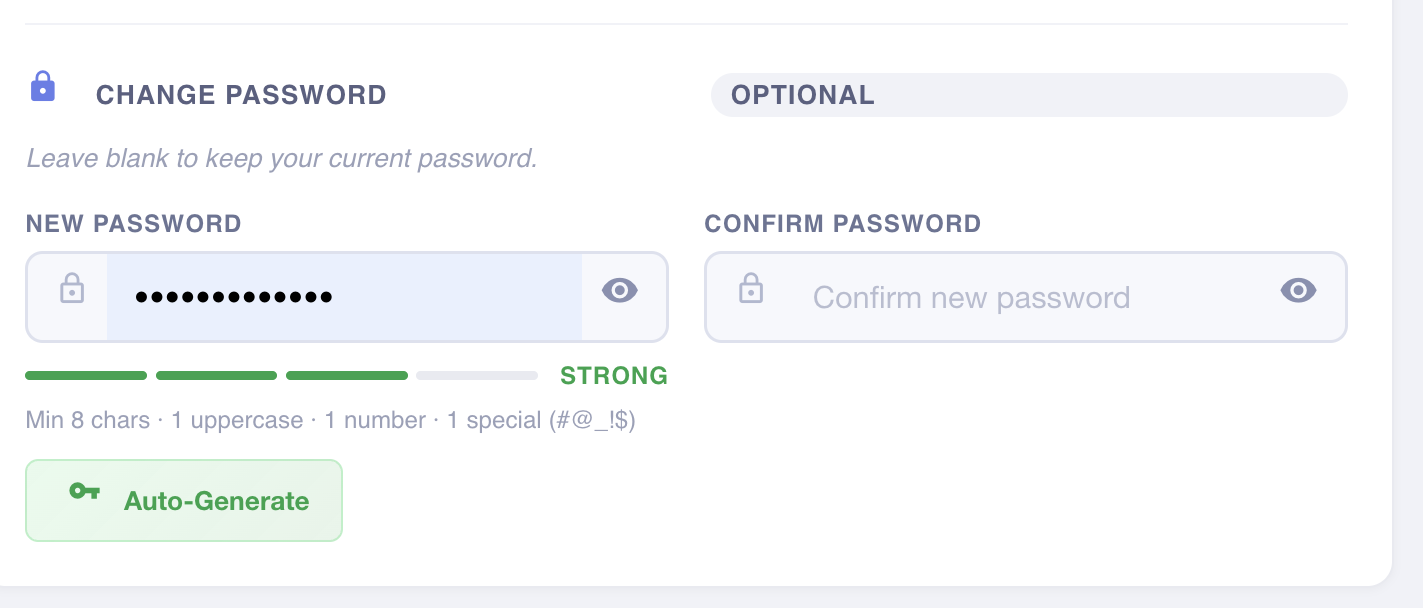
To set a new password:
- Enter the new password in the New Password field
- Re-enter it in the Confirm Password field — both must match exactly
A strength indicator is shown below the password field as you type.
Password requirements
- Minimum 8 characters
- At least one uppercase letter (A–Z)
- At least one lowercase letter (a–z)
- At least one numeric digit (0–9)
- At least one special character (
#,@,_,!,$, or similar)
Auto-Generate Password
Instead of typing a password manually, click Auto-Generate to have BizMetry create one for you:
- A cryptographically secure random password is generated instantly
- It is automatically populated in both the New Password and Confirm Password fields
- It always satisfies all password requirements
- Copy the generated password and store it in a password manager before saving — it will not be shown again
Tip
Auto-Generate is the fastest way to ensure your password meets all requirements without guessing.
Saving Changes
Click Save Changes to apply all updates. The button is only active when the form is in a valid state.
Validation errors that block saving
- First Name or Last Name is empty
- New Password and Confirm Password do not match
- A new 2FA mobile number was entered but not verified via SMS
Notifications after saving
When a password change is saved, BizMetry automatically sends:
- An email notification to your registered address, including a timestamp and a security reminder to contact support if you did not initiate the change
- A system notification visible in the Notifications panel (bell icon)
Email delivery
Email notifications are typically delivered within 1–2 minutes. Check your spam folder if not received within 5 minutes.