Deleting a User
Administrators can permanently delete a user from the organization. The operation requires a two-step confirmation to prevent accidental deletions.
To initiate a deletion, locate the user in the Users tab and use the delete icon in the Actions column.
Step 1 — First click: arm the delete
Click the Delete icon () on the user's row. The icon turns red, indicating that delete mode is armed for that specific user.
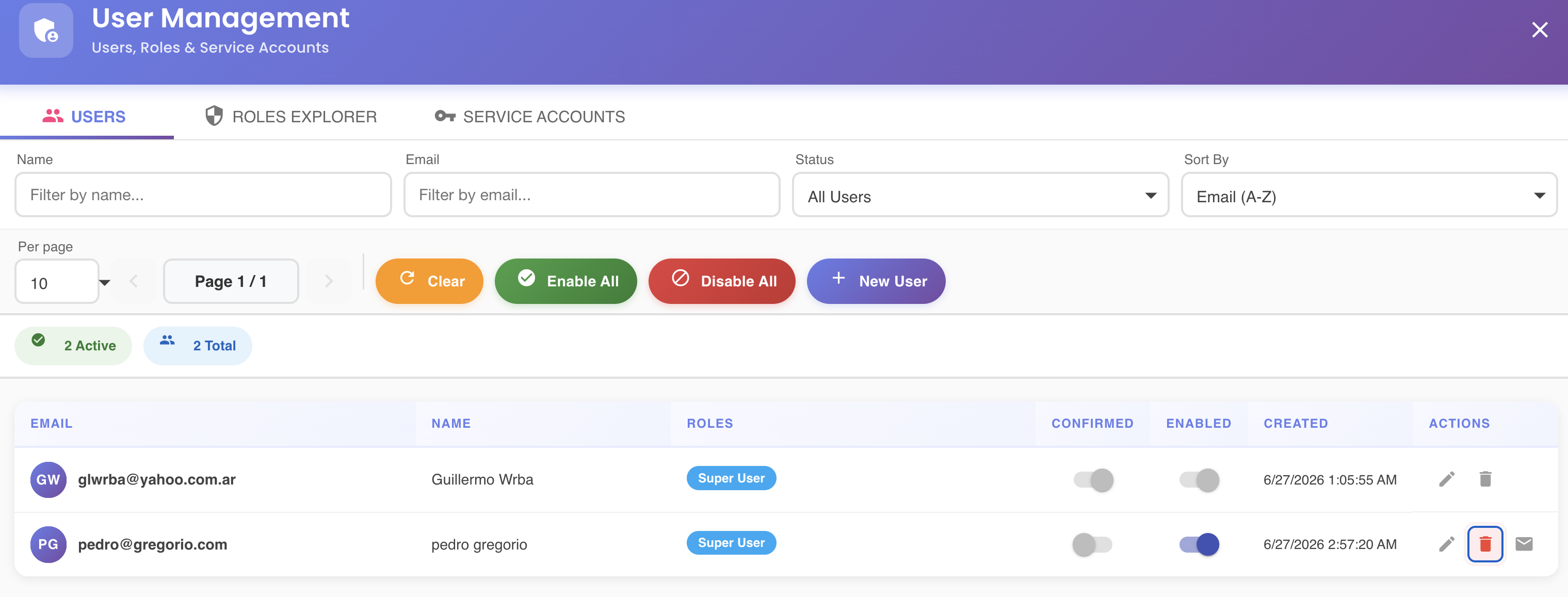
No changes are made at this point. Clicking anywhere else on the page cancels the armed state and returns the icon to its normal appearance.
Step 2 — Second click: open the confirmation dialog
Click the red delete icon a second time. The Delete User confirmation dialog opens.
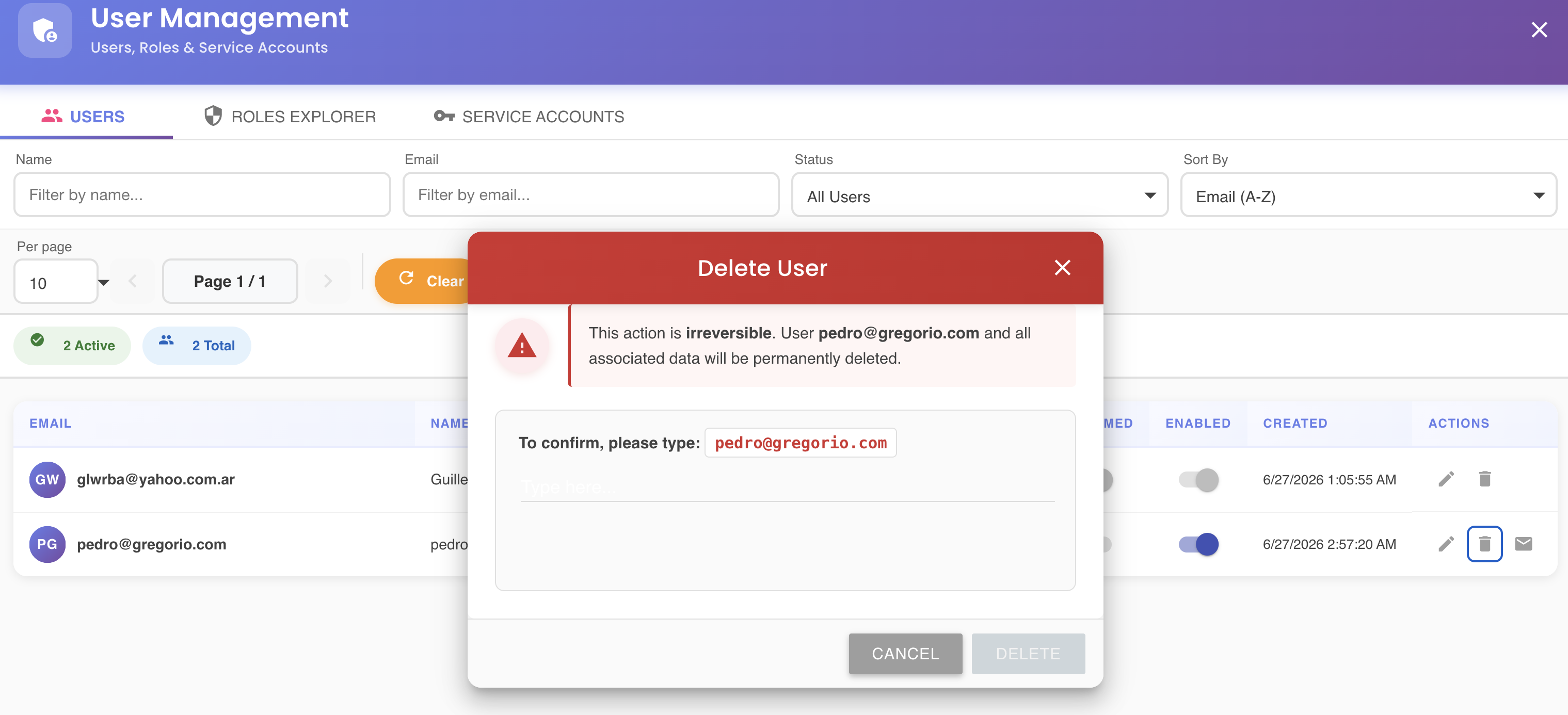
The dialog displays a warning in red indicating that the action is irreversible — the user account and all associated data will be permanently deleted.
To confirm, type the user's email address exactly as shown in the confirmation field. The Delete button remains inactive until the typed value matches exactly. Once it matches, click Delete to complete the deletion.
Click Cancel to abort and close the dialog without making any changes.
What gets deleted
When a user is deleted, the following is permanently removed:
- The user account and login credentials
- All role and permission assignments
- The 2FA device configuration
- All trusted IP and domain entries
Irreversible action
User deletion cannot be undone. There is no recovery option once the deletion is confirmed.
Suspending access instead
If you only need to temporarily revoke a user's access without deleting the account, use the Enabled toggle on the user's row in the Users tab. This suspends login without removing any data.