Creating a New User
To create a new user, click + New User from the Users tab toolbar. The Create New User wizard opens, organized into three tabs that must be completed before the user can be saved.
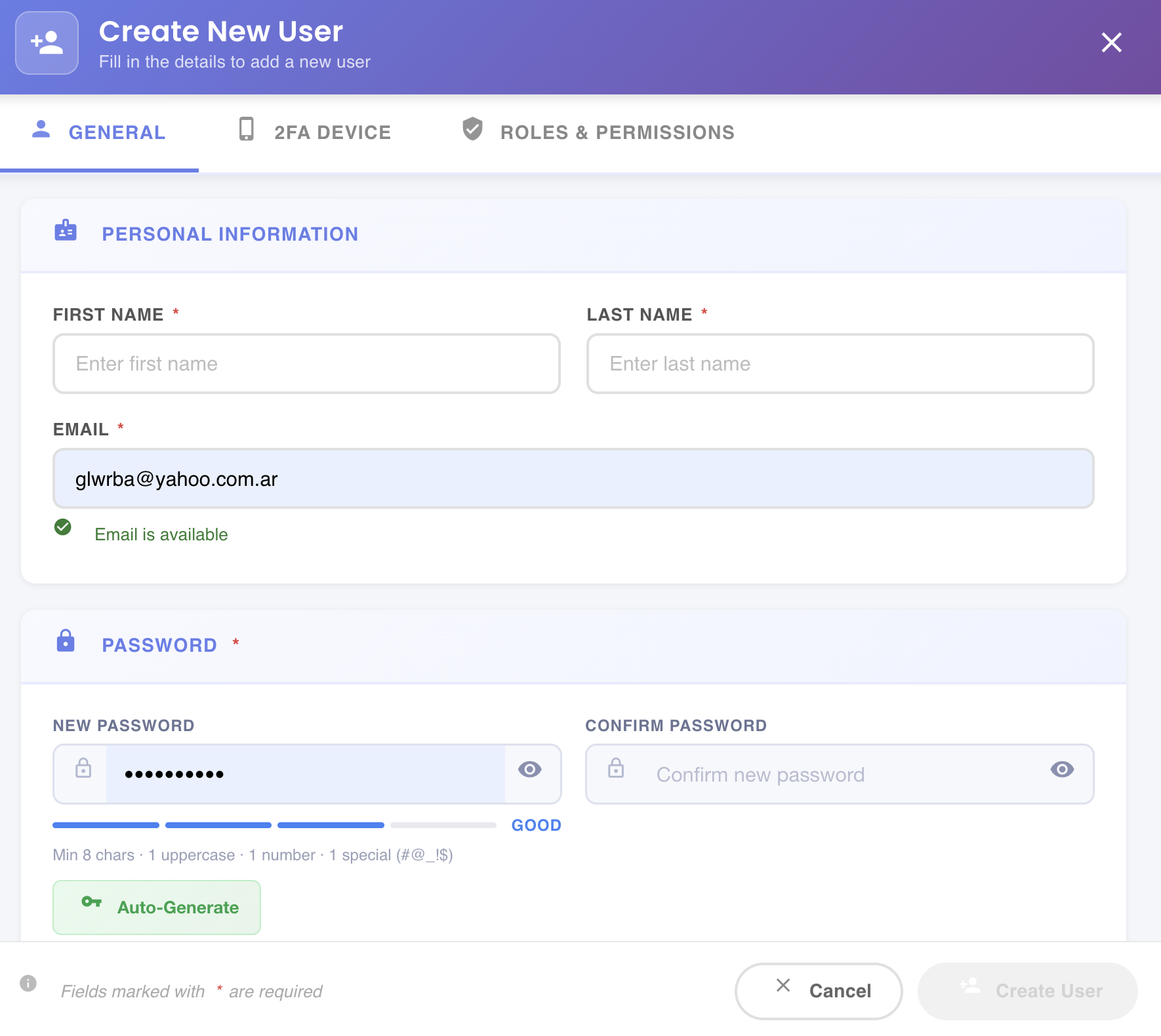
Fields marked with * are required. The Create User button at the bottom-right is only activated once all required fields are valid.
Tab 1 — General
The General tab collects the user's personal information and initial password.
Personal Information
| Field | Required | Description |
|---|---|---|
| First Name | Yes | User's first name |
| Last Name | Yes | User's last name |
| Yes | Login identifier. BizMetry validates that the address is not already registered and shows Email is available when it clears. |
Password
| Field | Required | Description |
|---|---|---|
| New Password | Yes | The initial password for the account. A strength indicator is shown below the field as you type. |
| Confirm Password | Yes | Must match New Password exactly. |
Password requirements: minimum 8 characters · at least 1 uppercase · at least 1 number · at least 1 special character (#, @, _, !, $).
Auto-Generate
Click Auto-Generate to have BizMetry create a cryptographically secure password automatically. It is populated in both password fields and always satisfies all requirements. Copy it before saving — it will not be shown again.
Tab 2 — 2FA Device
The 2FA Device tab allows configuring a trusted mobile device for Two-Factor Authentication.
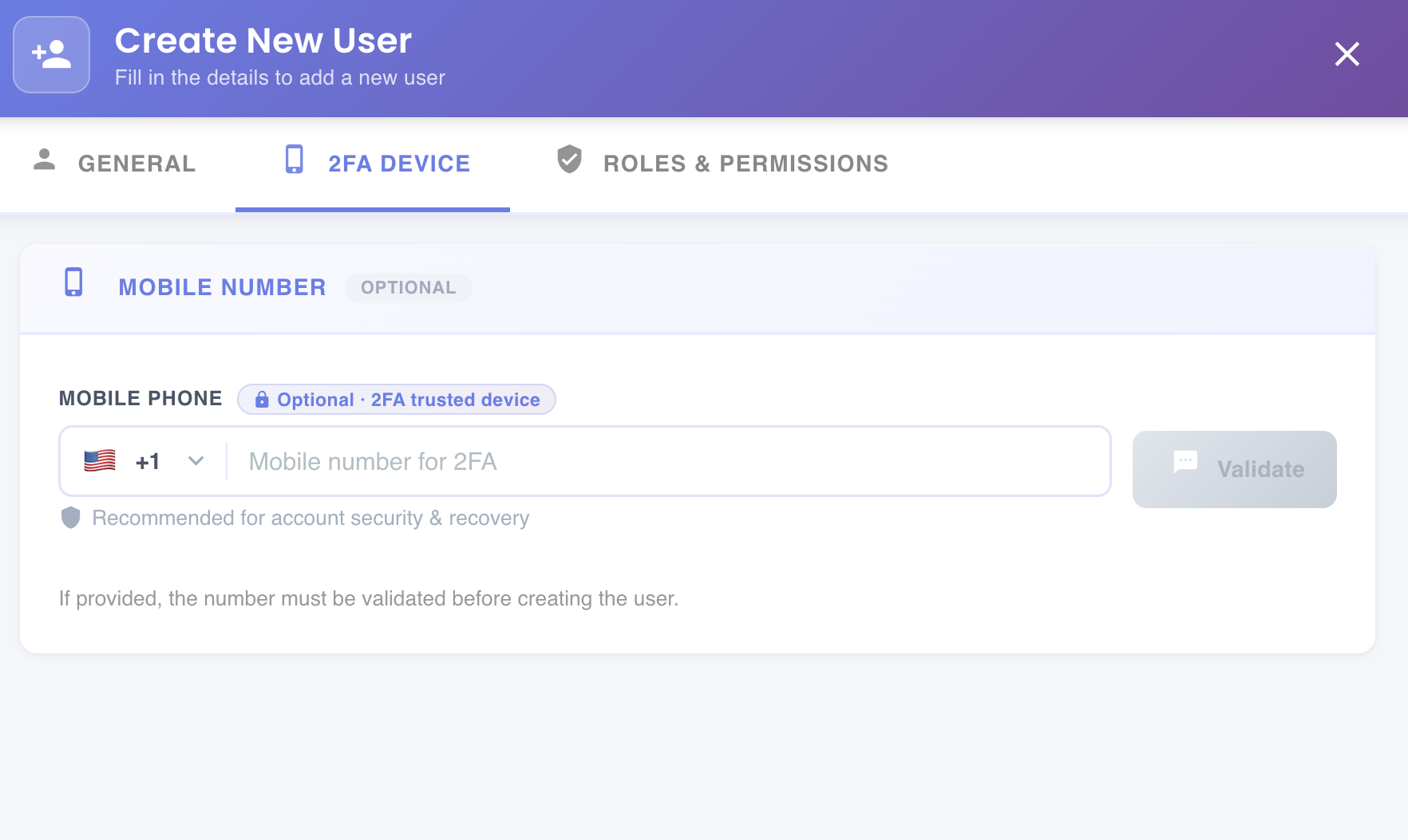
This tab is optional. If a mobile number is provided, it must be validated before the user can be created.
| Field | Description |
|---|---|
| Mobile Phone | Select the country code and enter the mobile number to register as a 2FA trusted device. |
Click Validate to trigger an SMS verification code to the number entered. The number is only registered once the code is confirmed.
Recommended
Configuring a 2FA device is recommended for account security and recovery, especially for users with administrative roles.
Tab 3 — Roles & Permissions
The Roles & Permissions tab defines what the new user can access and do within BizMetry.
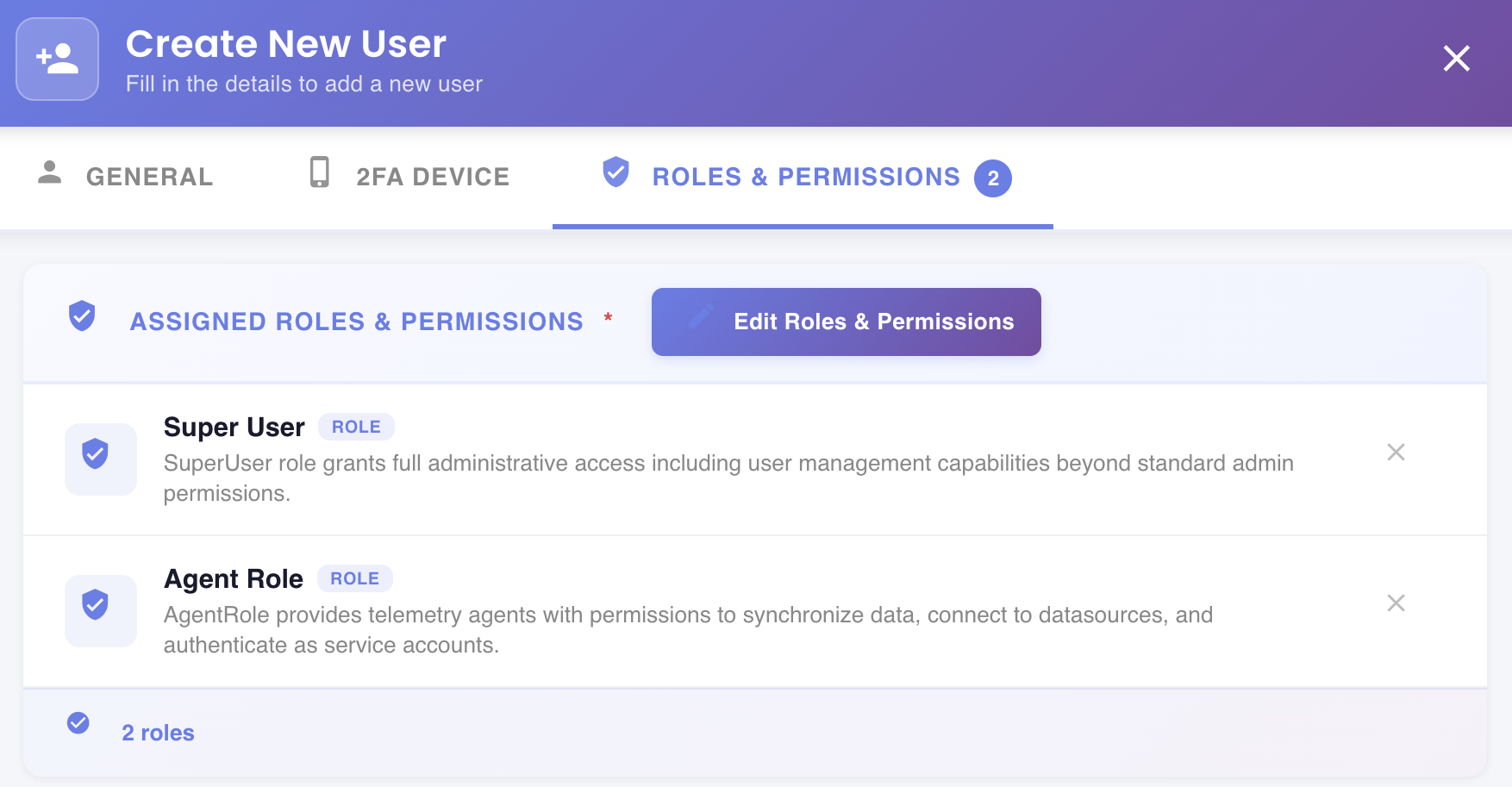
At least one role must be assigned before the user can be created. The tab header shows a badge with the current count of assigned roles (e.g. 2).
Assigned Roles
The section lists all roles currently assigned to the user. Each entry shows the role name, its type badge (ROLE), and a description. Click next to any entry to remove it.
Editing Roles & Permissions
Click Edit Roles & Permissions to open the Select Roles & Permissions picker, where you can browse all available roles and individual permissions and toggle them on or off.
Creating the User
Once all required fields across the three tabs are complete, click Create User. BizMetry creates the account and the user will receive a confirmation email to activate their access.
Click Cancel at any point to discard the new user and close the wizard.