Data Explorer
The Data Explorer is a read-only database browsing tool built into BizMetry that lets you navigate the full structure of a configured datasource — schemas, tables, columns, and live data — without needing an external database client.
Its primary purpose is ASBO discovery: exploring your data infrastructure to identify which tables contain meaningful business objects that can then be imported as Resource Types into the BizMetry Template via the Import Wizard.
Read-only access
The Data Explorer provides strictly read-only access to the database. No data can be inserted, modified, or deleted through this tool. Its purpose is purely informational — to explore structure and data and identify ASBO candidates.
Accessing the Data Explorer
- Open Datasources from the Main Menu ().
- Locate the datasource you want to explore — it must be in ONLINE status.
- Click the Data Explorer icon on that datasource's row.
Online datasource required
The Data Explorer icon is only active for datasources with ONLINE status. If the datasource shows OFFLINE, verify that its associated agent is running and that the database is reachable.
The Data Explorer opens, connected to the selected datasource.
Interface Overview
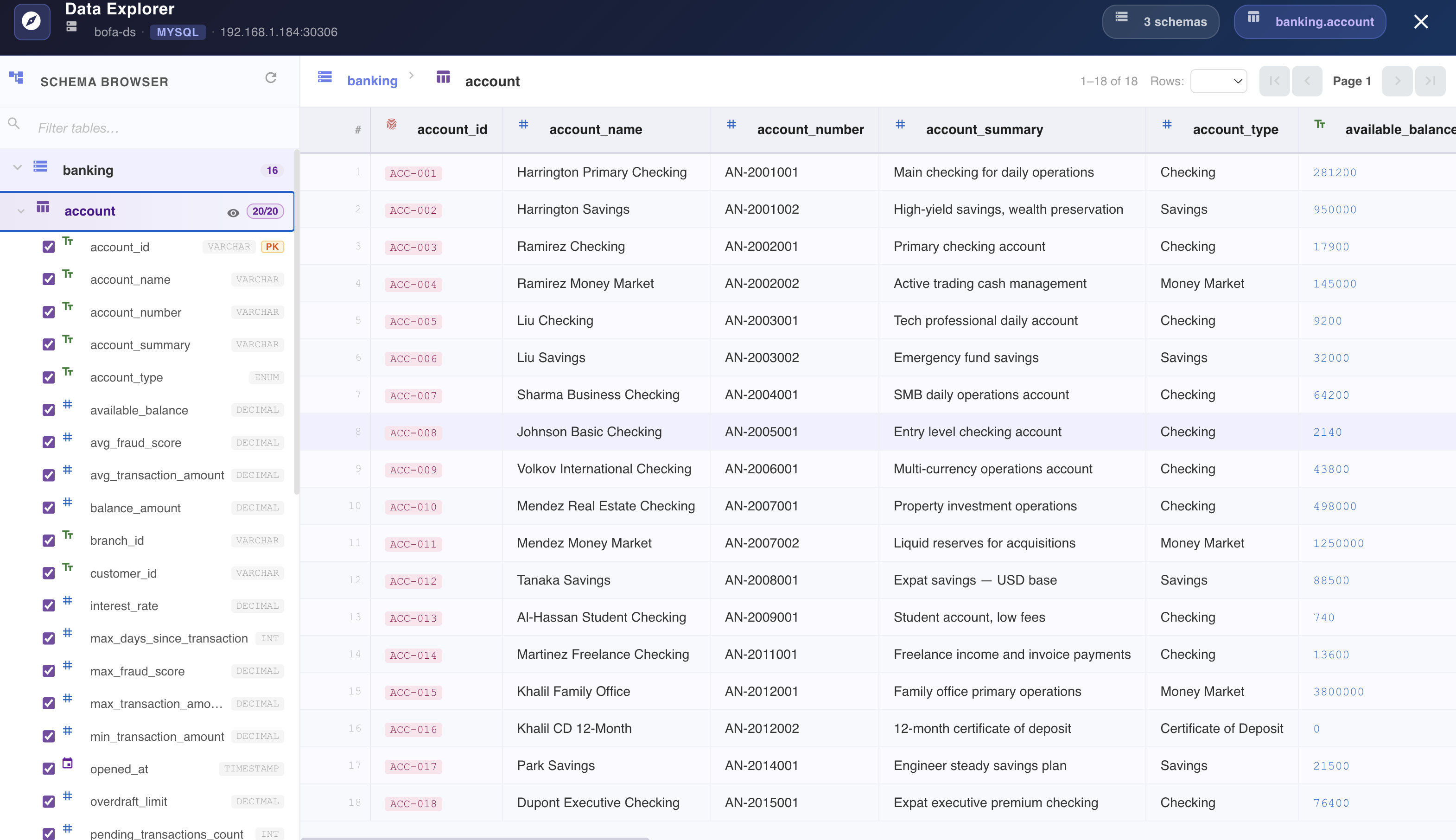
The Data Explorer is organized into three areas: a header bar, a Schema Browser on the left, and a data grid on the right.
Header Bar
The top bar shows the context of the current session:
| Element | Description |
|---|---|
| Datasource name | The name of the datasource being explored (e.g. bofa-ds). |
| DB Type badge | The database engine (e.g. MYSQL, POSTGRESQL). |
| Host / Port | The connection endpoint of the database. |
| Schemas indicator | Total number of schemas available (e.g. 3 schemas). |
| Current path | Breadcrumb showing the active schema and table (e.g. banking › account). |
Schema Browser (Left Panel)
The left panel is the Schema Browser — a hierarchical navigator for the database structure.
- Schemas are listed at the top level, each showing the total count of tables it contains.
- Expanding a schema reveals all its tables.
- Clicking a table loads its columns and data in the right panel.
- A filter field at the top lets you search for tables by name.
- A refresh button (↻) reloads the schema tree to reflect any structural changes.
Column visibility
When a table is selected, the Schema Browser displays all its columns with:
- A checkbox — check or uncheck to show or hide that column in the data grid.
- A type badge — the data type of the column (
VARCHAR,DECIMAL,INT,TIMESTAMP,ENUM, etc.). - A
PKbadge — marks the primary key column.
This makes it easy to focus the data grid on the attributes most relevant for ASBO identification, hiding noise columns.
Data Grid (Right Panel)
When a table is selected, the right panel displays its actual data in a paginated grid:
- Each row is one database record.
- The primary key column is highlighted with a colored badge on each row (e.g.
ACC-001). - Numeric columns are rendered in accent color for quick visual scanning.
- Only columns that are checked in the Schema Browser are shown.
Pagination controls
The top-right area of the data grid provides navigation controls:
| Control | Description |
|---|---|
| Row count indicator | Shows the current range and total (e.g. 1–18 of 18). |
| Rows per page | Dropdown to select how many rows to display per page. |
| First / Previous | Navigate to the first or previous page. |
| Page indicator | Shows the current page number (e.g. Page 1). |
| Next / Last | Navigate to the next or last page. |
Identifying ASBO Candidates
The Data Explorer is the recommended starting point before running the Import Resource Types Wizard. Use it to assess which tables are worth importing as Resource Types.
A table is a strong ASBO candidate when:
- It represents a core business entity — accounts, orders, customers, vehicles, AI models, appointments.
- It has a clear primary key that uniquely identifies each instance (marked
PKin the column list). - It contains measurable attributes relevant to your KPIs — balances, scores, amounts, statuses, timestamps, counts.
- Its data is accessed by the operations you want to instrument.
Example — Banking domain
The banking.account table shown above is a strong ASBO candidate:
account_idis the primary key (PK,VARCHAR).- Business identifier fields:
account_name,account_number,account_type. - Measurable KPI fields:
available_balance,avg_fraud_score,avg_transaction_amount,interest_rate,overdraft_limit. - Temporal field:
opened_at(TIMESTAMP) — useful for lifecycle and trend analysis.
This table maps directly to a BankAccount ASBO in a Banking domain template.