Creating a New Datasource
A Datasource in BizMetry is a logical entity that defines a connection to an on-premise or cloud-hosted database, bridged through a BizMetry Agent. The agent acts as the network nexus between your infrastructure — where the database resides — and the BizMetry platform.
Datasources are fundamental to BizMetry because they enable:
- Importing new ASBOs from existing database tables via the Import Resource Types wizard.
- Importing Resource instances for different environments.
- Linking ASBOs to their data instances across environments via Environment Mappings.
- Exploring data to identify ASBO candidates using the Data Explorer tool.
Opening the Creation Dialog
From the Datasource Summary dialog, click the + New Datasource button in the toolbar.
The datasource creation dialog opens.
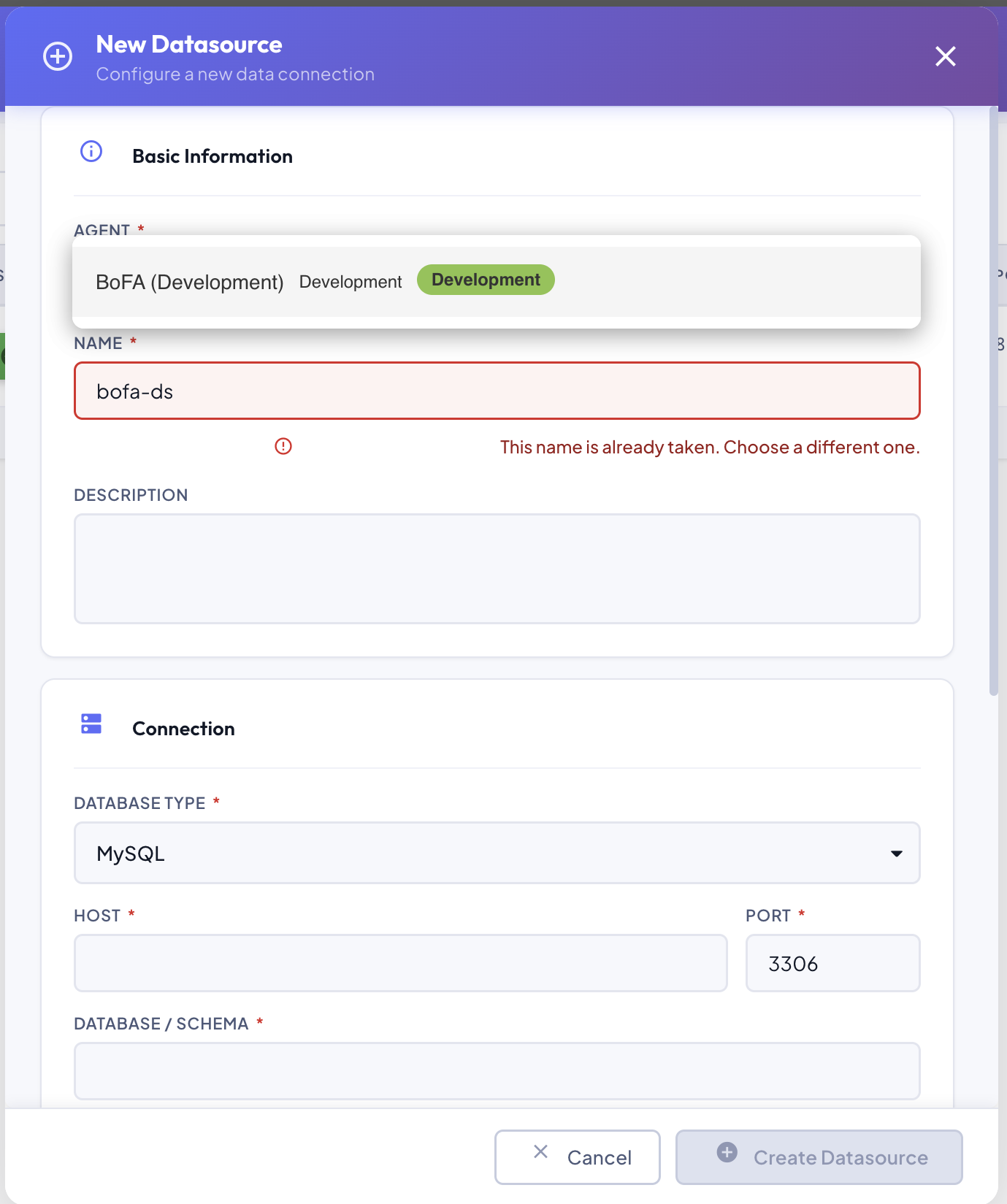
Form Fields
The dialog is organized into two sections: Basic Information and Connection.
Basic Information
Agent (required)
Select the BizMetry agent through which the database will be reached. The dropdown displays each available agent with its profile name, environment name, and environment type pill.
Only agents currently in ONLINE status are available for selection.
Verify network reachability before selecting an agent
The agent is the one initiating the connection to the database — not the BizMetry platform directly. Before selecting an agent, ensure it has network-level visibility to the database host and port you intend to connect to. If the agent cannot reach the database at the network level, the creation will fail regardless of the credentials provided.
Name (required)
A unique identifier for this datasource within the account.
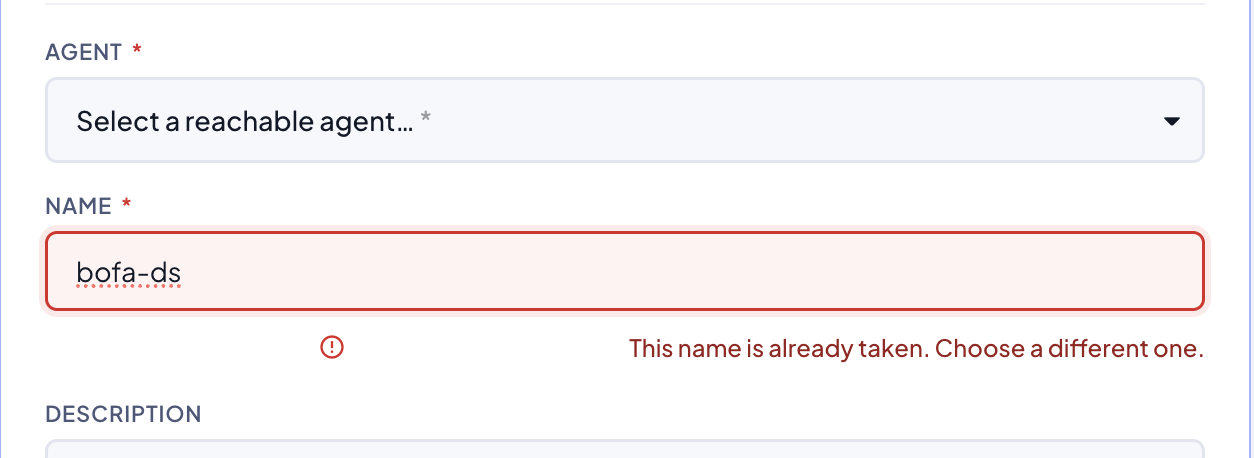
Duplicate name validation
If you enter a name that is already in use by another datasource in the account, BizMetry immediately flags the condition with a validation message below the field: "This name is already taken. Choose a different one." The Create Datasource button remains disabled until a unique name is provided.
Description (optional)
A free-text description of the intended use of this datasource — for example, which application or environment it connects to.
Connection
Database Type (required)
Select the database engine from the dropdown. BizMetry supports:
| Database | Default Port |
|---|---|
| MySQL | 3306 |
| PostgreSQL | 5432 |
| Oracle | 1521 |
| SQL Server | 1433 |
| MariaDB | 3306 |
| MongoDB | 27017 |
| IBM DB2 | 50000 |
| Sybase | 5000 |
| Teradata | 1025 |
| Google BigQuery | — |
Host (required)
The fully qualified domain name (FQDN) or IP address of the server where the database resides. This is the address the agent will use to initiate the connection.
Port (required)
The TCP port the agent will use to reach the database. The port field is pre-filled with the default for the selected database type and updates automatically when you change the database type.
Database / Schema (required)
The database or schema name the datasource will be associated with. The agent uses this as the default context at connection time. The Data Explorer and Import Resource Types wizard use it as the entry point for browsing tables.
Username (required)
The database user account BizMetry will use for authentication. This user must have at minimum read access to the target schema.
Password (required)
The password associated with the specified database user.
Credential storage
Credentials are stored securely within BizMetry and are never exposed in the UI after saving. They are transmitted to the agent over an encrypted channel at connection time.
Creating the Datasource
The creation flow follows three distinct steps:
Step 1 — Run Connection Test
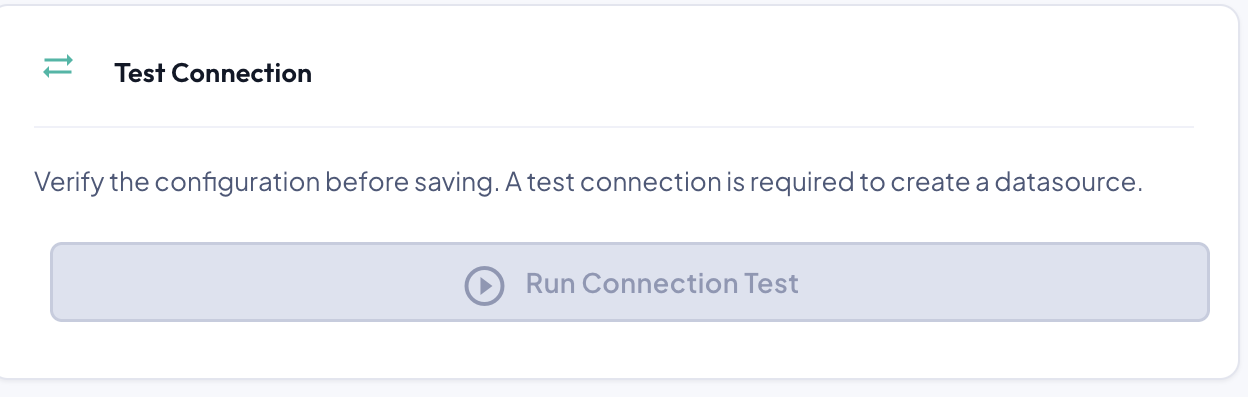
Once all required fields are filled in, a Test Connection section appears at the bottom of the form with a Run Connection Test button. Click it to instruct the selected agent to validate connectivity to the database.
Tip
The connection test is a mandatory prerequisite. The Create Datasource button remains disabled until a successful test has been completed.
If the connection succeeds
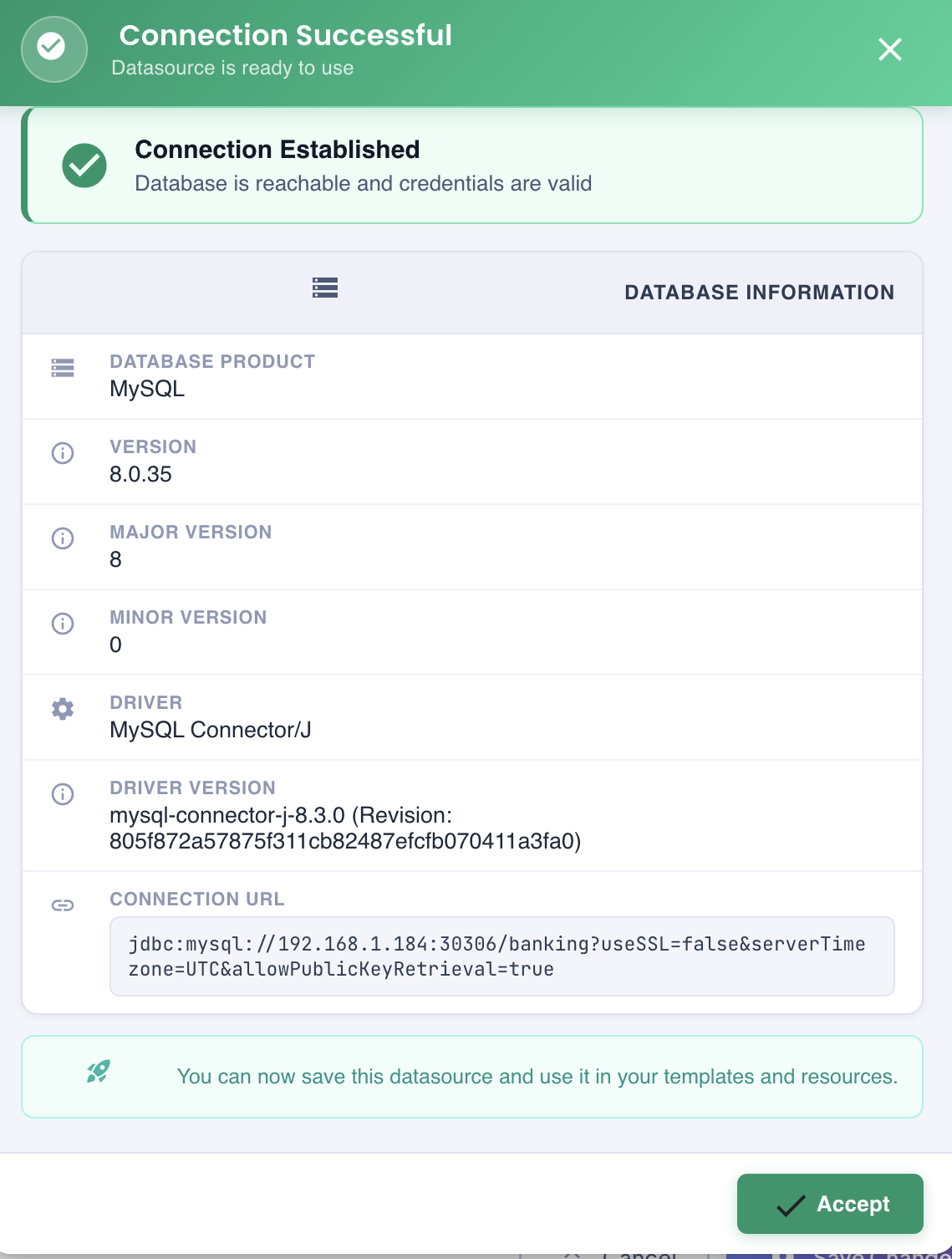
A result dialog confirms:
- The connection was established.
- Database metadata (product, version, driver, connection URL).
- A note that the datasource is ready for use in templates and resources.
If the connection fails
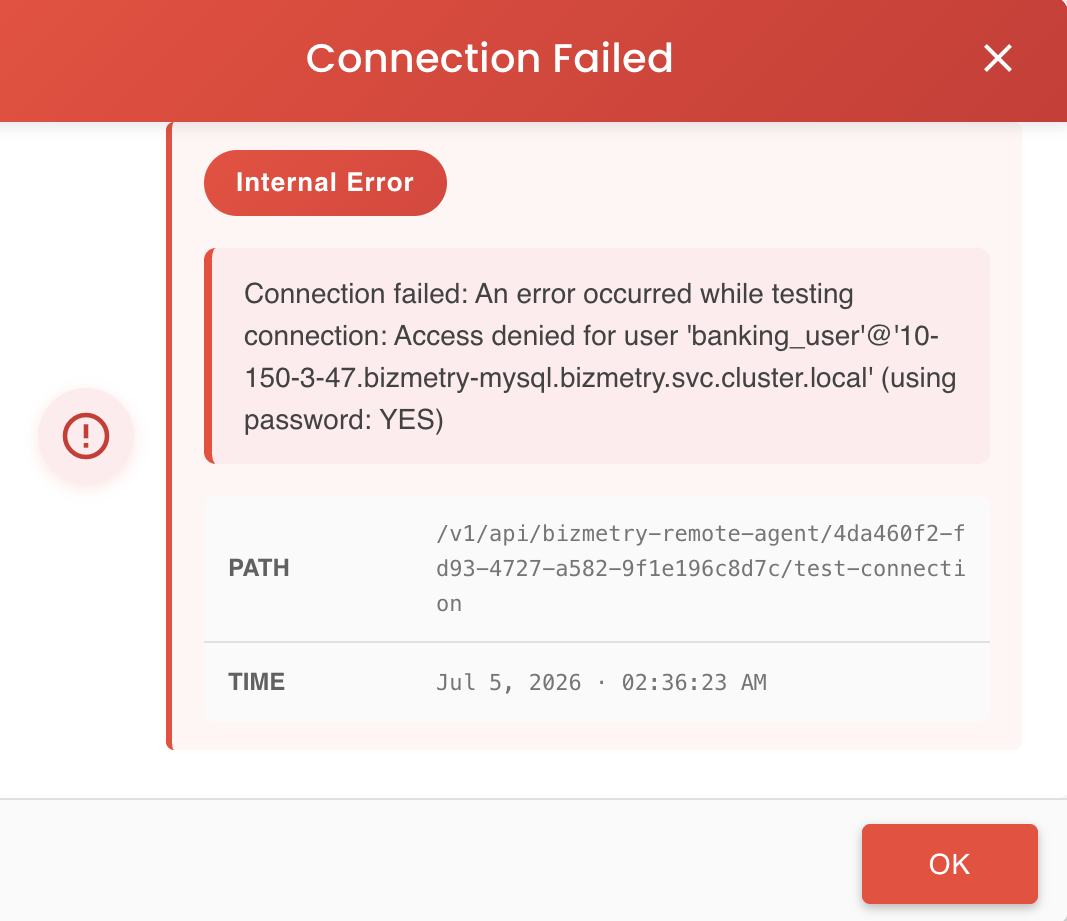
A failure dialog displays:
- The error type (e.g.,
Internal Error,Auth Error,Unreachable). - The full error message returned by the agent or database.
- The API path and timestamp of the failed attempt, for diagnostic reference.
Click OK to dismiss, correct the connection parameters, and run the test again. The datasource is not saved until the test passes and the form is explicitly submitted.
Step 2 — Accept the Result
After a successful test, click Accept in the result dialog to return to the creation form. The Create Datasource button is now enabled.
Step 3 — Create Datasource
Click Create Datasource to persist the configuration. BizMetry saves the datasource and returns to the summary list, where the new entry appears immediately.
Common failure causes
| Error Type | Likely Cause |
|---|---|
| Auth Error | Incorrect username or password. |
| Unreachable | The host/port is not accessible from the agent's network. Check firewall rules. |
| Internal Error | The agent encountered an unexpected error. Check agent logs. |
| Timeout | The agent timed out waiting for a response. Verify the host is running and the port is open. |