Create from a Master Template
This flow initializes a new profile from one of BizMetry's curated master templates — pre-built telemetry models tailored to specific industry verticals and technology stacks. It is the fastest path to a production-ready telemetry structure for well-known platforms.
Step 1 — Profile Source
Select Start from a master template and click Continue.
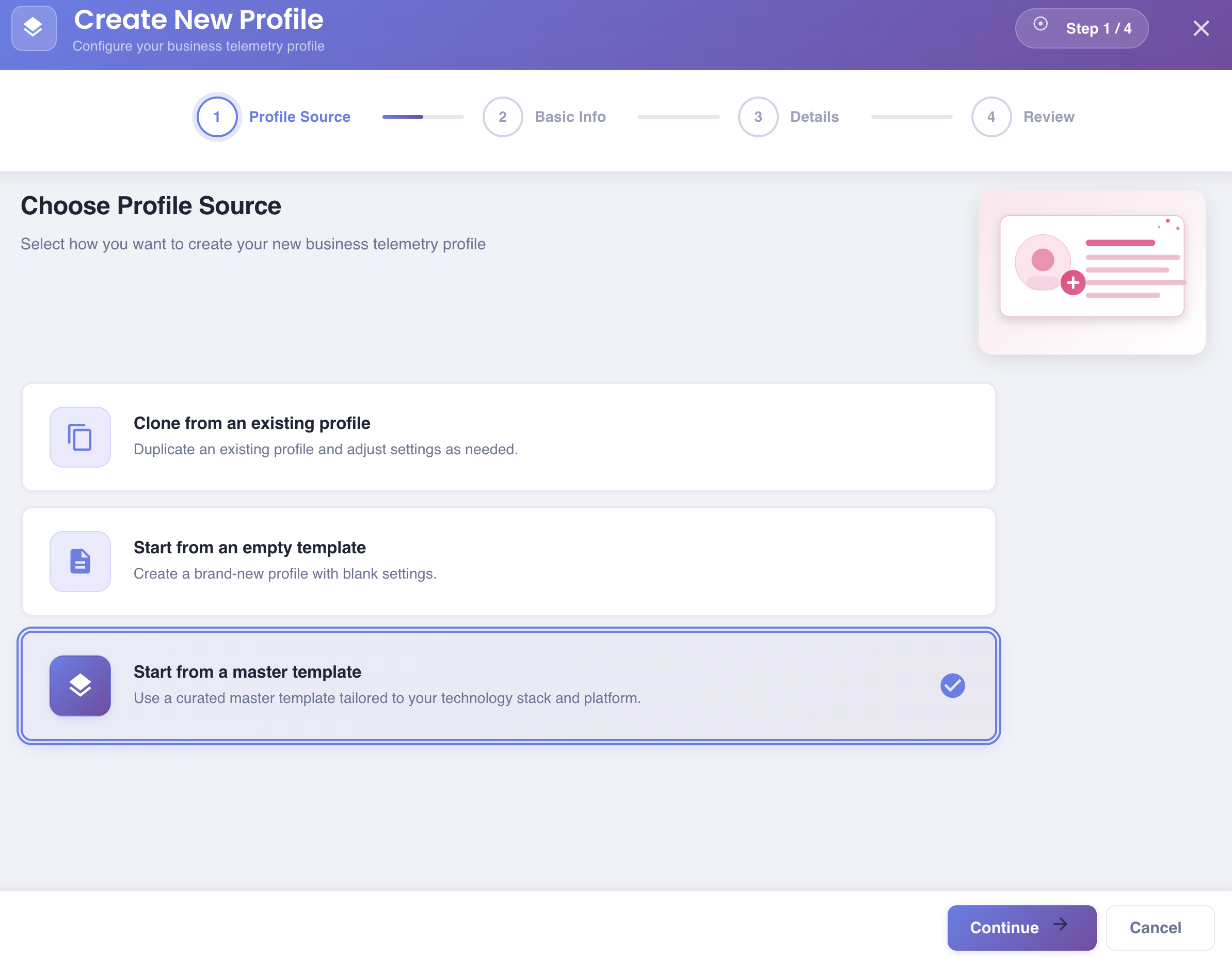
Use a curated master template tailored to your technology stack and platform.
Step 2 — Details: Select Master Template
Choose the master template to use as the foundation for your profile.
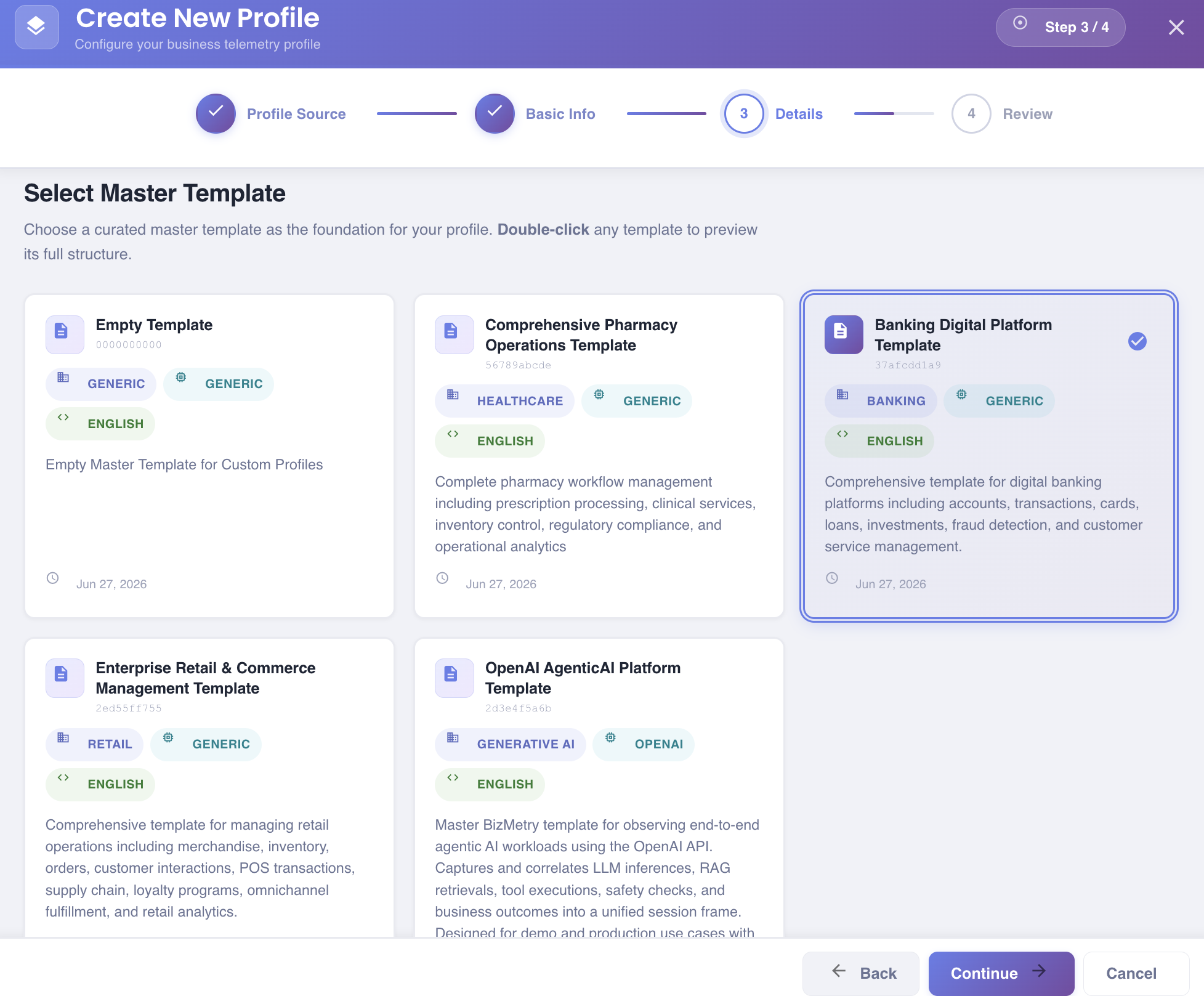
BizMetry displays a grid of available master templates. Each card shows:
- Template name and truncated ID
- Industry / vertical tag (e.g.
BANKING,HEALTHCARE,RETAIL,GENERATIVE AI) - Integration tag (e.g.
GENERIC,OPENAI) - Language tag (e.g.
ENGLISH) - Description — summary of what the template covers
- Creation date
Preview before selecting
Double-click any template card to preview its full structure before selecting it.
Click a card once to select it — it highlights with a blue border and a checkmark. Available master templates include:
| Template | Vertical | Description |
|---|---|---|
| Empty Template | Generic | Blank master template for fully custom profiles. |
| Comprehensive Pharmacy Operations Template | Healthcare | Complete pharmacy workflow management including prescription processing, clinical services, inventory control, regulatory compliance, and operational analytics. |
| Banking Digital Platform Template | Banking | Digital banking platforms covering accounts, transactions, cards, loans, investments, fraud detection, and customer service management. |
| Enterprise Retail & Commerce Management Template | Retail | Retail operations including merchandise, inventory, orders, POS transactions, supply chain, loyalty programs, omnichannel fulfillment, and retail analytics. |
| OpenAI AgenticAI Platform Template | Generative AI | End-to-end agentic AI workload observability for the OpenAI API — correlates LLM inferences, RAG retrievals, tool executions, safety checks, and business outcomes into a unified session frame. |
Click Continue to proceed.
Step 3 — Identity
By the time you reach this step, BizMetry already knows which master template you selected, so it generates the Profile Name, Project Name, and Description automatically the first time you land on this step.
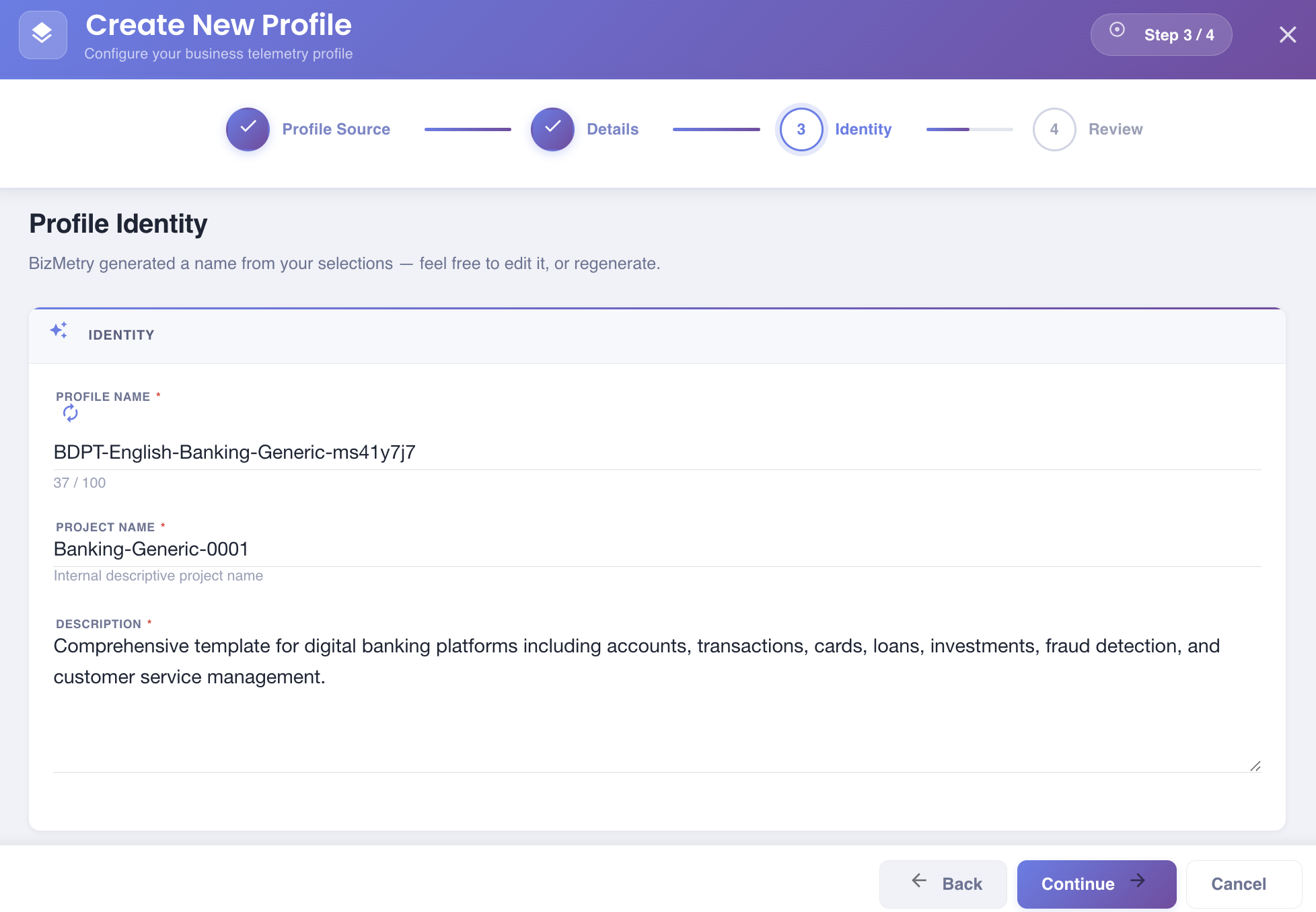
What gets generated
| Field | How it's generated |
|---|---|
| Profile Name | {template-acronym}-{language-domain-stack}-{time-serial} — the acronym is built from the first letter of every word in the master template's name, which keeps long template names from producing an unwieldy Profile Name. For example, Comprehensive Pharmacy Operations Template becomes CPOT. A slug of the template's own Language/Business Domain/Technology Stack metadata and a short time-based serializer complete the name. |
| Project Name | {business-domain}-{technology-stack}-{NNNN} — a normalized slug of the template's own Business Domain and Technology Stack, followed by a sequential 4-digit numerator (e.g. Pharmacy-Generic-0001). The numerator auto-increments if a profile with that same Domain + Stack combination already exists in your account. |
| Description | Copied as-is from the selected master template's own description. |
You can still edit it
All three fields are just a starting point — edit any of them the same way you would type any other value. Once you edit the Profile Name, BizMetry stops touching it: going back to an earlier step and forward again won't overwrite an edit you already made.
If you want to discard your edits and get fresh auto-generated values instead — for example after selecting a different master template in Step 2 — click the Regenerate icon next to the Profile Name field.
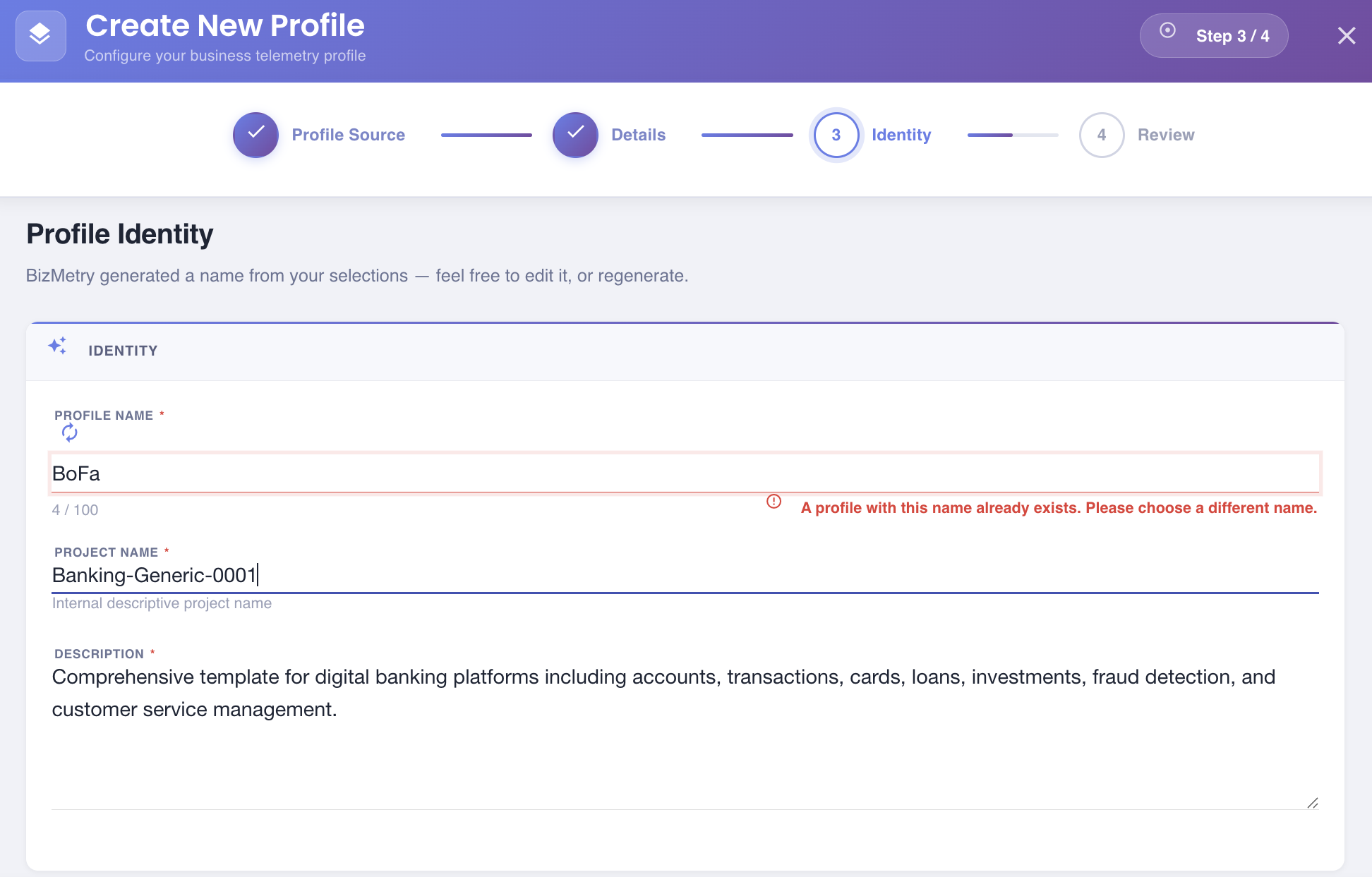
Unique name validation
The Profile Name must be unique across your account. This is checked continuously as you type (or immediately after clicking Regenerate); if the name is already in use by another profile, BizMetry blocks you from continuing until you choose a different one.
Click Continue to proceed.
Step 4 — Review & Confirm
A read-only summary of all choices made in the previous steps.
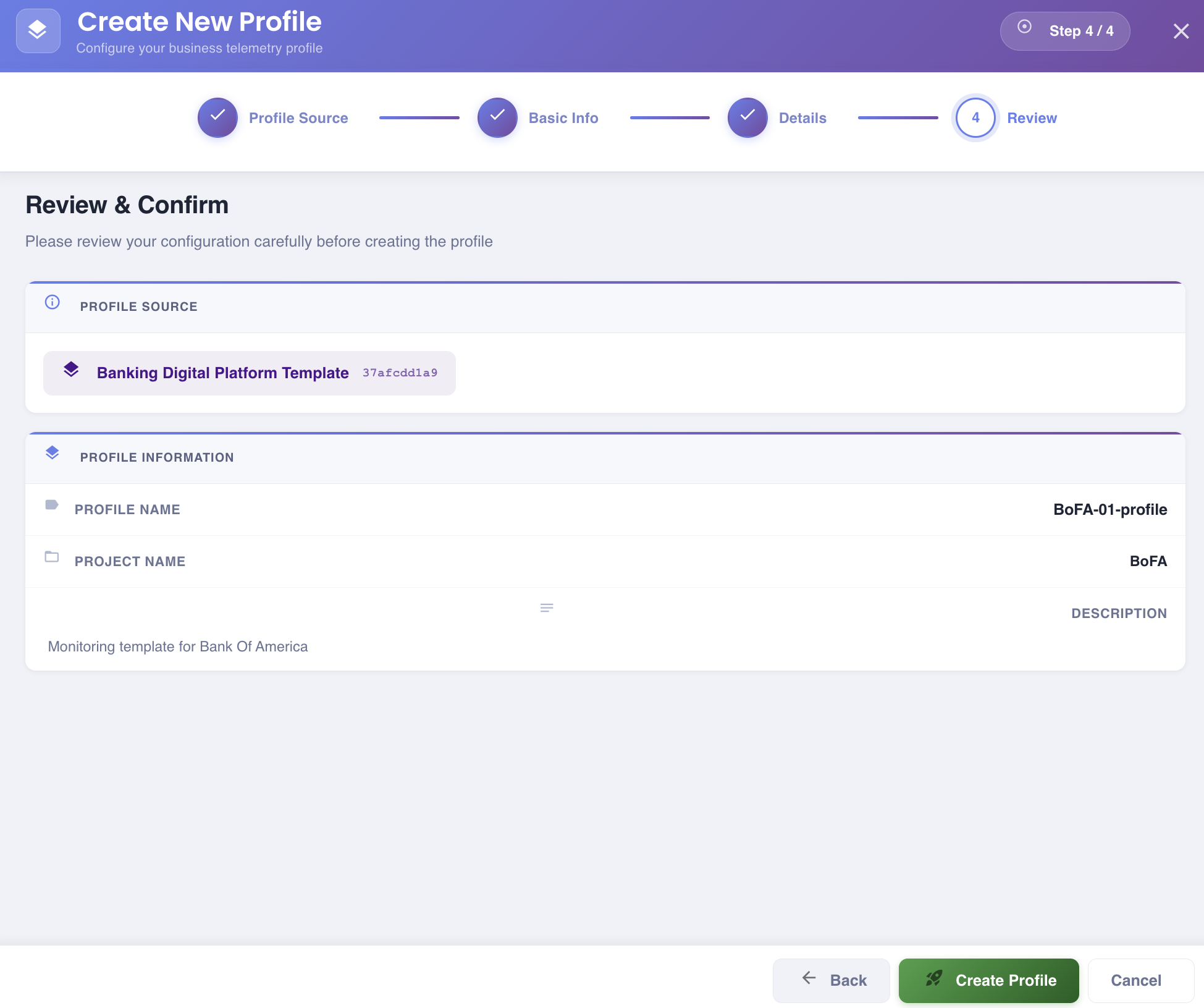
| Section | Fields shown |
|---|---|
| PROFILE SOURCE | Selected master template name and its ID (e.g. Banking Digital Platform Template · 37afcdd1a9). |
| PROFILE INFORMATION | Profile Name, Project Name, Description. |
Review all values carefully. Use Back to return to any step and make corrections.
Click Create Profile to complete the setup.