Editing an Existing API Collection
Applications change their APIs over time, and their API Collections have to follow. This page explains how to edit an API Collection: its description and, above all, its Swagger / OpenAPI contract, either by loading a new contract from the same source it was created from or by editing it by hand. It also explains how BizMetry versions the result.
Opening the Edit Dialog
- Open API Collections from the main menu (see Accessing API Collections).
- Find the collection version you want to change. Versions are shown as a tree, each one under the version it was derived from.
- Click the Edit icon in its Actions column.
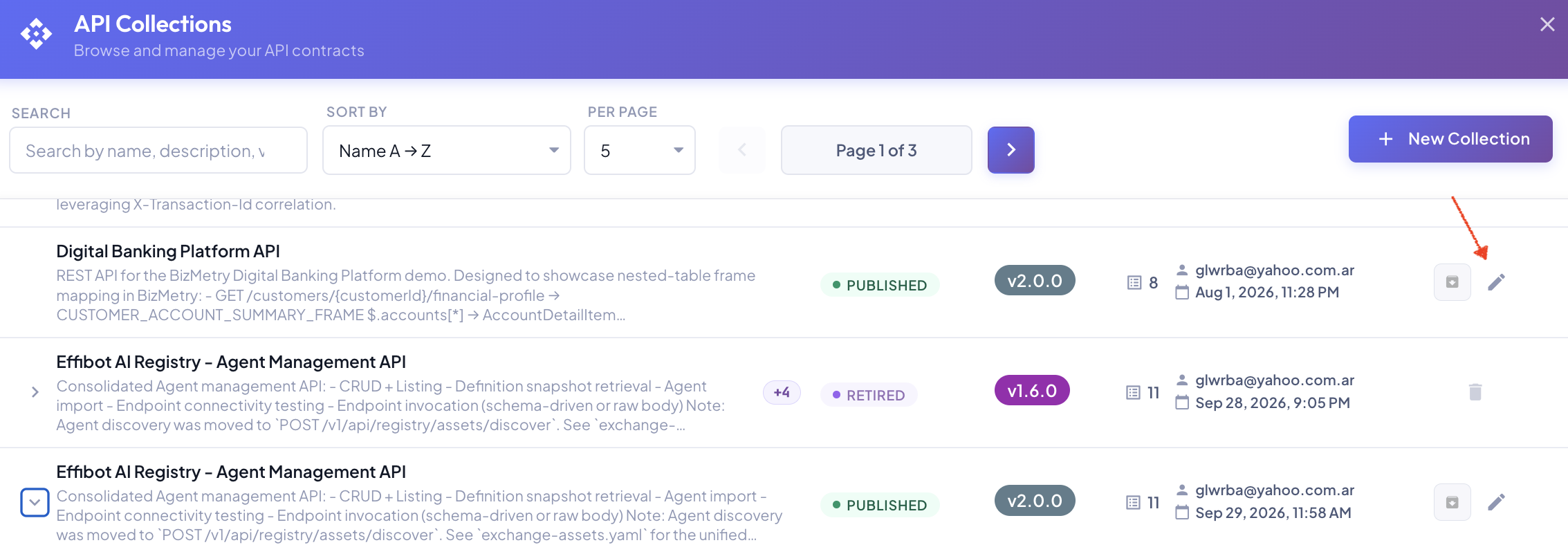
Every version can be edited except RETIRED ones.
The Edit Collection Dialog
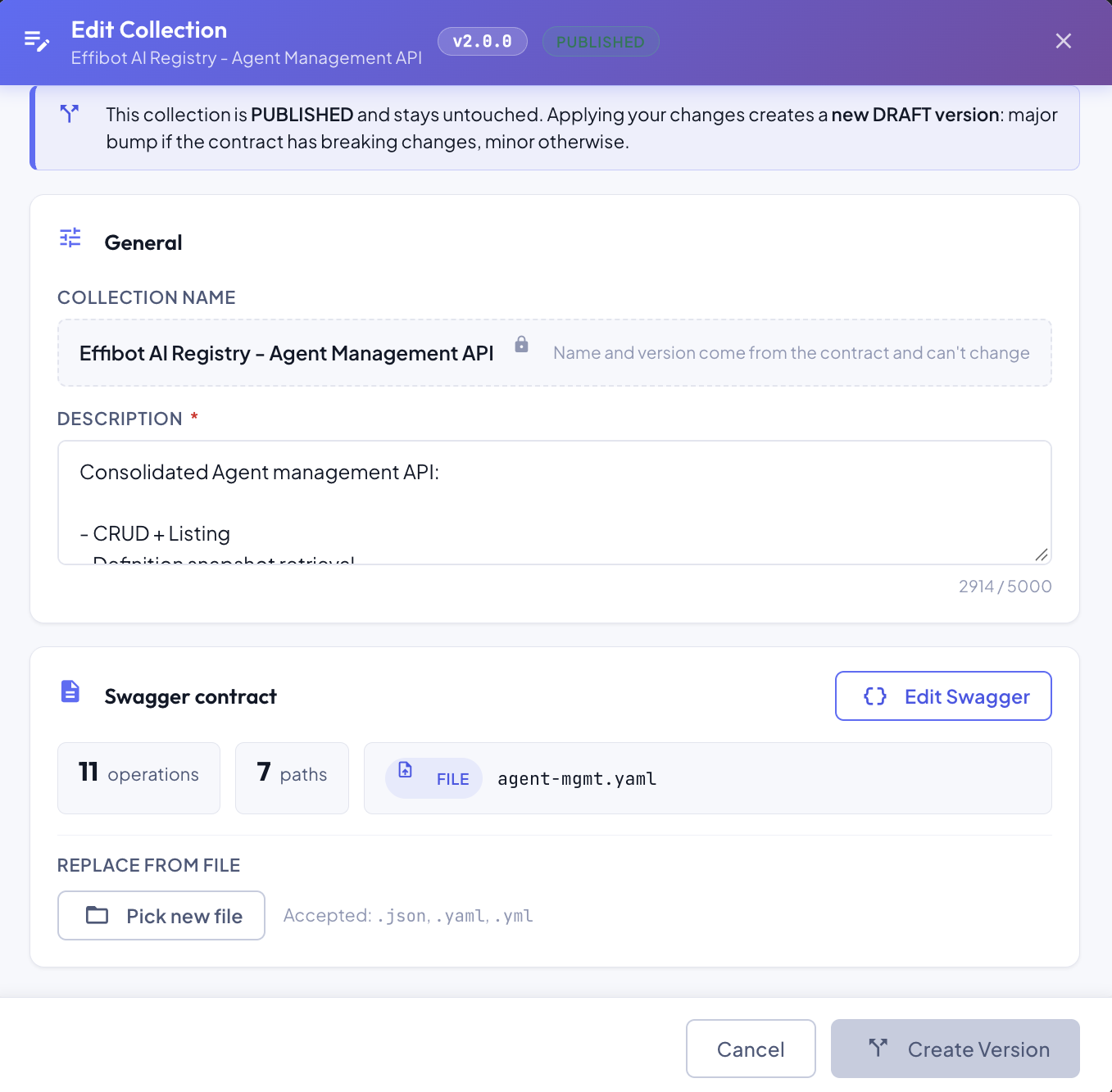
The header shows the collection name, the version you're editing and its status. When the version is PUBLISHED, a banner reminds you that it will stay untouched and your changes will be saved as a new version (see Version Bump Mechanism).
General
| Field | Description |
|---|---|
| Collection name | Read-only. The name and the version come from the contract (info.title and info.version) and can't be changed. |
| Description | Required, up to 5,000 characters. |
Swagger contract
This section summarizes the current contract: its number of operations and paths, and its source, which is either the file it was uploaded from or the URL it was fetched from.
Below the summary are the ways to update the contract. Which ones you see depends on how the collection was created.
Updating the Contract
There are three ways to bring in a new version of the contract:
| Method | Available for | Use it when |
|---|---|---|
| Replace from file | Collections created from a local file | You have the new contract as a .json, .yaml or .yml file. |
| Refetch from an agent | Collections created from an agent URL | The service publishes its contract at a URL reachable by a BizMetry agent. |
| Edit Swagger | Every collection | You want to change the contract by hand. |
Only one new contract can be staged at a time: while a contract loaded from a file or an agent is pending, Edit Swagger is disabled, and while an edited contract is pending, the file and agent options are hidden. Apply or discard the pending one first.
Title and version of the new contract
A contract loaded from a file or an agent must always declare the same info.title as the collection. Its info.version depends on the state of the version you're editing:
- Not published: it must be the same version, since that version is updated in place. Otherwise the dialog shows a warning and Apply Changes stays disabled.
- PUBLISHED: it can be the same version or a higher one. A higher version is used for the new version; the same one gets a number from BizMetry. See Version Bump Mechanism.
Replace from File
For collections created from a file. The source shows FILE and the name of the file.
- Under Replace from file, click Pick new file.
- Choose the new contract (
.json,.yamlor.yml). - The file is checked right away: a green message summarizes the contract, or a red one explains why it couldn't be read. Click next to the file name to pick another one.
Refetch from an Agent
For collections created from an agent URL. The source shows URL and the address the contract was fetched from.
- Under Refetch from URL, select an online Agent that can reach the service.
- Check or change the Swagger URL (the
https://prefix is added for you). - Click Fetch spec. The agent downloads the contract, and a green message summarizes it, or a red one explains what went wrong.
See Create API Collection from Agent for how agents reach services in your network.
Edit Swagger
Available for every collection, whatever its source. Click Edit Swagger to open the contract in the Swagger editor.
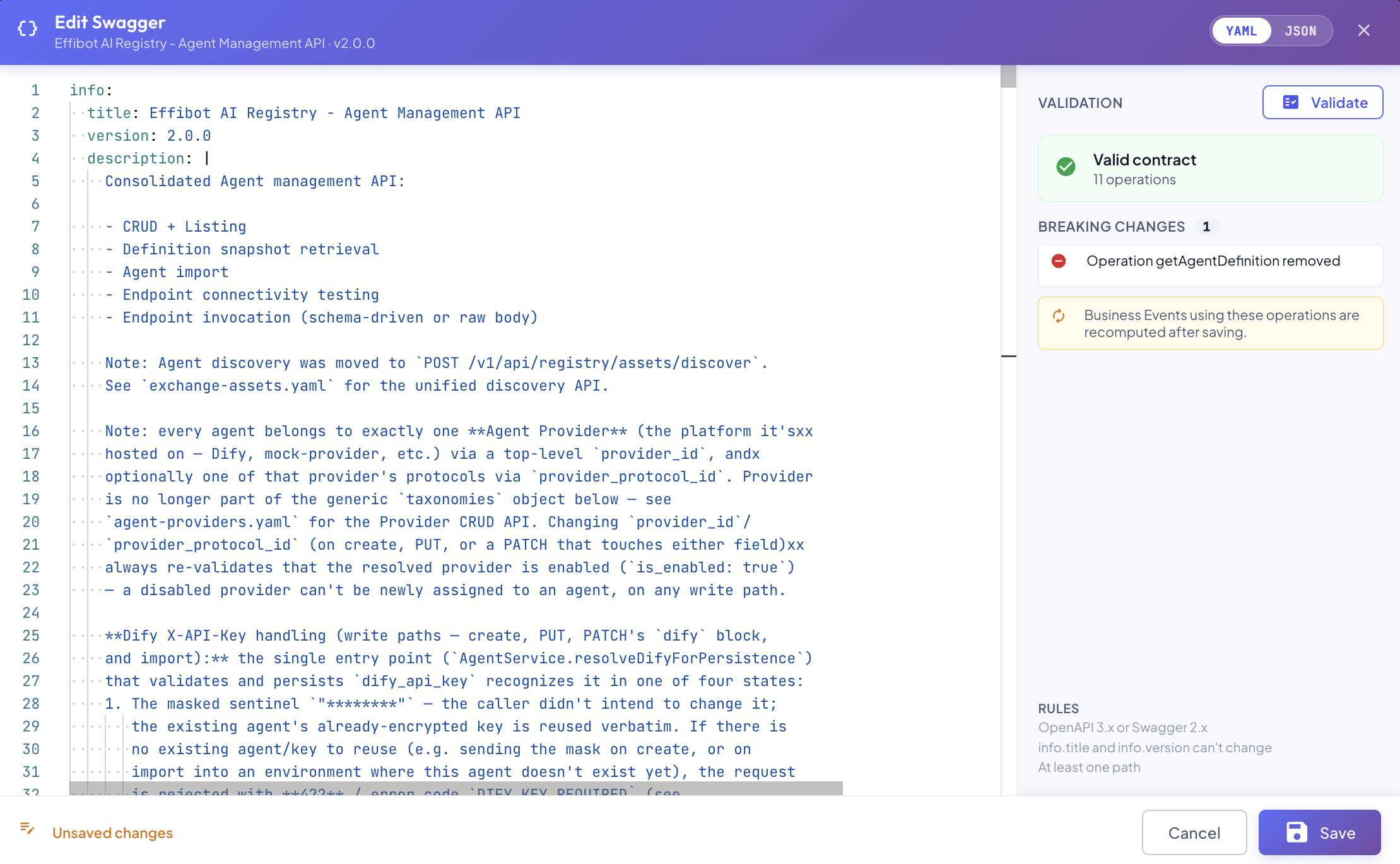
- Editor. Shows the contract in YAML or JSON; switch with the toggle in the header. Syntax problems are listed as you type, with their line number; click one to jump to it.
- Validate. Click it to check the contract with BizMetry. The panel on the right shows:
- whether the contract is valid, and how many operations it has;
- for a PUBLISHED version, the version number the new version will get;
- the breaking changes compared to the current version, such as removed operations or fields;
- for a version that isn't published, the Business Events that use a changed operation and will be recomputed (see Recomputed Business Events).
- Rules. The contract must be OpenAPI 3.x or Swagger 2.x, keep its
info.titleandinfo.version, and have at least one path.
Click Save to return to the Edit Collection dialog, which now summarizes the edited contract: operations, paths, breaking changes and affected Business Events. Use Edit Again to go back to the editor, or Discard to drop the edited contract.
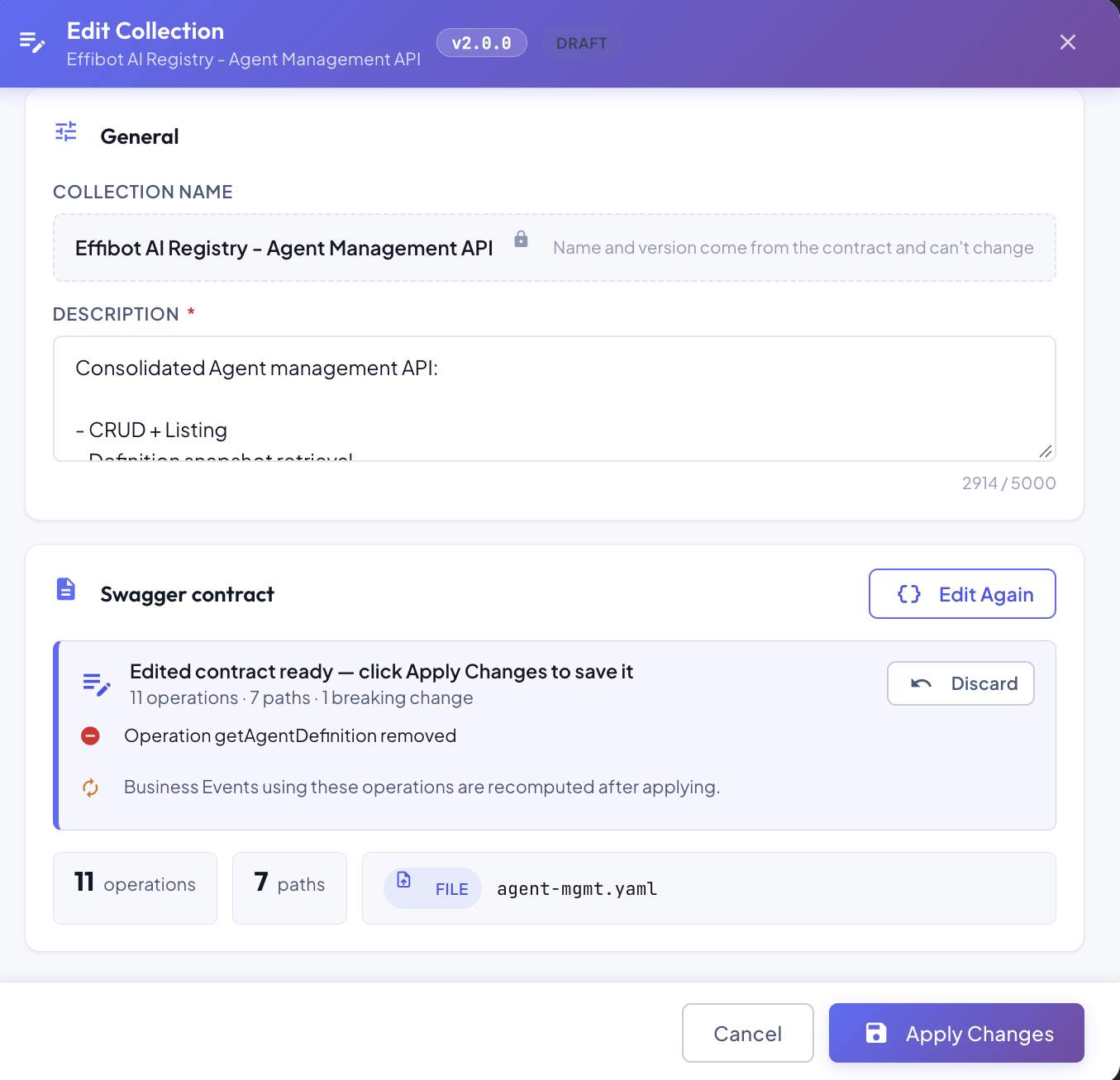
The collection keeps its original source (file or URL); only its contract changes.
Applying the Changes
The button at the bottom right saves your changes:
- Apply Changes when the version isn't published;
- Create Version when the version is PUBLISHED.
It's enabled only when something changed (the description, or a valid new contract) and, for a contract from a file or an agent, its title and version meet the rules above.
Version Bump Mechanism
What happens when you apply depends on the state of the version you edited:
| Edited version | Result |
|---|---|
| DRAFT, PENDING REVIEW, APPROVED or REJECTED | The version is updated in place and goes back to DRAFT, so it must be reviewed again before it can be published. Its version number doesn't change. Unpublished Business Events that use a changed operation are recomputed. |
| PUBLISHED | The published version is never modified. BizMetry creates a new version in DRAFT with your changes, derived from the published one. Business Events using the published version are not affected. |
How the new version number is chosen
For a PUBLISHED version, the new version number comes from one of two places.
The contract declares a new version. When a contract loaded from a file or an agent declares a version higher than the published one (for example 2.1.0 over v2.0.0), that's the new version. The dialog confirms it before you click Create Version. It's rejected if it isn't higher than the published version, or if the collection already has that version.
The contract keeps the published version. This is always the case for contracts edited in the Swagger editor, and for description-only changes. BizMetry compares the new contract with the published one and bumps the version following semantic versioning:
| The new contract… | Bump | Example |
|---|---|---|
| has breaking changes: removed or renamed operations, or payload fields, parameters or headers that were removed or changed type | Major | v2.0.0 → v3.0.0 |
| has no breaking changes: new operations or fields, description changes, or only a new collection description | Minor | v2.0.0 → v2.1.0 |
If that number is already used by another version of the collection, BizMetry moves on to the next free one, and the contract's info.version is updated to the new number. The Swagger editor shows the number in advance, after Validate, and the Edit Collection dialog repeats it before you click Create Version.
Either way, the new version appears in the collection's version tree under the version it came from.
Take the new version through review and publish it when it's ready. To use it in Business Events, link it to a template version: see Tracking API Swagger Version Bumps Across Environments.
Recomputed Business Events
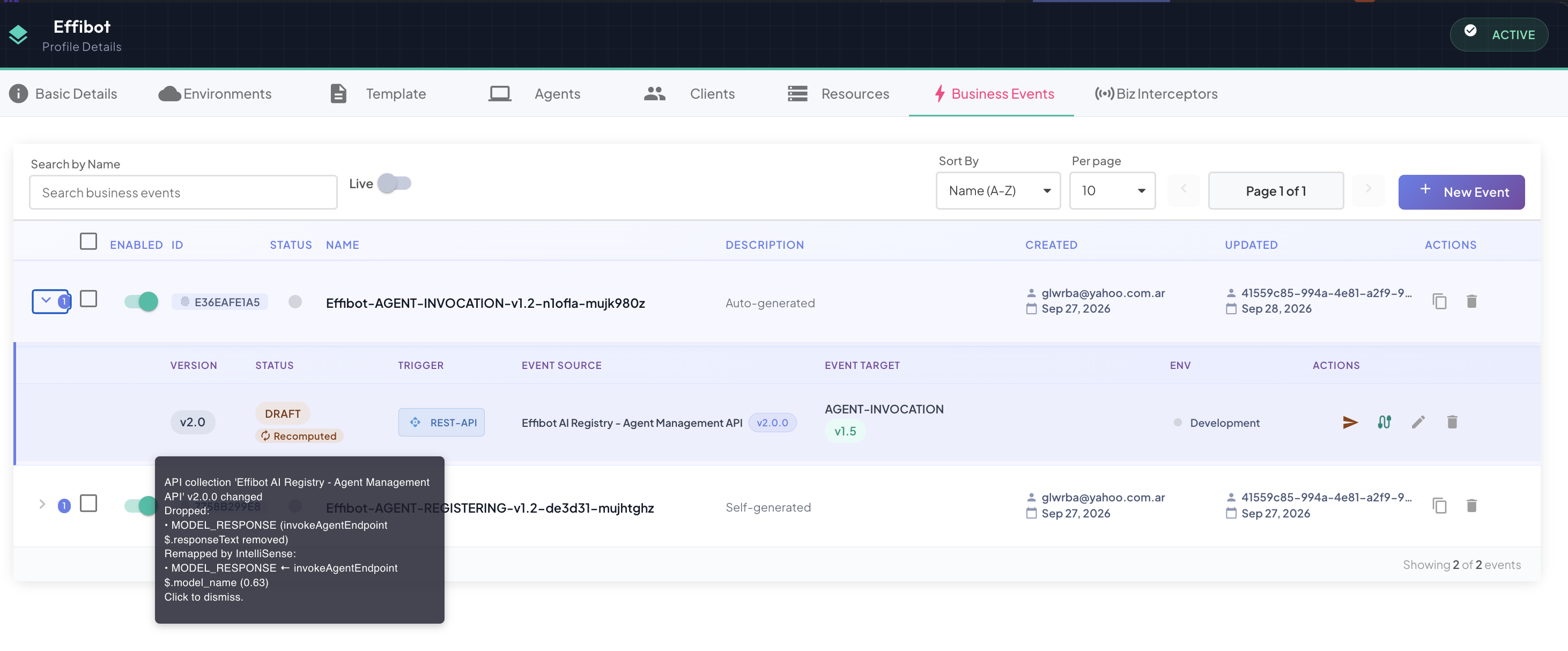
When a version that isn't published changes, BizMetry reviews the unpublished Business Events that use it:
- mappings that read removed fields, or fields whose type changed, are dropped;
- renamed operations are updated;
- IntelliSense tries to map the components that were left empty to the new contract.
Those Business Event versions show a Recomputed badge in the Business Events tab. Hover over it to see what was dropped, remapped or needs review; click it to dismiss it once you've reviewed the changes. A version that was Pending Review, Approved or Rejected goes back to Draft when mappings were dropped or remapped.
Published Business Events are never recomputed
A published Business Event always relies on published, immutable API Collections, so editing a collection never alters it. Changes reach it through a new collection version and a new template version, as described in Tracking API Swagger Version Bumps Across Environments.