Create a Collection from Local File
This flow imports an OpenAPI / Swagger specification by uploading a file directly from your local machine. It supports .json, .yaml, and .yml formats.
This is the recommended method when you have a local copy of the spec — for example, a file generated by your build pipeline, exported from Postman or Stoplight, or maintained in your version control repository — and do not need to fetch it from a live endpoint.
Step 1 — Import Source: From Local File
Click + New Collection from the API Collections Summary. The wizard opens on Step 1.
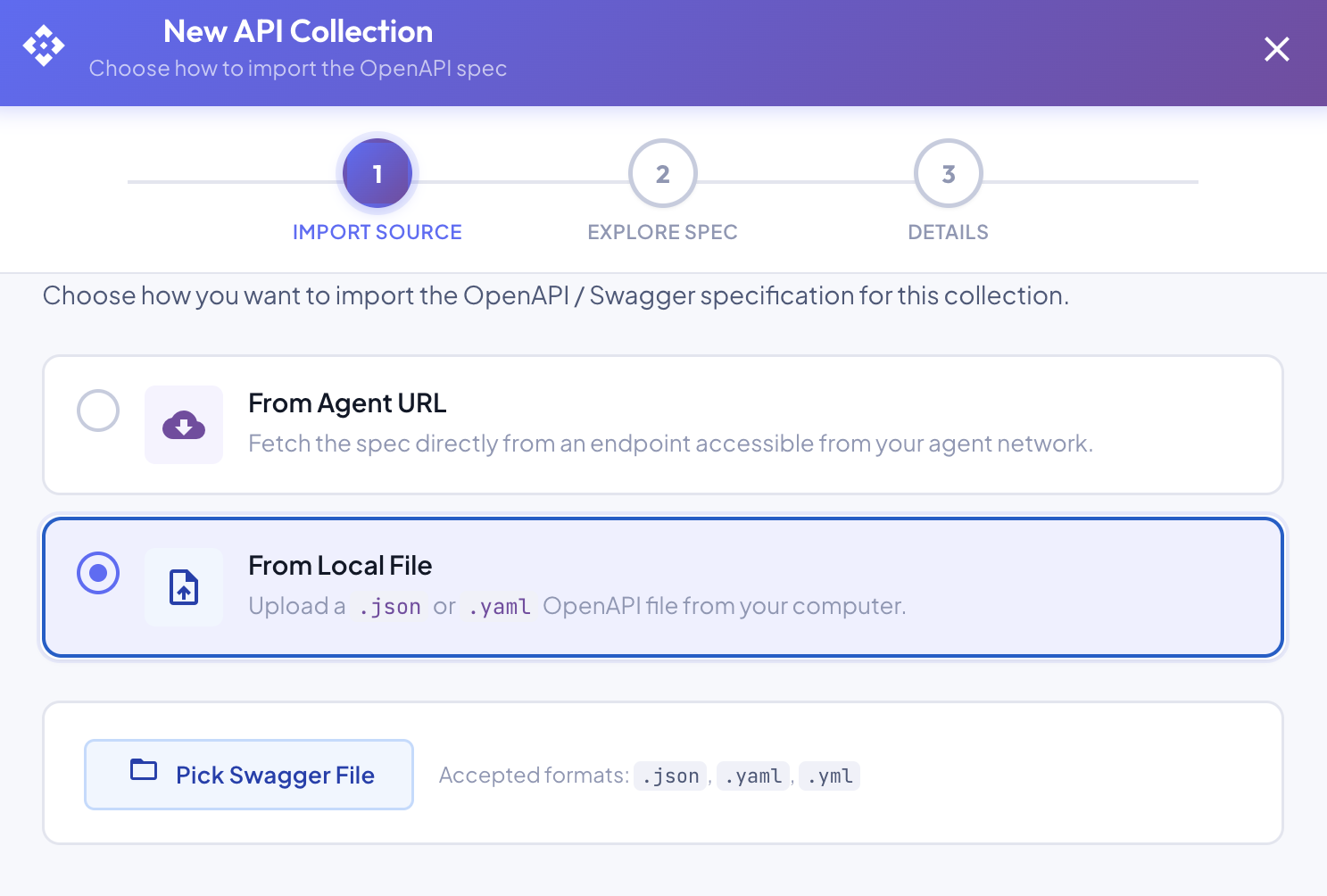
Select From Local File. A file picker area appears below:
| Control | Description |
|---|---|
| Pick Swagger File | Opens your browser's file picker. Accepted formats: .json, .yaml, .yml. |
| Accepted formats | .json · .yaml · .yml |
Click Pick Swagger File and select your OpenAPI spec file. Once selected, the file is parsed immediately client-side and a confirmation row appears showing:
- File name and size (e.g.
banking-enriched.swagger.yaml · 37.5 KB) - Validation result — a green confirmation showing the detected API name and path count (e.g.
Digital Banking Platform API — 8 paths)
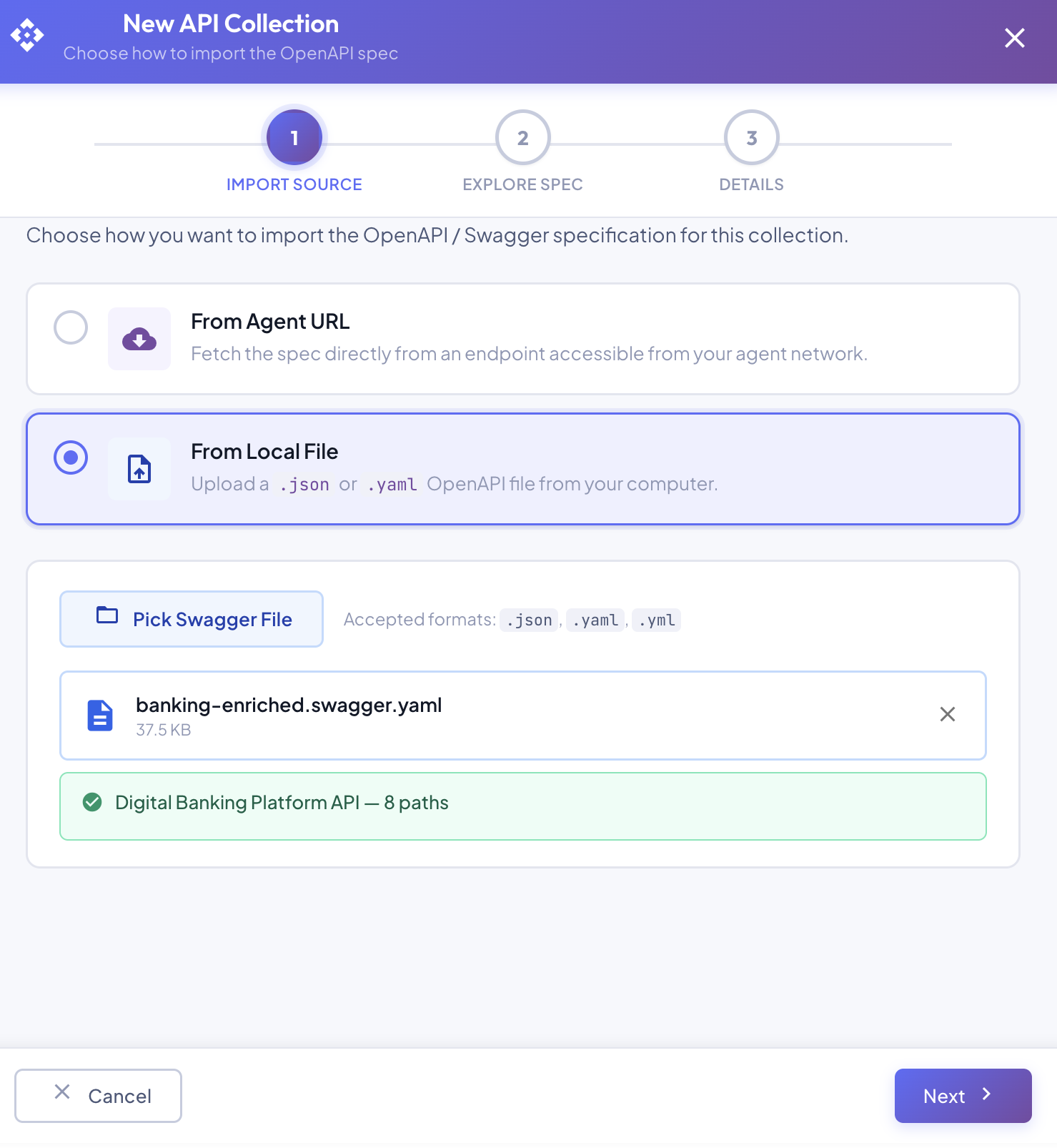
Invalid files are rejected
If the file is not a valid OpenAPI / Swagger document, an error is shown instead of the green confirmation. Correct the file and re-upload before proceeding.
Click Next to proceed. The Next button is disabled until a valid file has been successfully parsed.
Step 2 — Explore Spec
BizMetry renders an interactive preview of the imported spec.
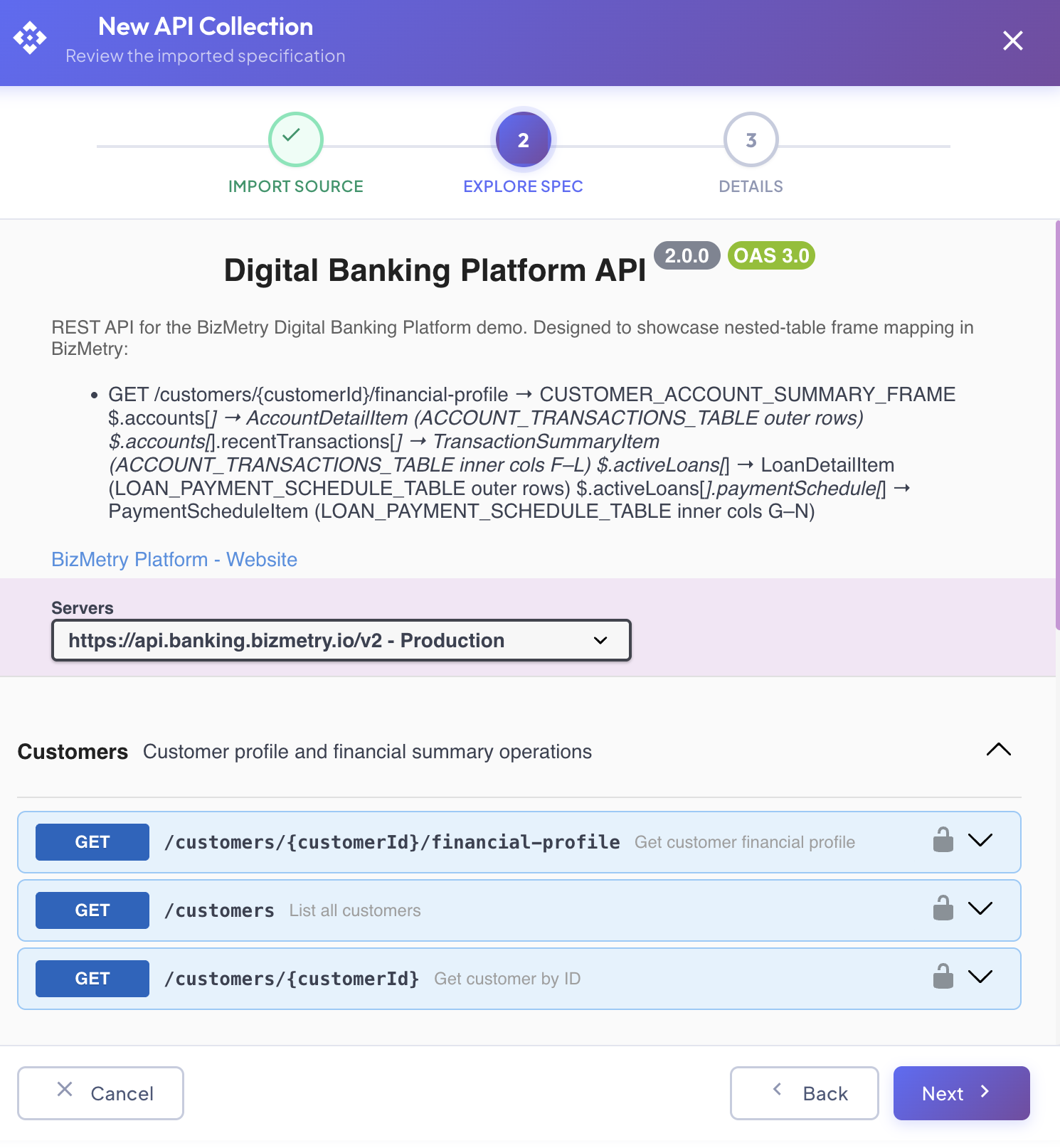
The preview shows:
- API name and version badges — extracted from
info.titleandinfo.version(e.g.Digital Banking Platform API · 2.0.0 · OAS 3.0). - Description — the
info.descriptionfield from the spec, rendered as formatted text. - Server selector — if the spec defines multiple servers, a dropdown allows selecting the active base URL (e.g.
https://api.banking.bizmetry.io/v2 - Production). - Tags and path groups — operations grouped by their OpenAPI tag with a group summary. Each group is expandable.
- Endpoint rows — each row shows the HTTP method badge (
GET,POST, etc.), the path, the operation summary, and a lock icon if the endpoint requires authentication. Click the chevron (▾) to expand and inspect the full operation detail.
Review the spec carefully to confirm it is the correct contract before saving. Click Next to continue. Click Back to return to Step 1 and upload a different file.
Step 3 — Details
Set the collection name and description before saving.
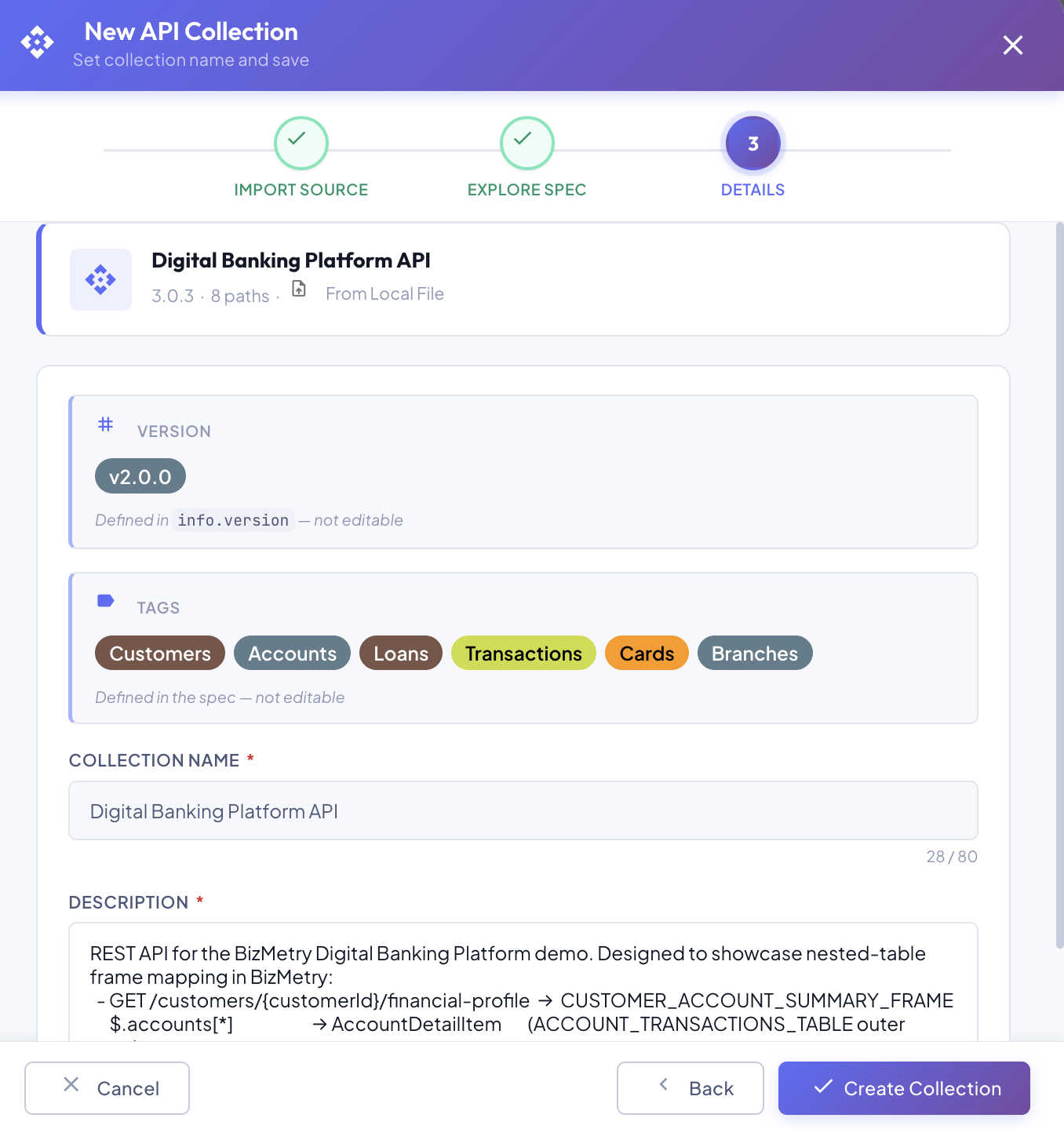
A summary card at the top confirms what was imported:
API name · version · N paths · From Local File
Below it, two read-only fields and two editable fields:
| Field | Editable | Description |
|---|---|---|
| Version | Extracted from info.version in the spec. Not editable — defined by the spec itself. | |
| Tags | Tag groups defined in the spec (e.g. Customers, Accounts, Loans, Transactions, Cards, Branches). Extracted automatically — not editable. | |
| Collection Name | Display name for this collection in BizMetry (max 80 characters). Pre-filled from the spec's info.title. | |
| Description | Free-text description of this collection's purpose. Pre-filled from the spec's info.description. |
Click Create Collection to save the collection in DRAFT state. Click Back to return to Step 2. Click Cancel to discard.
After Creation
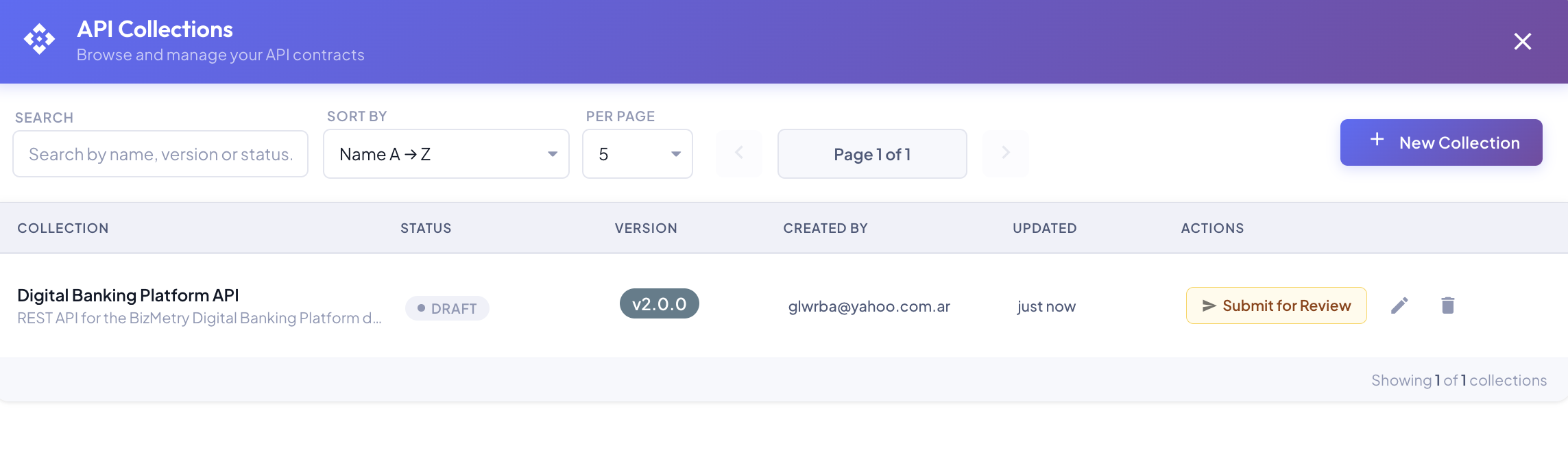
The collection is created in DRAFT state and appears in the API Collections Summary. From there you can:
- Edit the name and description (while in DRAFT).
- Submit it for review when it is ready.
- Proceed through the full lifecycle to publish it and make it available for Biz Event mappings.