API Collections Summary
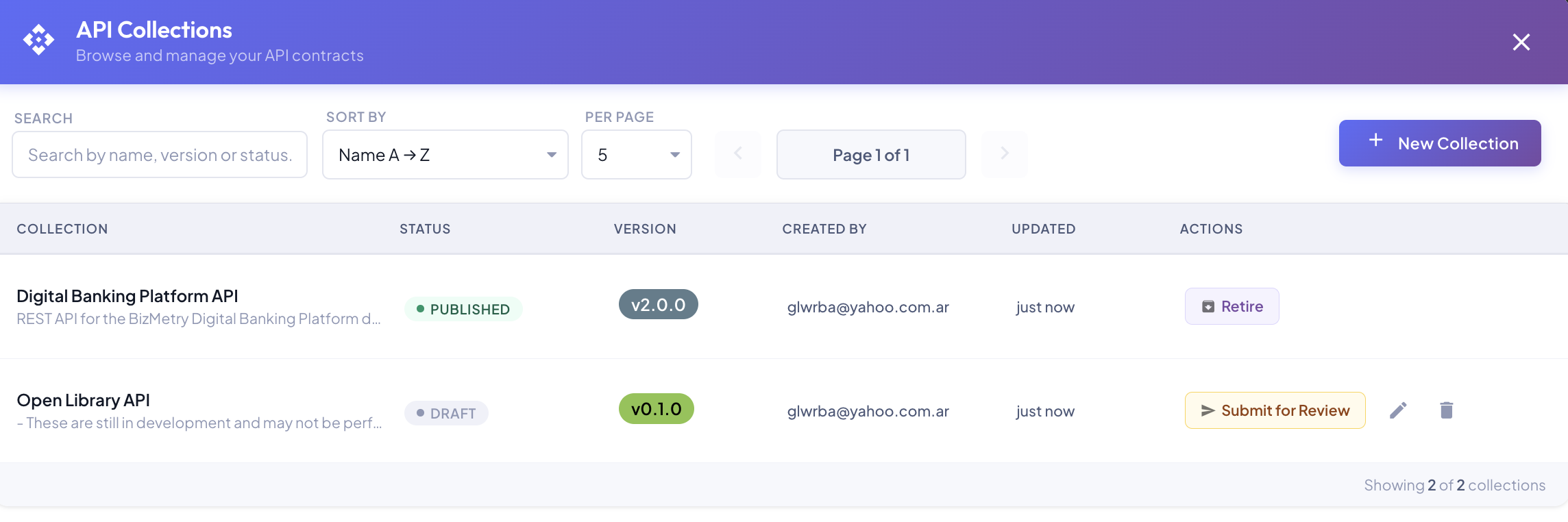
The API Collections summary view lists all collections registered in your account, their current lifecycle state, version, and available actions. It is the central hub for managing the full lifecycle of your API contracts.
Filtering and Navigation
The toolbar at the top of the summary provides controls to find and navigate collections:
| Control | Description |
|---|---|
| Search | Free-text search by collection name, description, version, or status. Results update as you type. |
| Sort by | Sort the list by name (A → Z or Z → A), status, version, or last updated date. |
| Per page | Control how many collections are shown per page (default: 5). |
| ◀ / ▶ | Navigate between pages. The current page and total are shown as Page N of N. |
| + New Collection | Opens the New Collection wizard to register a new API spec. |
A count at the bottom-right shows how many collections are shown out of the total matching the current filter, and how many versions they include.
Collections Table
Each row represents one version of a registered API Collection. Versions are shown as a tree: each collection appears once at the top level, and every version derived from another one is nested under it, marked with the version it came from (for example ← v1.7.0). Use the chevron to expand or collapse a version's derived versions; a collapsed row shows how many versions are hidden (for example +4).
Each row shows:
| Column | Description |
|---|---|
| Collection | Name and truncated description of the collection. |
| Status | Current lifecycle state pill. See State Reference. |
| Version | Semantic version extracted from the info.version field of the OpenAPI spec (e.g. v2.0.0). Version is defined in the spec and is not editable from BizMetry. |
| Created by | Email of the user who created the collection. |
| Updated | Relative time since the last state change or edit (e.g. just now, 2 hours ago). |
| Actions | Context-sensitive action buttons for the current lifecycle state. |
Actions Column
The Actions column shows only the buttons applicable to each collection's current state. All actions require the appropriate platform permissions.
| State | Available action buttons |
|---|---|
| DRAFT | Submit for Review · Edit · Delete |
| PENDING REVIEW | Approve · Reject · Edit · Delete |
| APPROVED | Publish · Edit · Delete |
| REJECTED | Reopen as Draft · Edit · Delete |
| PUBLISHED | Retire · Edit |
| RETIRED | Delete |
Editing a published version creates a new one
Saving an edit of a DRAFT, PENDING REVIEW, APPROVED or REJECTED version updates it in place and returns it to DRAFT. Saving an edit of a PUBLISHED version leaves it untouched and creates a new version in DRAFT instead. See Editing and Versions.
Delete is irreversible
Delete permanently removes the collection from the platform. It is available from all states except PUBLISHED. A published collection must be retired first.
Edit
Clicking the pencil icon opens the Edit Collection dialog, where you can update the description and bring in a new Swagger contract: from a file, from an agent, or by editing it in the built-in Swagger editor. For a published version, applying creates a new version: a major bump when there are breaking changes, a minor one otherwise.
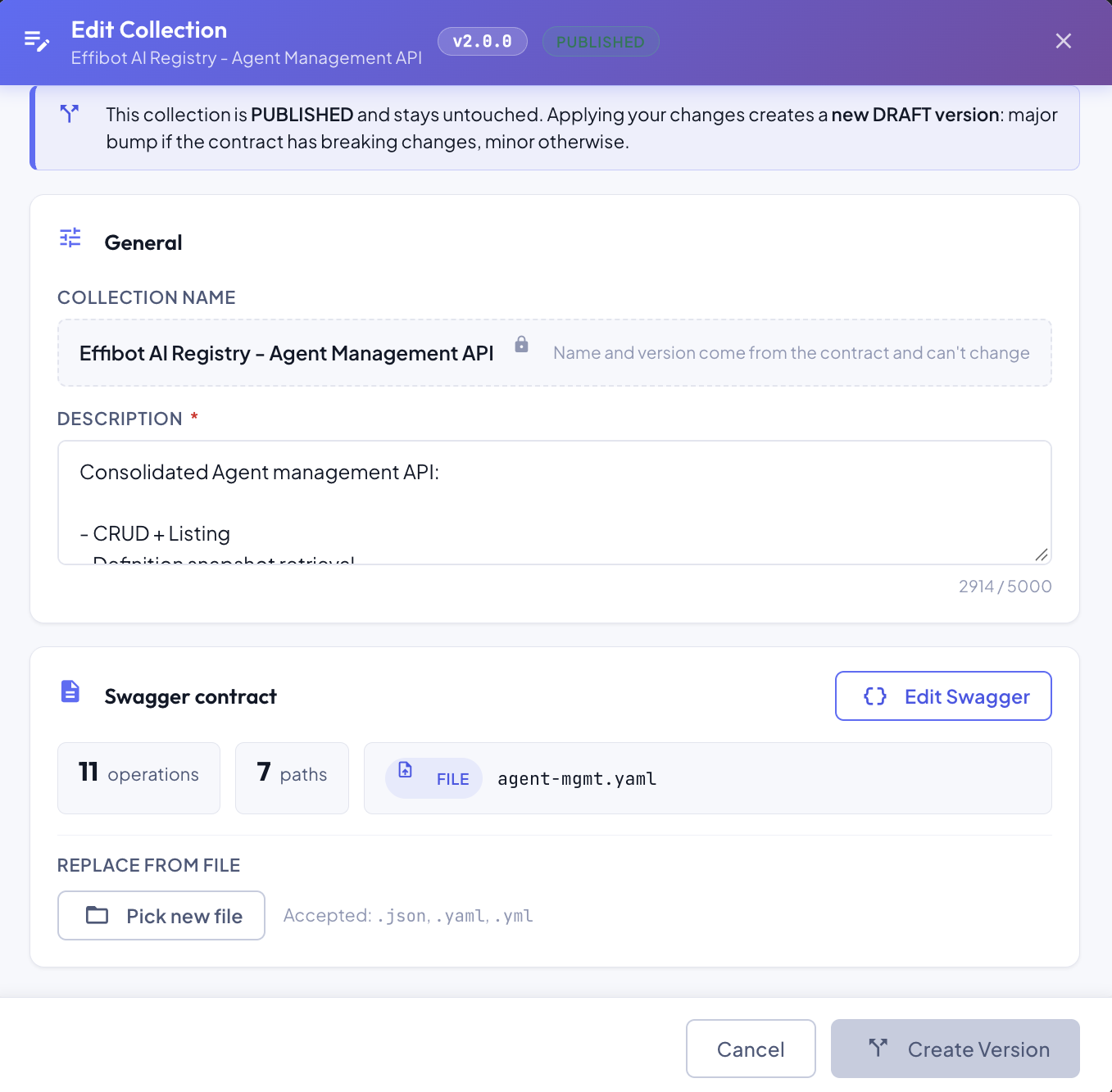
See Editing an Existing API Collection for the full flow.
Delete
Clicking the trash icon permanently removes the collection version together with every version derived from it. When the version has derived versions, the tooltip says how many will be deleted with it.
The delete icon is disabled, with a tooltip explaining why, when the version or any of its derived versions can't be deleted:
- it's PUBLISHED (retire it first), or
- it's linked to a template version (remove it from the template's API Collections tab first).
BizMetry enforces a two-step confirmation mechanism to prevent accidental deletion:
Step 1 — First click (visual warning)
Clicking the trash icon once marks it in red, signaling that the next click will trigger the deletion flow. No data is removed at this stage.
Step 2 — Second click (confirmation modal)
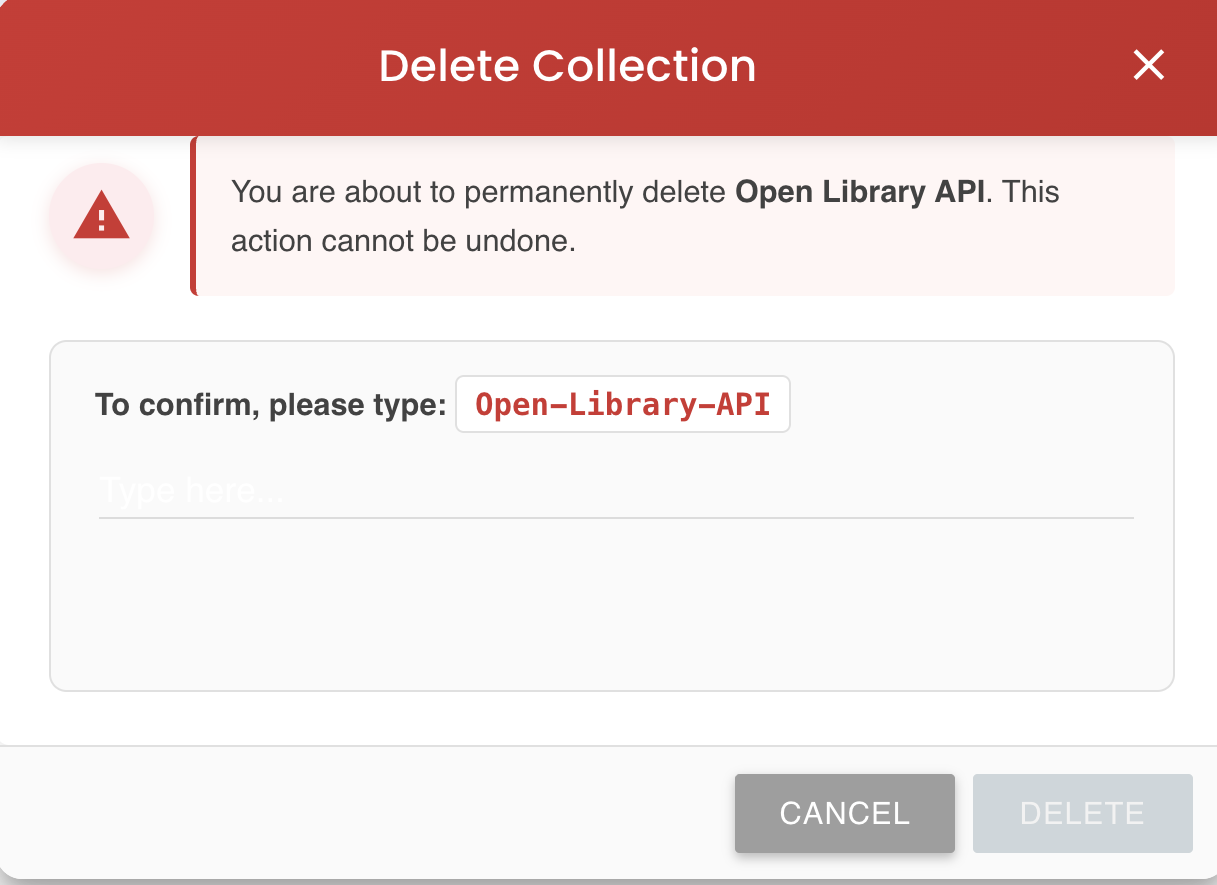
A second click opens the Delete Collection modal. The modal:
- Displays the name of the collection to be deleted.
- Shows a warning that the action cannot be undone.
- Requires you to type the collection name (in kebab-case, e.g.
Open-Library-API) into a confirmation field before the DELETE button becomes enabled.
Clicking CANCEL dismisses the modal without making any changes. Clicking DELETE (once enabled) permanently removes the collection.
No recovery path
There is no recovery path once a collection is deleted. Check the versions derived from it before proceeding, since they're deleted too.