Required Registration Data
The registration form is divided into three sections: Personal Information, Organization, and Security. All fields marked with * are required.
Personal Information
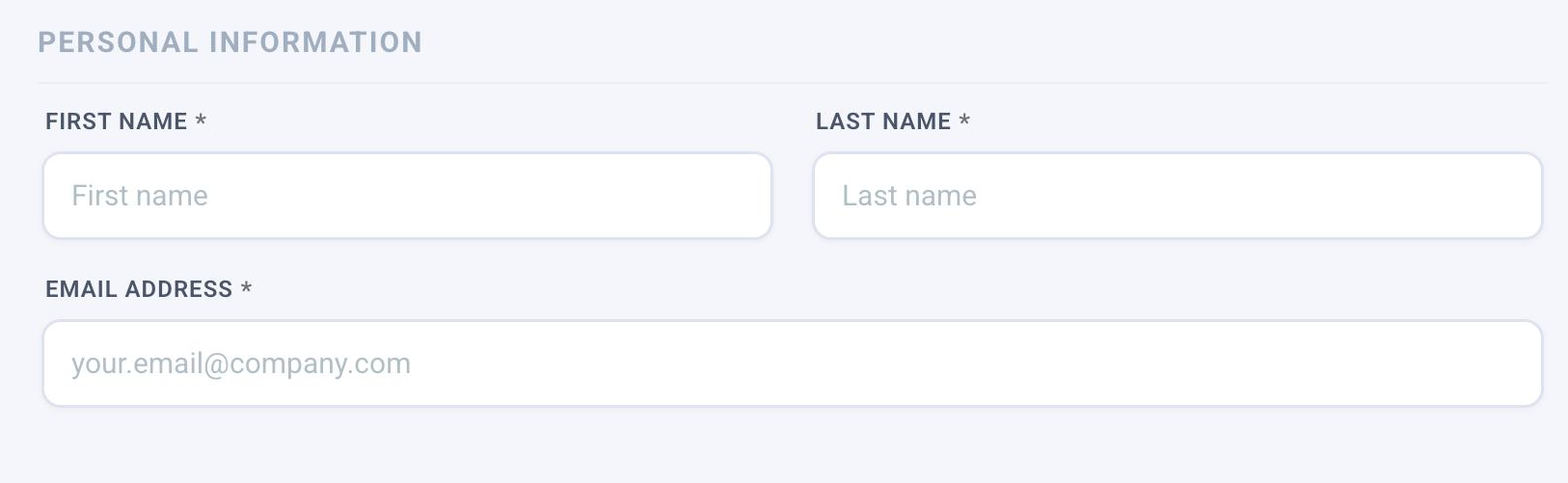
Personal Information section: First Name, Last Name, and Email Address.
| Field | Required | Description |
|---|---|---|
| First Name | Your given name. | |
| Last Name | Your family name. | |
| Email Address | A valid, accessible email. This becomes your unique system identifier used for login and communications. Use a corporate address (e.g. your.name@company.com). |
Tip
Make sure your email address is valid and accessible — the activation link will be sent there.
Organization
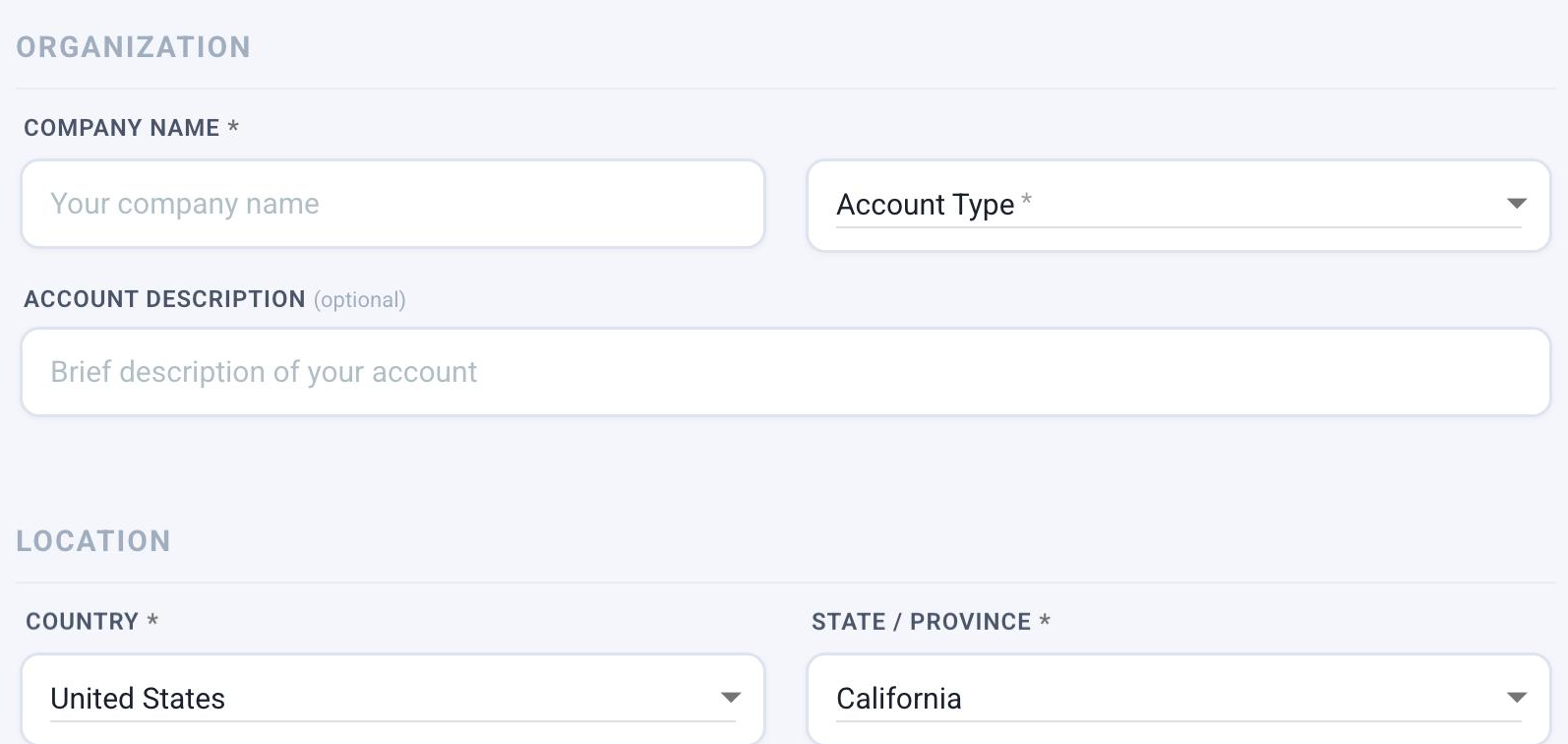
Organization section: Company Name, Account Type, Description, Country and State — the last two are pre-filled via geolocation.
| Field | Required | Description |
|---|---|---|
| Company Name | The legal or commercial name of your organization. | |
| Account Type | Your role within the organization. See options below. | |
| Account Description | A brief description of your account or intended usage (optional). | |
| Country | Country where your business operates. Automatically pre-filled based on your current location via geolocation. | |
| State / Province | State or province within the selected country. Automatically pre-filled based on your current location via geolocation. |
Geolocation pre-fill
BizMetry uses geolocation to automatically detect your location and pre-fill the Country and State / Province fields. If the detected values do not match your business location, you can change them manually using the dropdowns.
Account Type Options
Select the type that best describes your role:
| Type | Description |
|---|---|
| Architect | Responsible for system and integration design. |
| Business Administrator | Manages business-level configuration and users. |
| Developer | Builds integrations and telemetry configurations. |
| DevOps | Manages infrastructure, deployments and agents. |
| Monitoring User | Focuses on observability and alerting dashboards. |
| Organization Manager | Oversees accounts and organizational structure. |
| Organization Owner | Top-level administrative ownership of the account. |
| Quality Assurance | Validates telemetry data and event flows. |
| SRE | Site Reliability Engineering — monitors system health. |
| Telemetry Operator | Operates and maintains telemetry agents. |
Security
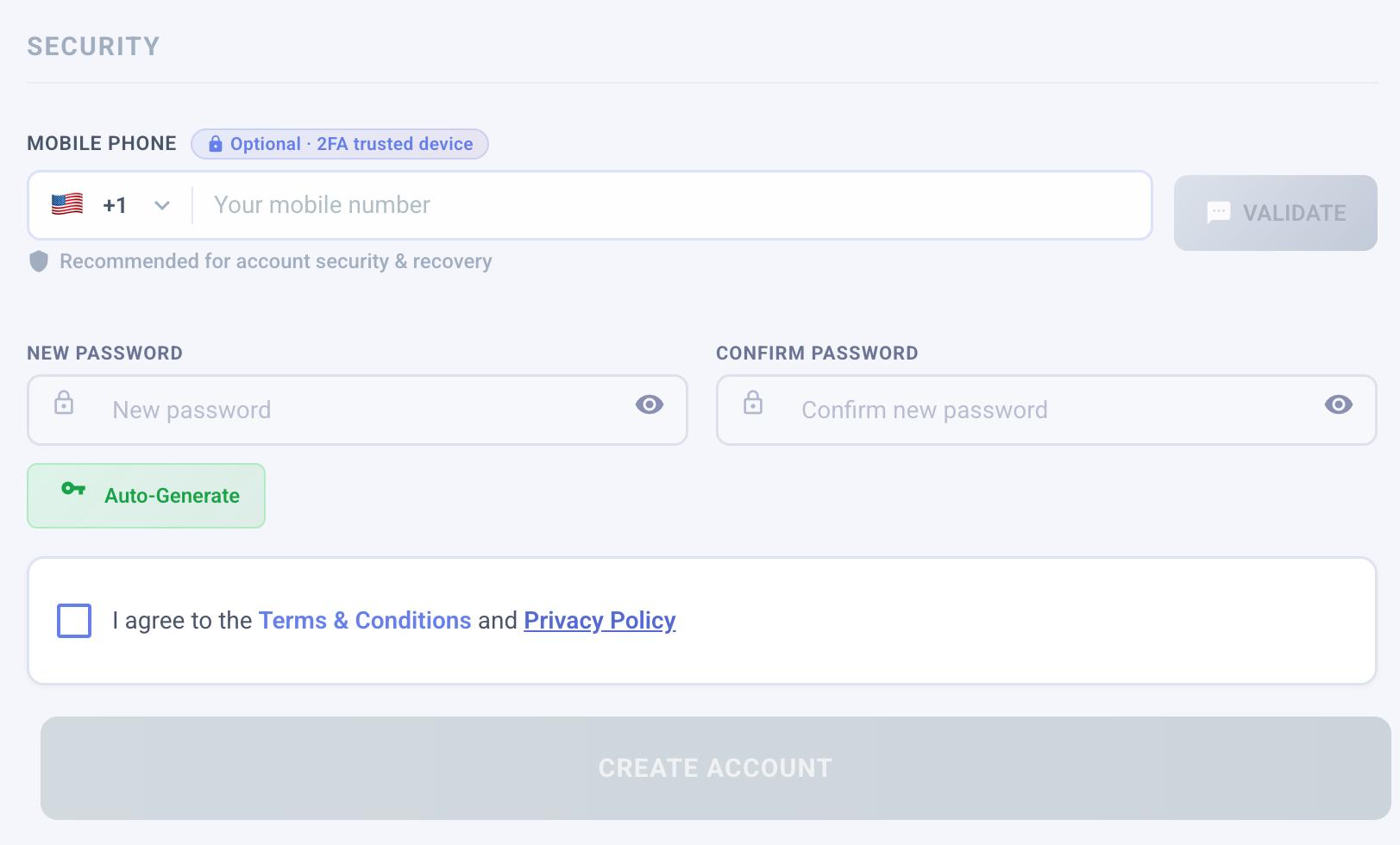
Security section: optional Mobile Phone for 2FA, password fields, Auto-Generate button, and show/hide password toggle.
| Field | Required | Description |
|---|---|---|
| Mobile Phone | Your mobile number for optional 2FA (SMS). Entering a number will trigger a validation step. See 2FA / SMS Validation. | |
| New Password | Choose a strong password for your account. | |
| Confirm Password | Re-enter the password to confirm it matches. |
Entering a Password
Type your chosen password in the New Password field, then repeat it in Confirm Password. Both fields include a show/hide toggle ( eye icon) on the right side — click it to switch between masked and plain-text display, which is useful to verify what you typed before submitting.
Auto-Generate Password
If you prefer not to create your own password, click the Auto-Generate button below the password fields. BizMetry will generate a strong, random password and fill both fields automatically.
Auto-Generate Password
If you use Auto-Generate, make sure to copy and store the password in a secure location (e.g. a password manager) before clicking CREATE ACCOUNT — you will need it to log in after activating your account.
Submitting the Form
Once all required fields are filled in:
- Accept the Terms & Conditions and Privacy Policy — see Terms & Conditions and Privacy Policy.
- If you entered a mobile number, also accept the SMS consent — see 2FA / SMS Validation.
- Click CREATE ACCOUNT.
Note
The CREATE ACCOUNT button remains disabled until all required fields are complete and all required consents are accepted.