2FA — SMS Phone Validation & Consent
BizMetry supports Two-Factor Authentication (2FA) via SMS for enhanced account security. Registering a mobile phone number during account creation is optional, but strongly recommended.
Why Register a Mobile Number?
| Benefit | Description |
|---|---|
| 2FA Login | Receive a one-time code via SMS each time you log in from an unrecognized device. |
| Trusted Device | Validate a device as trusted to skip 2FA on future logins from that device. |
| Account Recovery | Use your mobile number as an additional recovery channel if you lose access to your email. |
| Security Alerts | Receive SMS notifications for suspicious login activity. |
Tip
Even though the mobile number is optional, BizMetry strongly recommends providing one for account security and recovery purposes.
Entering Your Mobile Number
In the Security section of the registration form:
-
The country flag and dial code are automatically pre-selected based on your current location via geolocation (e.g. 🇺🇸 +1 for United States). To change it, click the flag/dial code selector to open the country dropdown.
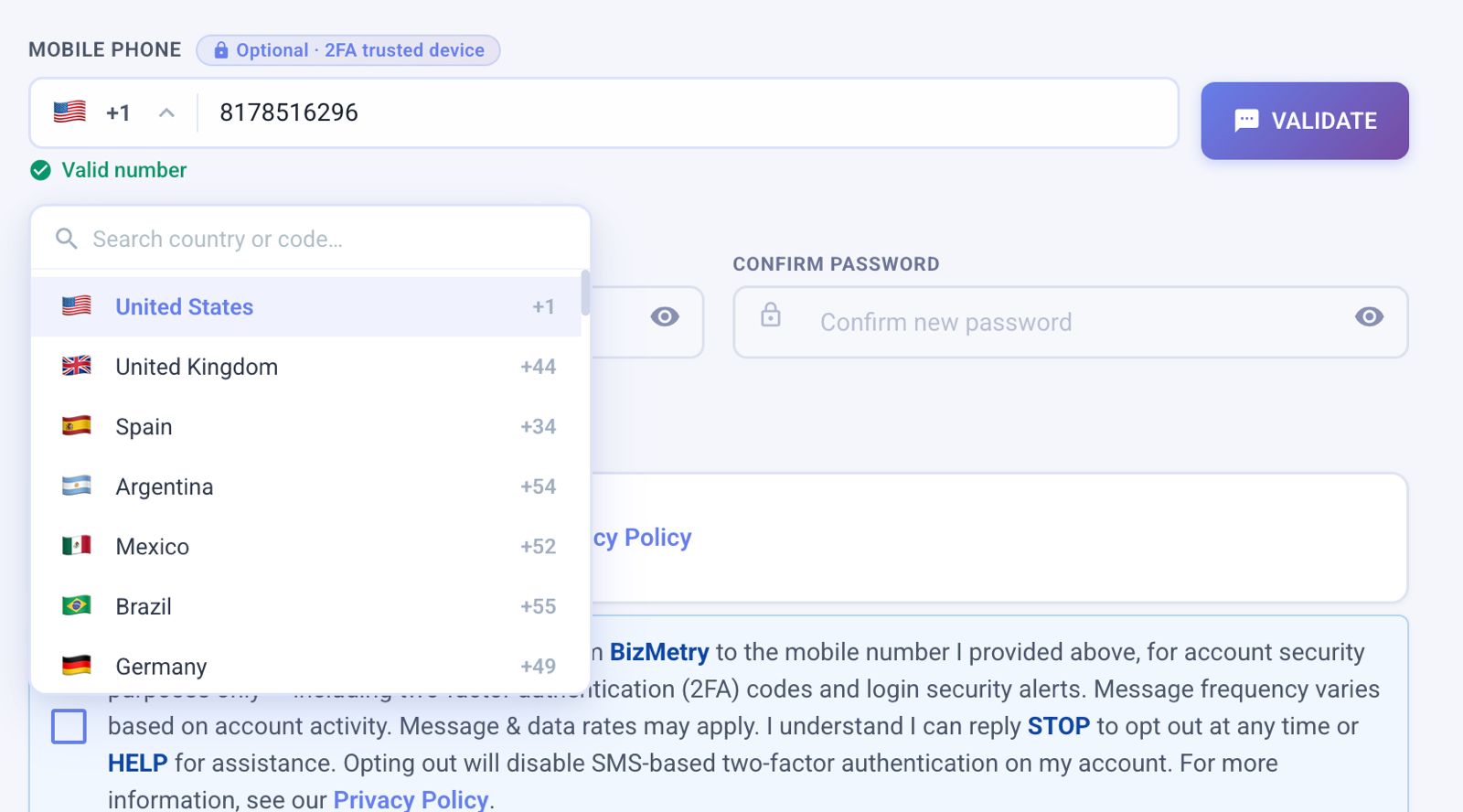
The dropdown includes a search box at the top where you can type a country name or dial code to filter the list. Each entry shows the country flag, name, and its international dial code. Select the correct country for your mobile number.
-
Enter your mobile phone number in the field provided.
- The field will validate the format and display "Valid number" once the number is recognized as correctly formatted.
- Click the VALIDATE button to send a one-time code to your mobile device.
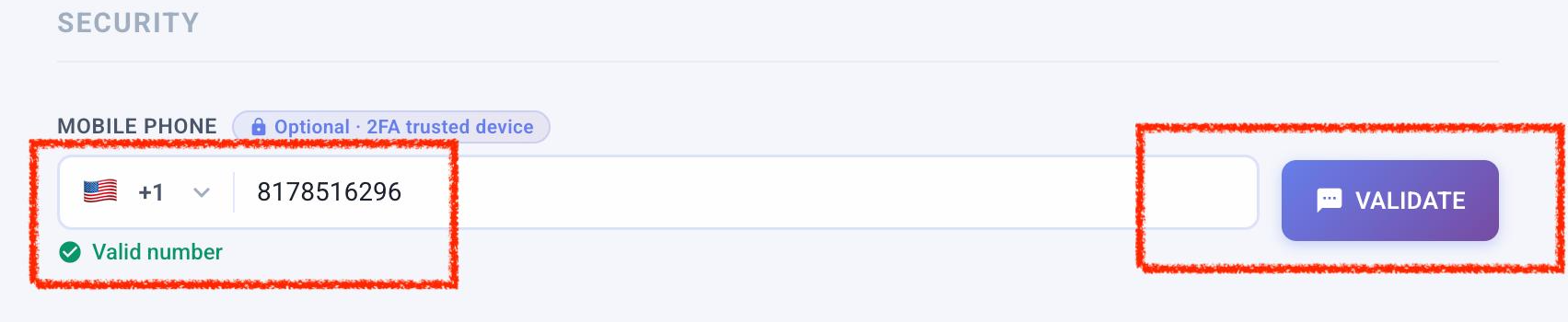
After entering a correctly formatted number, the field shows "Valid number" and the VALIDATE button becomes active. Click it to send a code to your mobile device.
- A Two-Factor Authentication dialog will appear. Enter the 6-digit code received via SMS — one digit per box.
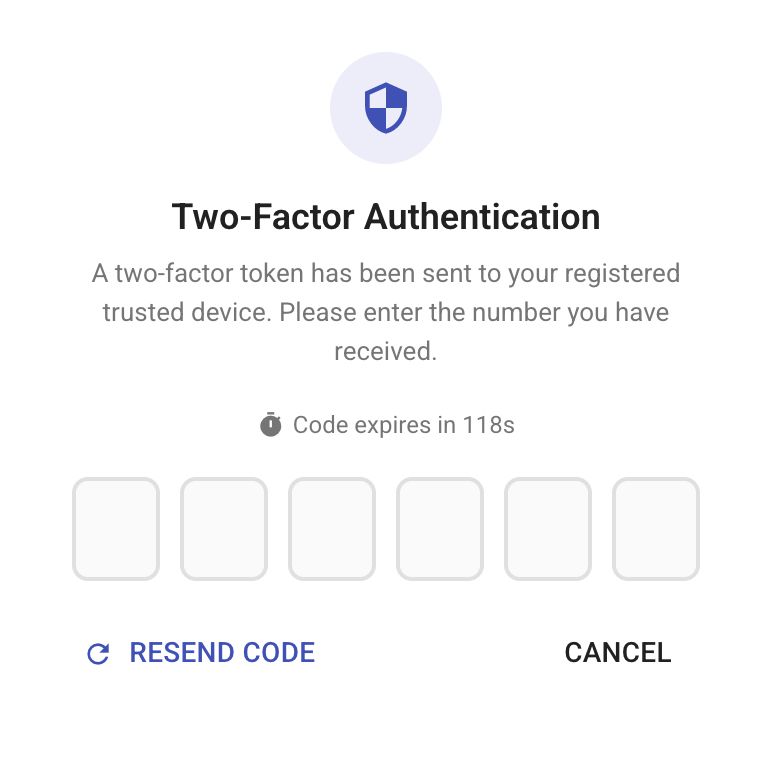
The dialog shows 6 individual input boxes for each digit of the code, along with a countdown indicating how long the code remains valid (e.g. Code expires in 118s). If the code expires or was not received, click RESEND CODE to request a new one. Click CANCEL to abort the validation and return to the form.
- Once the correct code is entered and confirmed, the phone number is marked as verified and the SMS consent checkbox appears.
Geolocation pre-fill
BizMetry detects your location automatically and pre-selects the correct country dial code for the SMS field, consistent with the Country pre-fill applied to the Location section of the form.
Note
The VALIDATE button becomes active once a valid number format is detected.
SMS Consent
If you enter a mobile number, an additional SMS consent checkbox will appear below the Terms & Conditions section.
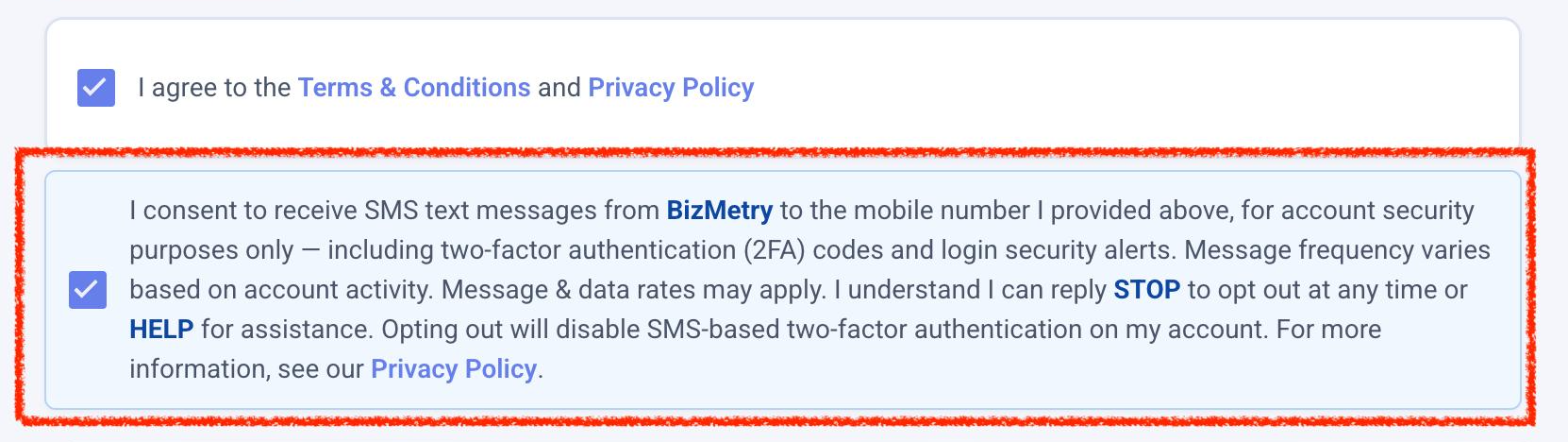
The SMS consent checkbox appears once a mobile number is entered. It must be checked to enable the CREATE ACCOUNT button.
You must read and accept the following consent before submitting:
I consent to receive SMS text messages from BizMetry to the mobile number I provided above, for account security purposes only — including two-factor authentication (2FA) codes and login security alerts. Message frequency varies based on account activity. Message & data rates may apply. I understand I can reply STOP to opt out at any time or HELP for assistance. Opting out will disable SMS-based two-factor authentication on my account. For more information, see our Privacy Policy.
To accept:
- Check the SMS consent checkbox.
Consent is required when a phone number is provided
If you have entered a mobile number, you must check the SMS consent box before the CREATE ACCOUNT button becomes active. If you do not wish to provide consent, remove your phone number from the field.
Opting Out Later
You can opt out of SMS messages at any time by:
- Replying STOP to any SMS received from BizMetry.
- Removing your mobile number from your account settings after login.
Warning
Opting out of SMS will disable SMS-based 2FA on your account. Make sure you have an alternative authentication method configured before opting out.